Help Quick guide
Write a script and practice reading it
Write what you'll say, then read it on the prompter before you record.
What you'll make: a script in your library, with headings for each part, read once on the prompter. Nothing is recorded. About five minutes.
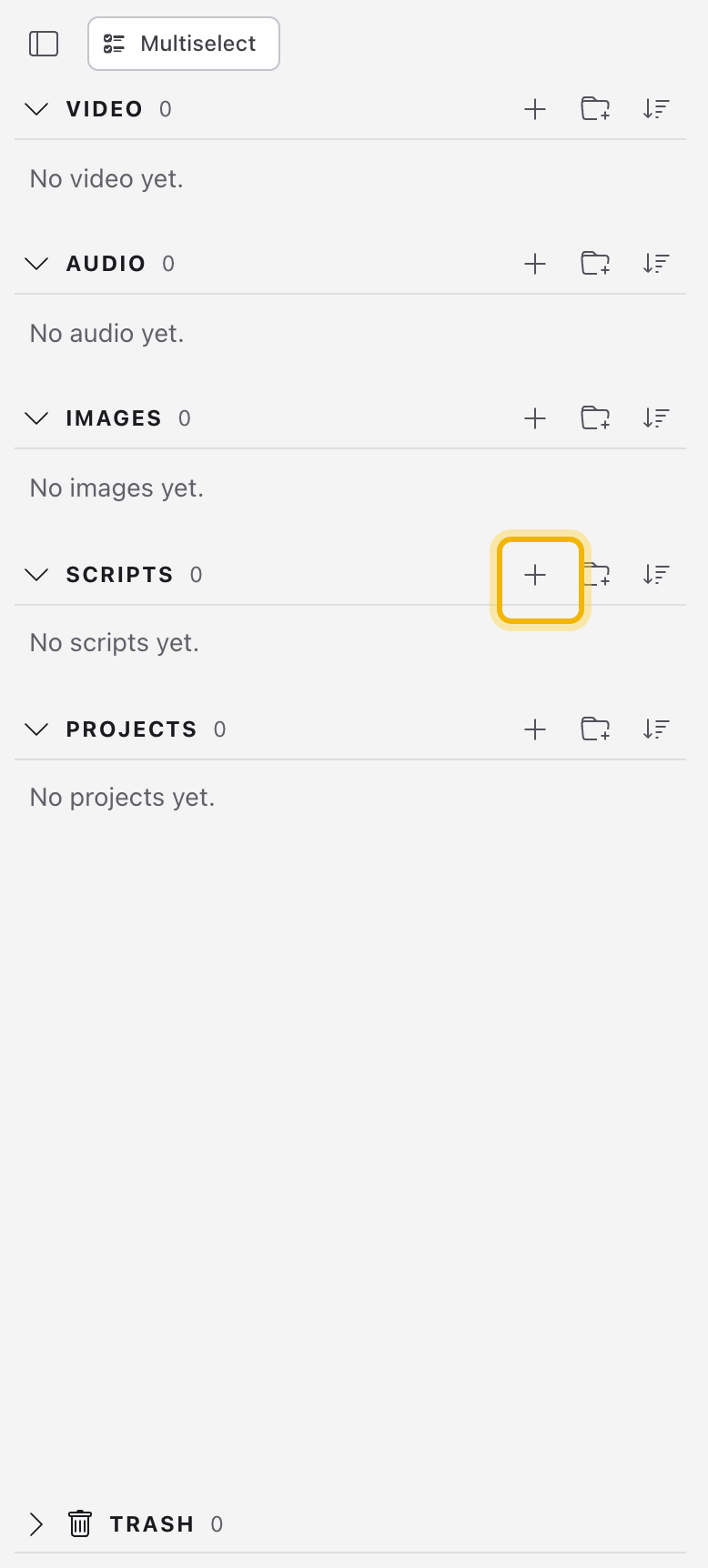
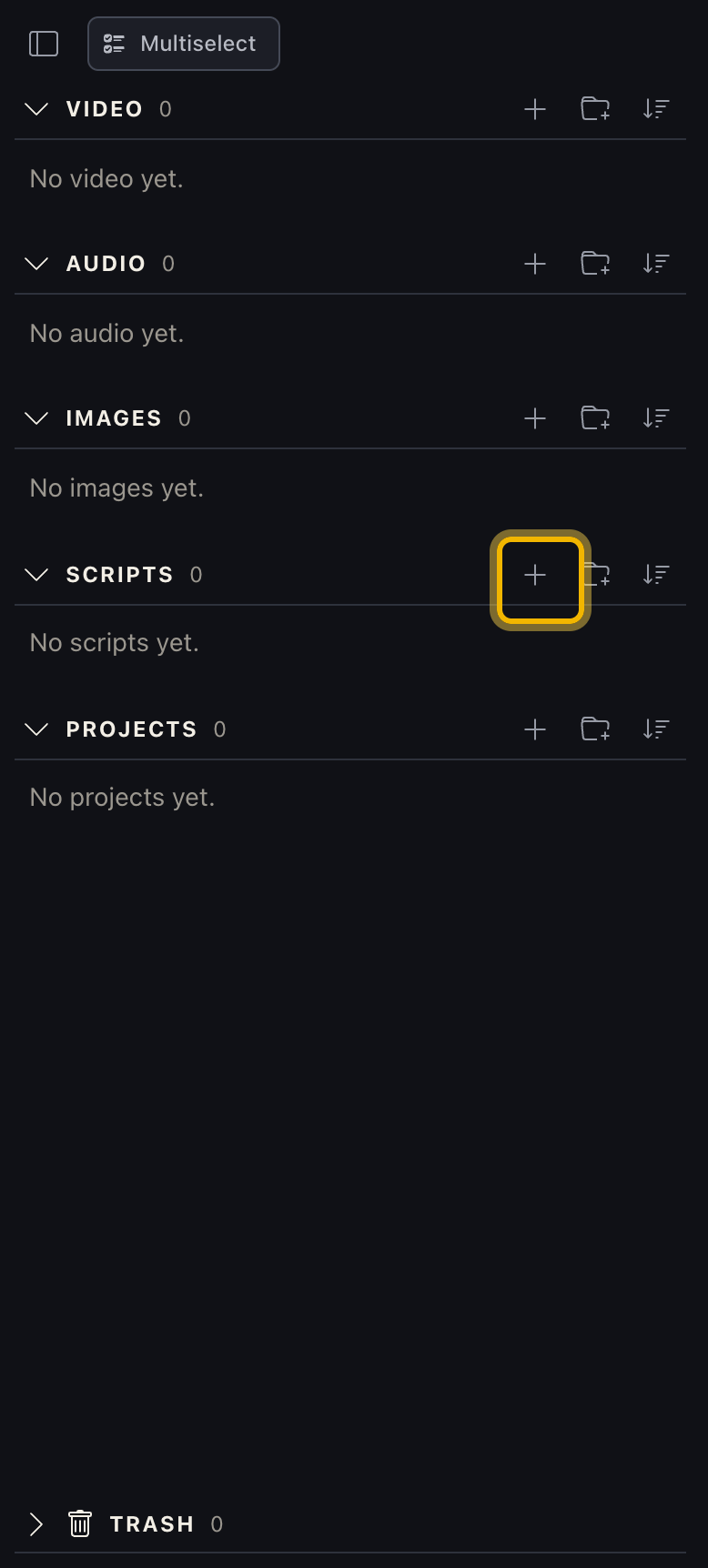
Start a new script. On the Create screen, find Scripts in the library on the left and click its + (New script).
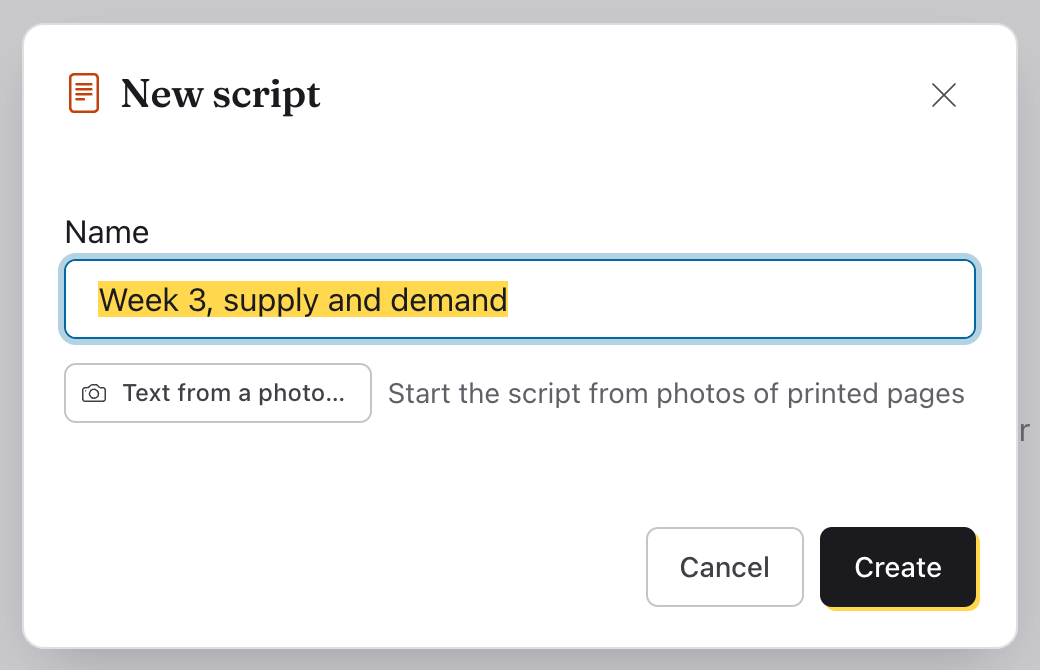
Give it a name and click Create. You can rename it later.
Write it. Type in the big box. The buttons above it make a title (H1), a section heading (H2), bold, italic, a highlight, and lists. Headings show in color on the prompter, so they're easy to find while you read. Under the name, the app tells you how many words there are and about how long they take to read aloud.
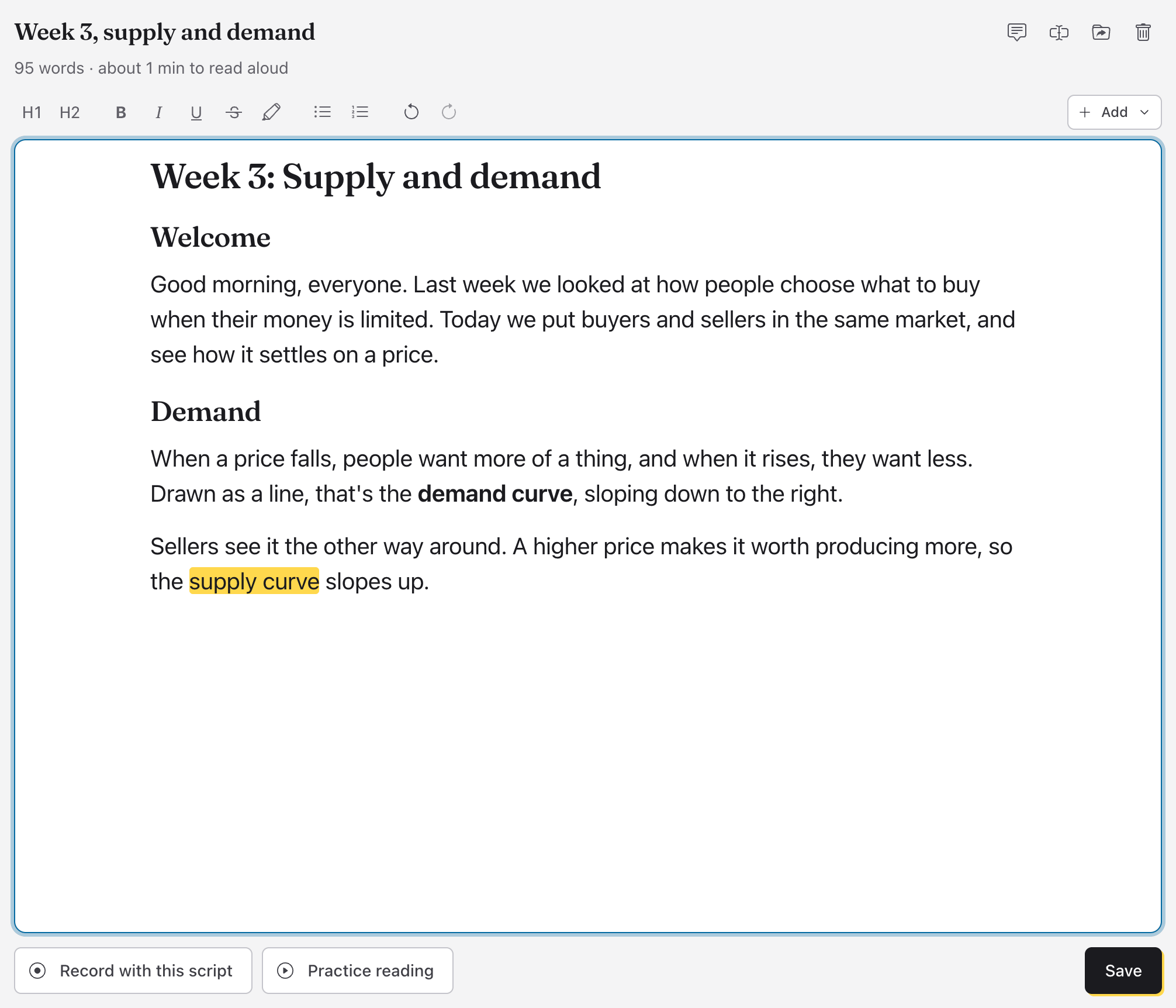
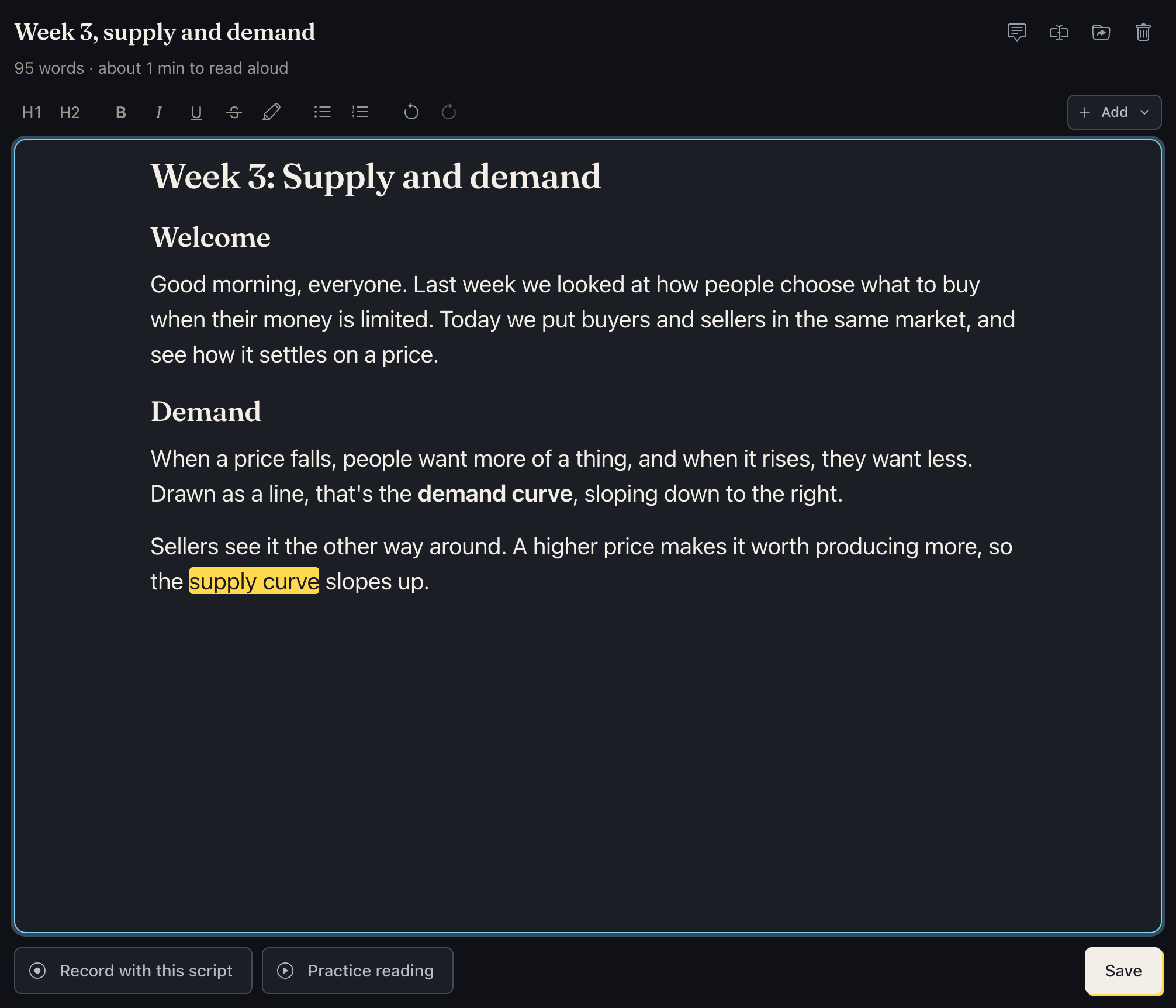
You can also type the marks as you go:
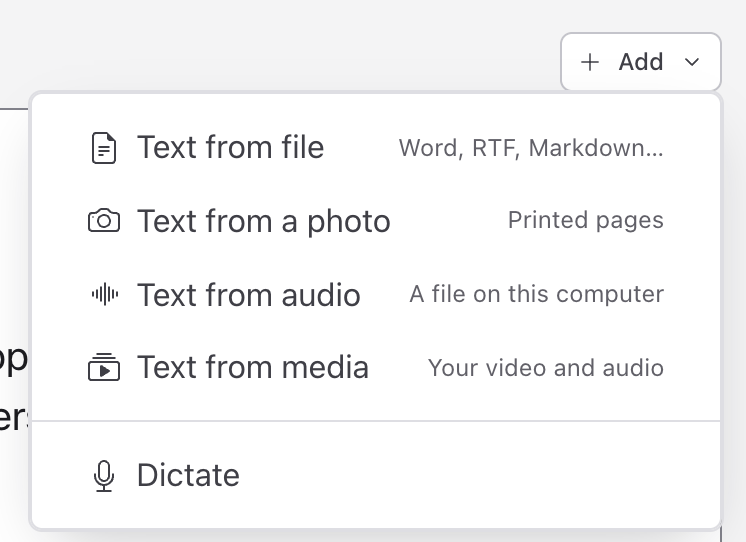
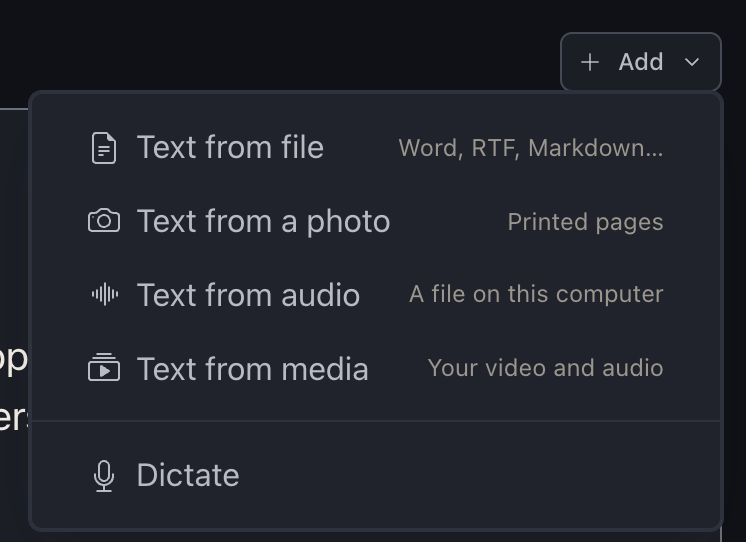
#starts a title,##a section heading.Or bring the text in. Add at the top right brings in text from a file (Word, PDF, Markdown and more), from a photo of a printed page, or from a recording, or lets you Dictate it. Dictating, say "comma", "period", "question mark" or "new paragraph" for the marks. Text from audio and Text from media transcribe a recording on your device: in the Lectern app for computers and phones, and in a recent browser on a computer, not in a phone's browser.
Save it. A script is saved only when you click Save (or press Ctrl S, ⌘ S on a Mac). Save is green while there are changes to save. If you leave with changes unsaved, the app asks first.


Practice reading. Click Practice reading. The script opens on the prompter, and nothing is recorded. Choose how it scrolls:
- With my voice: click Start listening and start reading. The prompter listens and keeps the word you're reading highlighted.
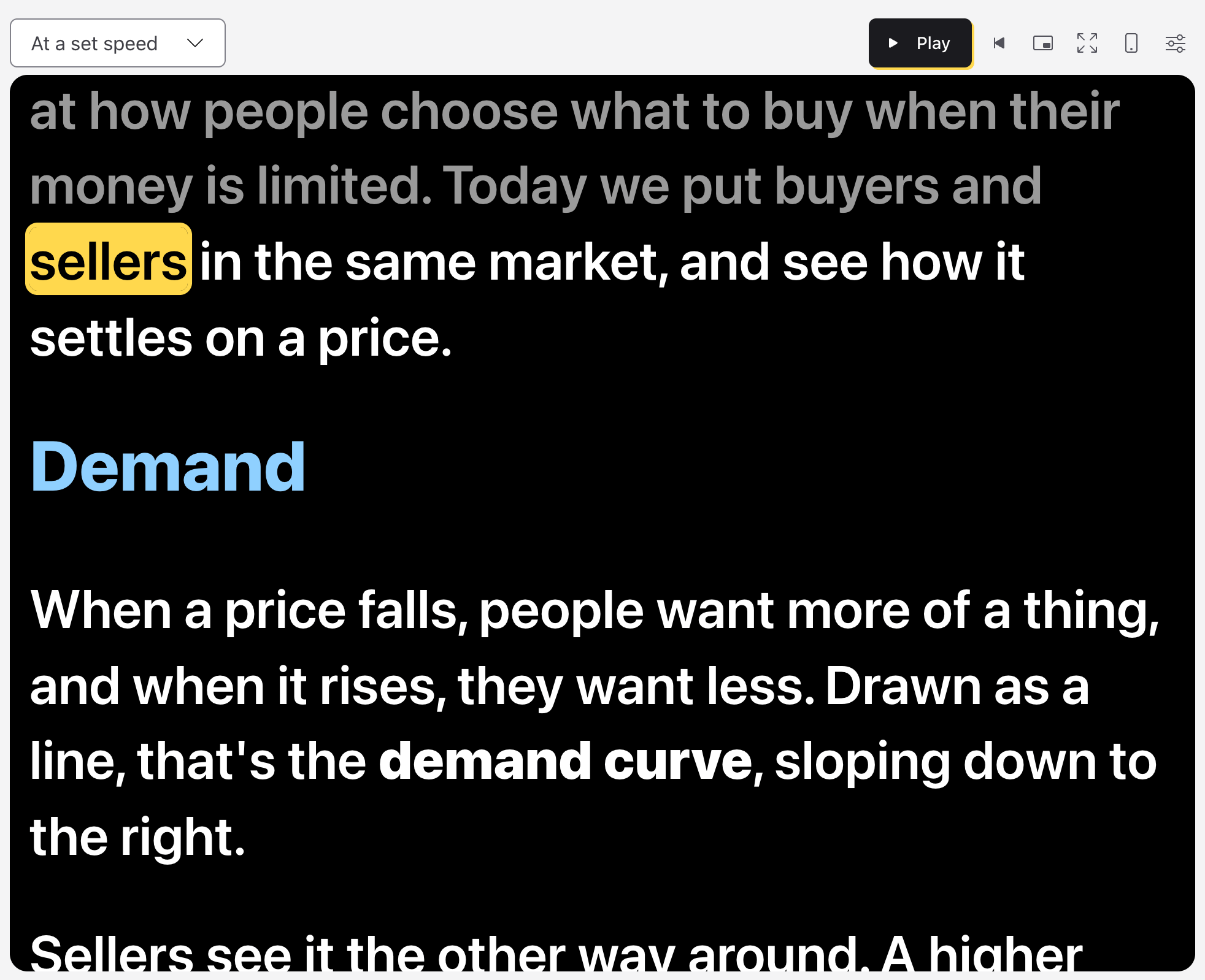
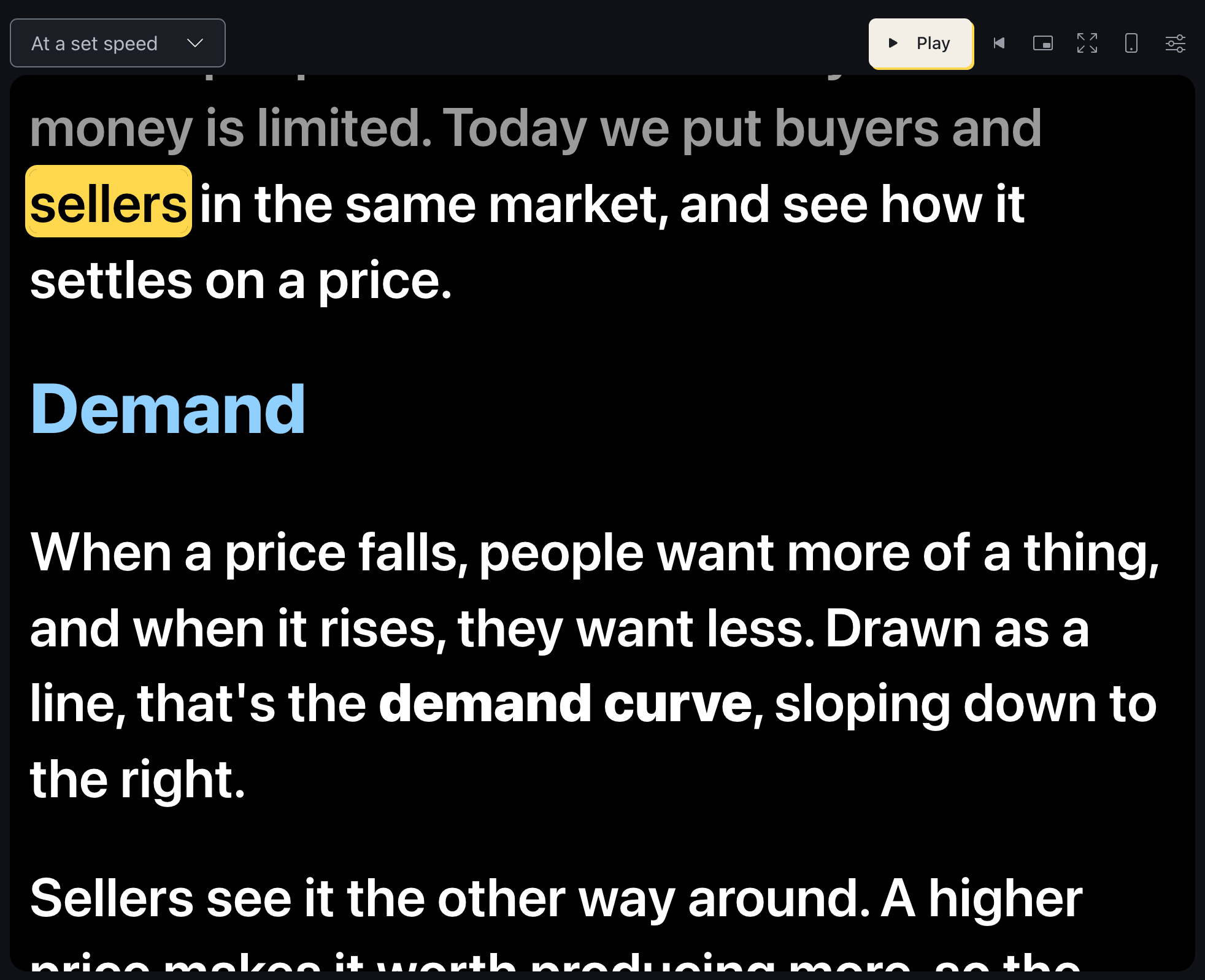
- At a set speed: click Play (or press Space). The ↑ and ↓ keys change the speed; the line above the script says how many words a minute it's at.
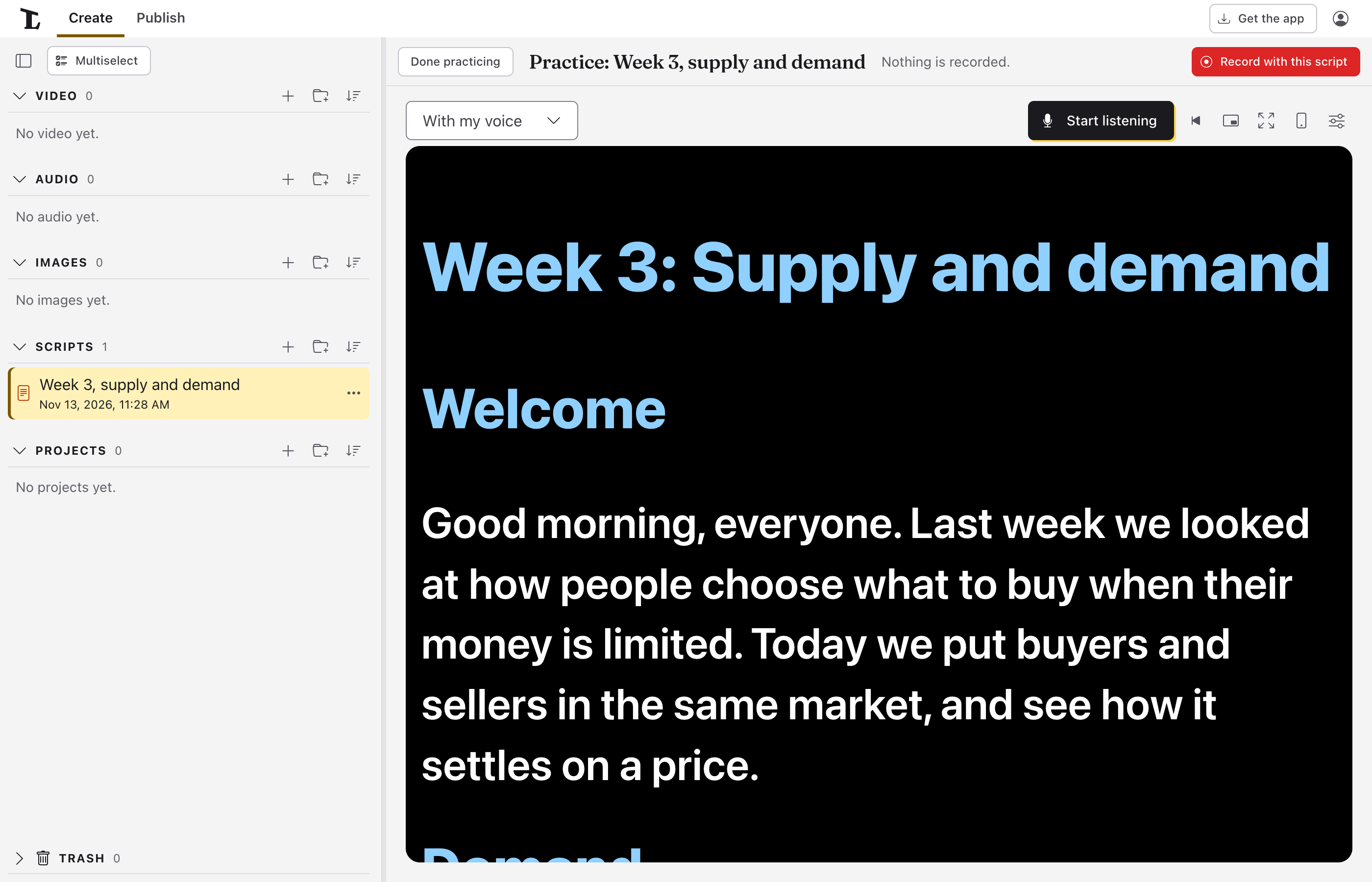
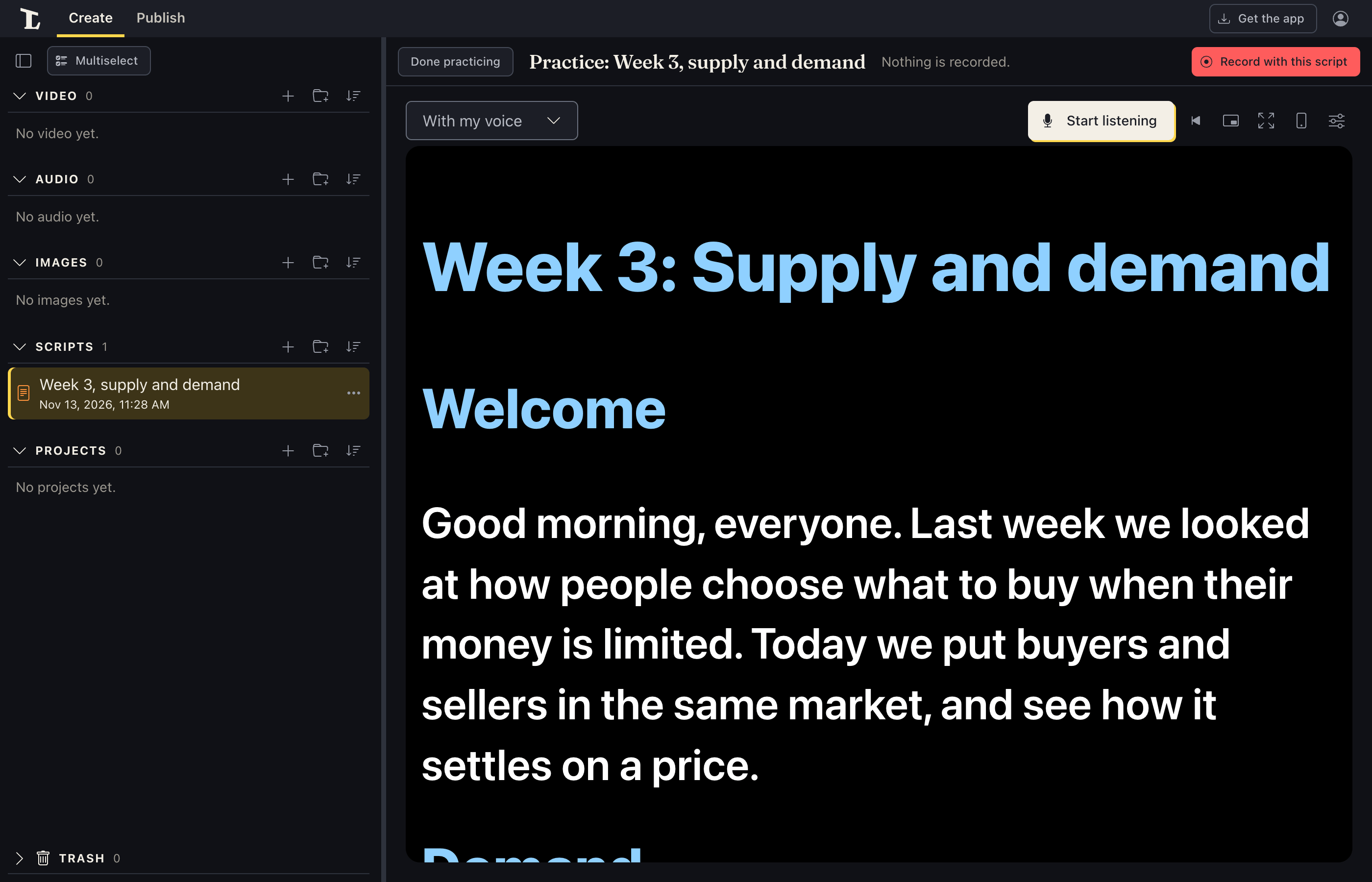
Click any word to start from there. Words already read turn grey.
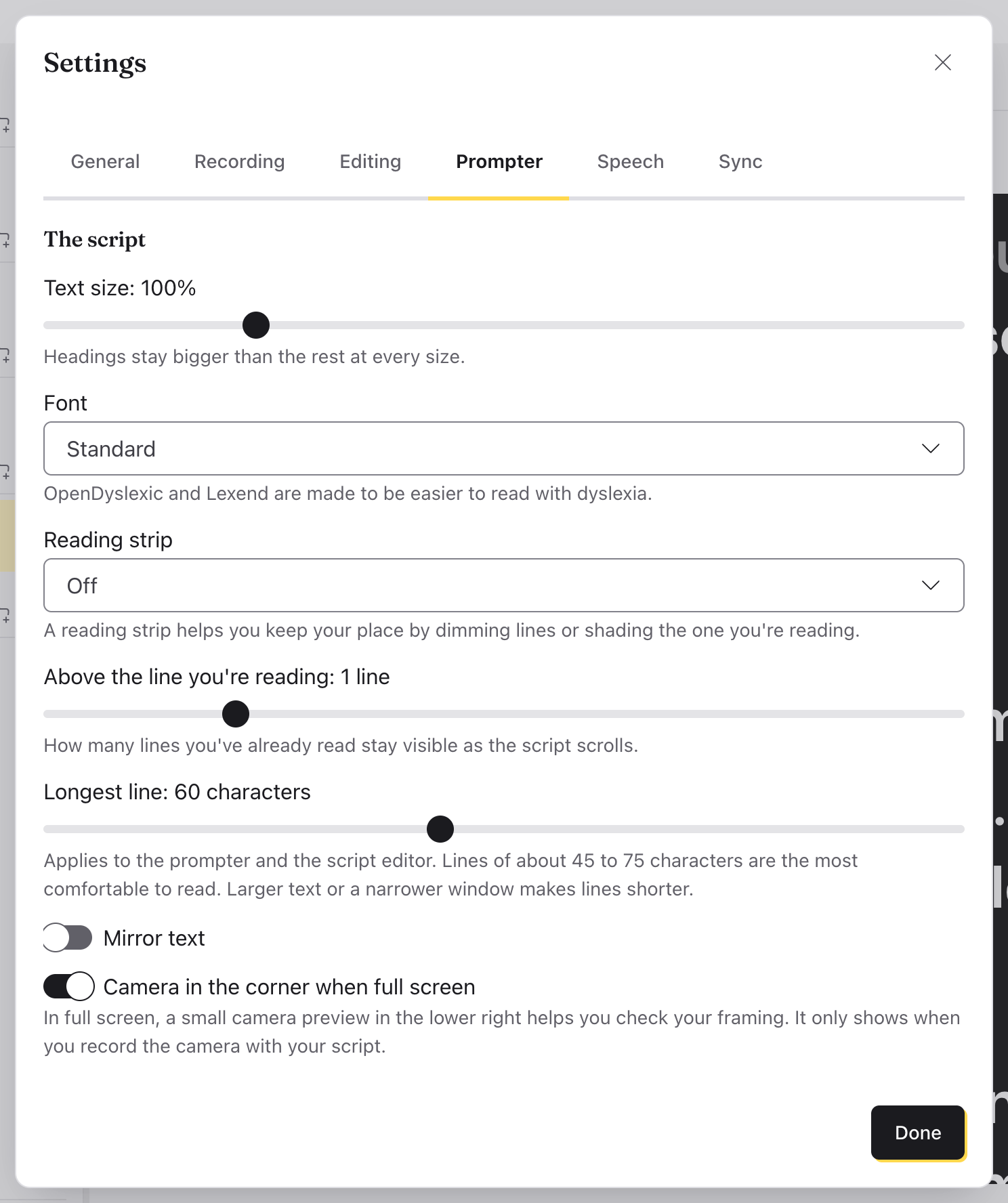
Make it comfortable to read. The sliders button beside Restart opens Settings at its Prompter tab: text size, the font (two are made for reading with dyslexia), a reading strip that dims the lines after yours (or every line but yours), mirrored text (for a teleprompter glass), the speed, and whether it starts with the recording.
When you're done, click Done practicing, or Record with this script to start recording with it.
Next
Something here wrong or unclear? Tell us.