Help Quick guide
Cut mistakes out of a recording
Take out a stumble, a false start or a long pause, then save over the recording or as a new one.
What you'll make: a recording with the mistakes taken out, saved over the original or beside it as a new file. This works for video and audio.
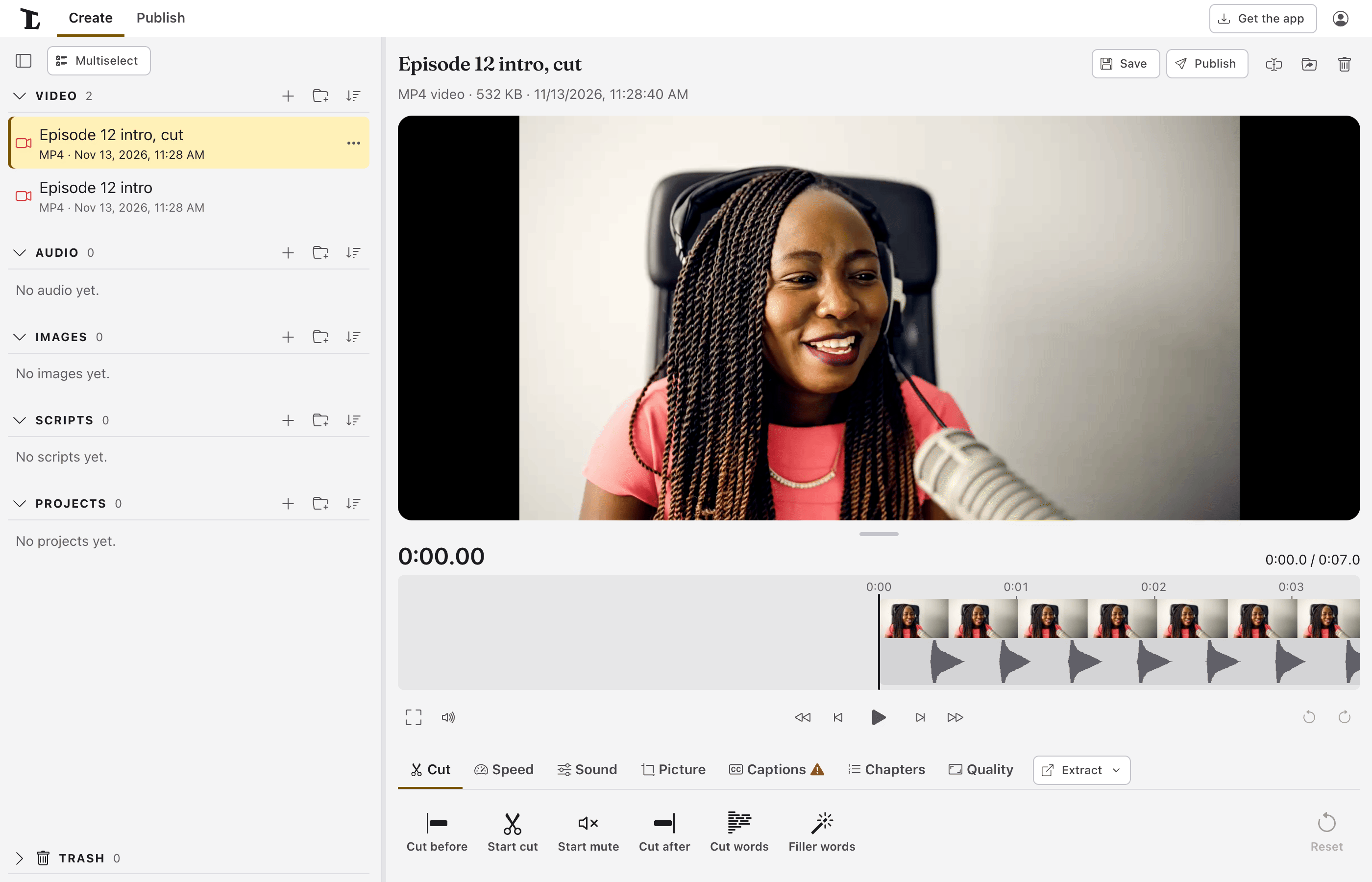
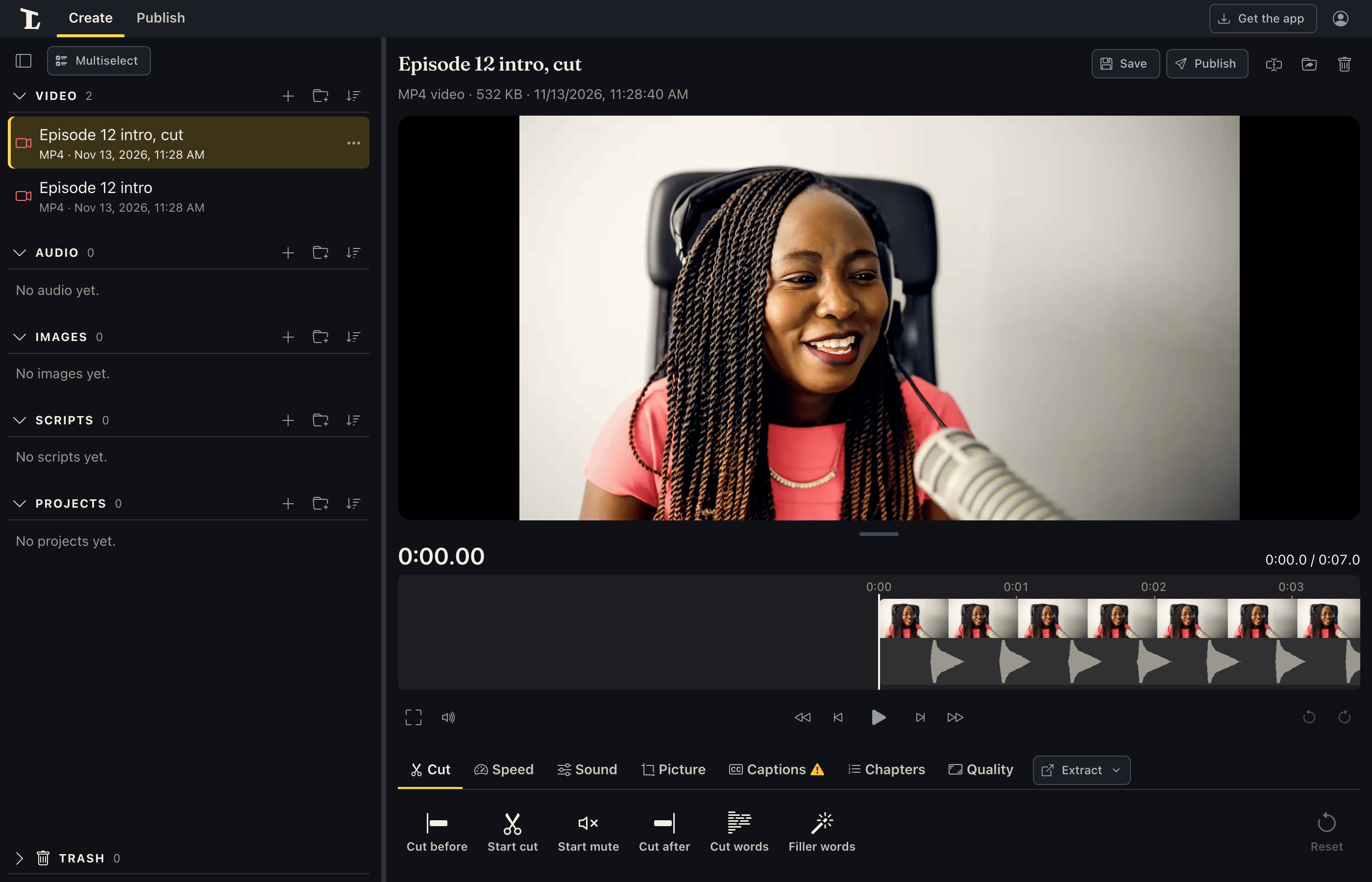
Open the recording in the library's Video or Audio. Under the player is a strip with the recording's sound, and a row of tabs below it, with Cut open. Click the strip, or drag along it, to move the playhead.
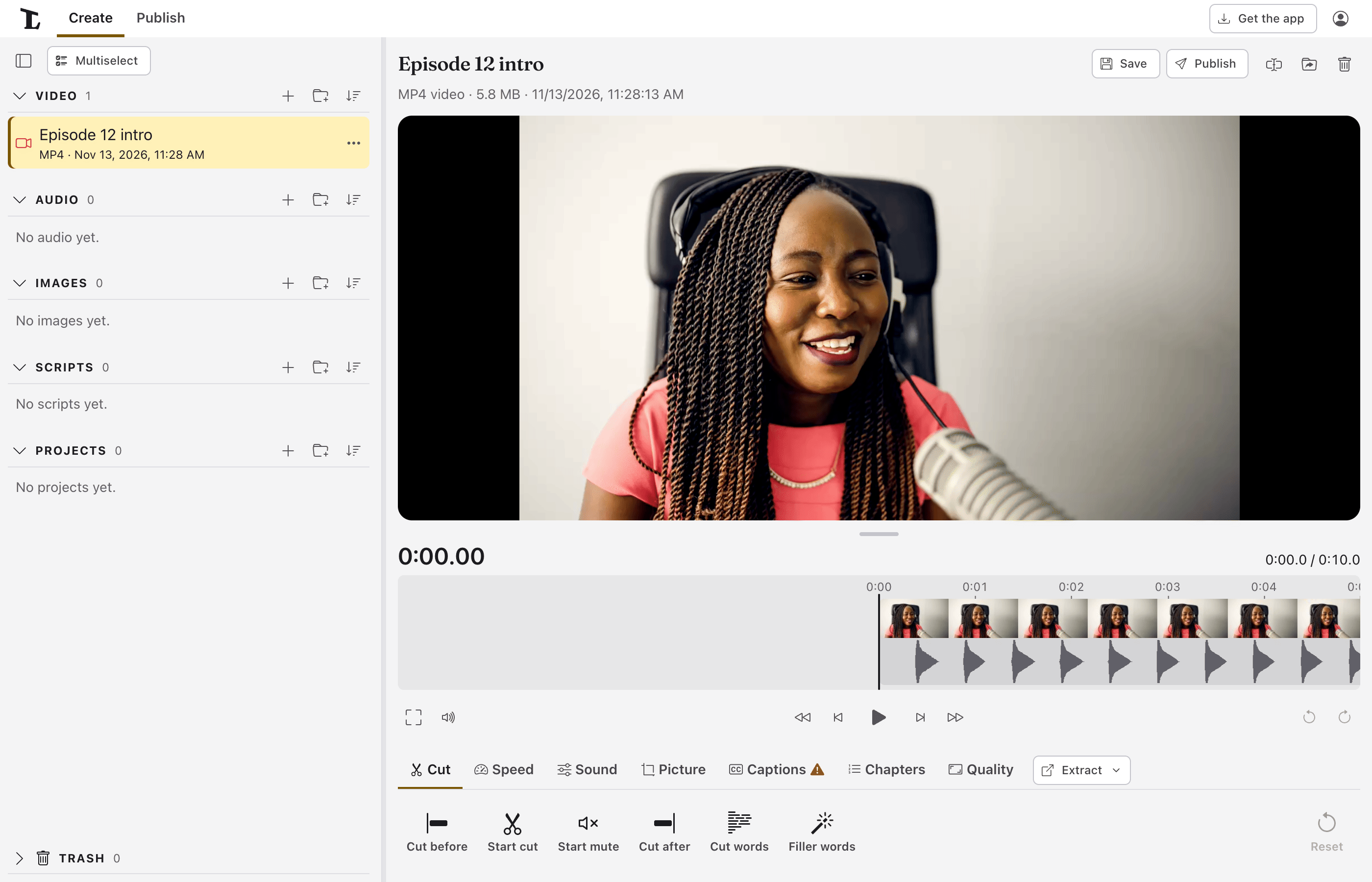
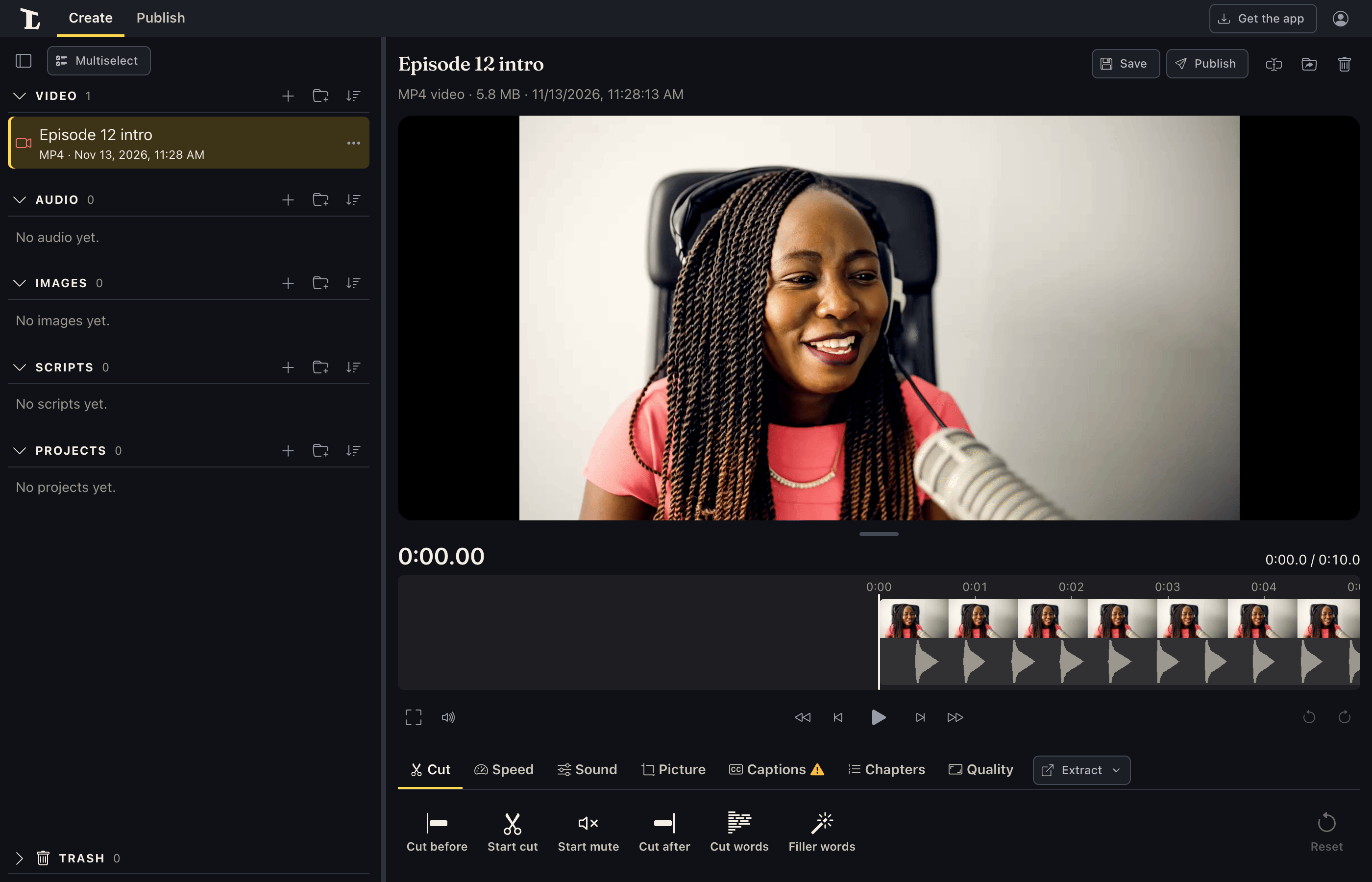
Mark where the mistake starts. Put the playhead at the start of what you want to take out and click Start cut in the Cut tab (or just press X).
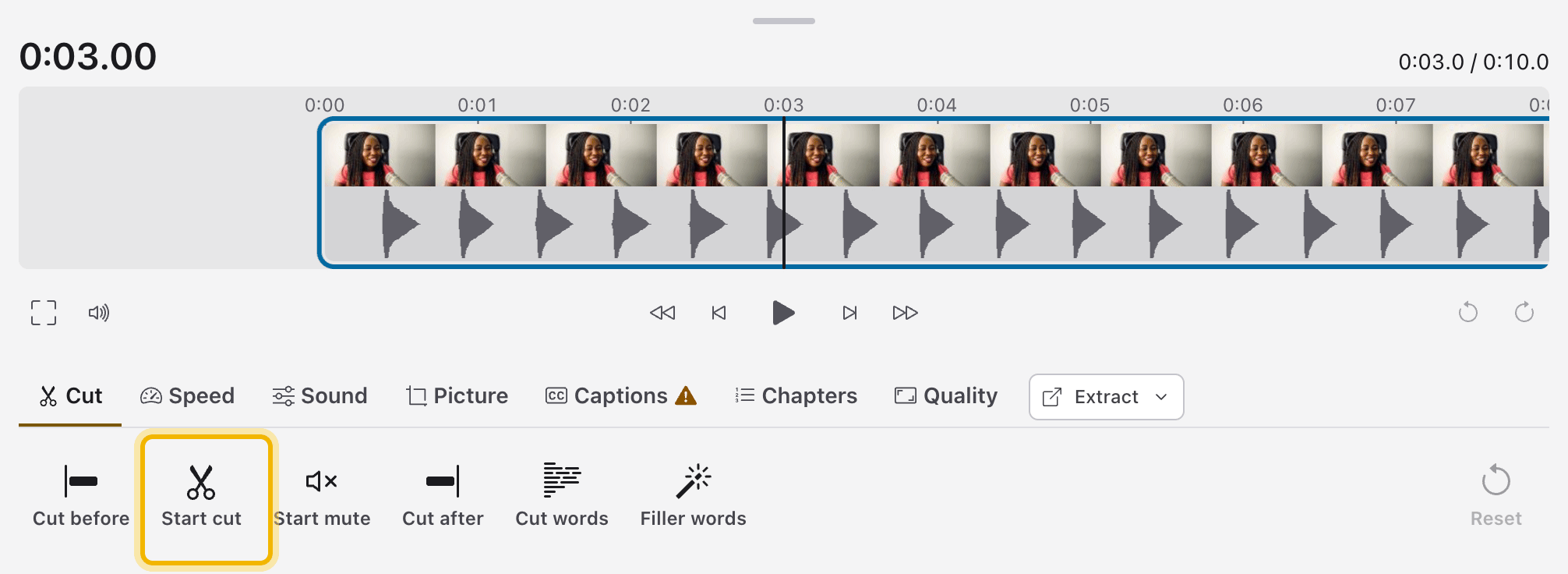
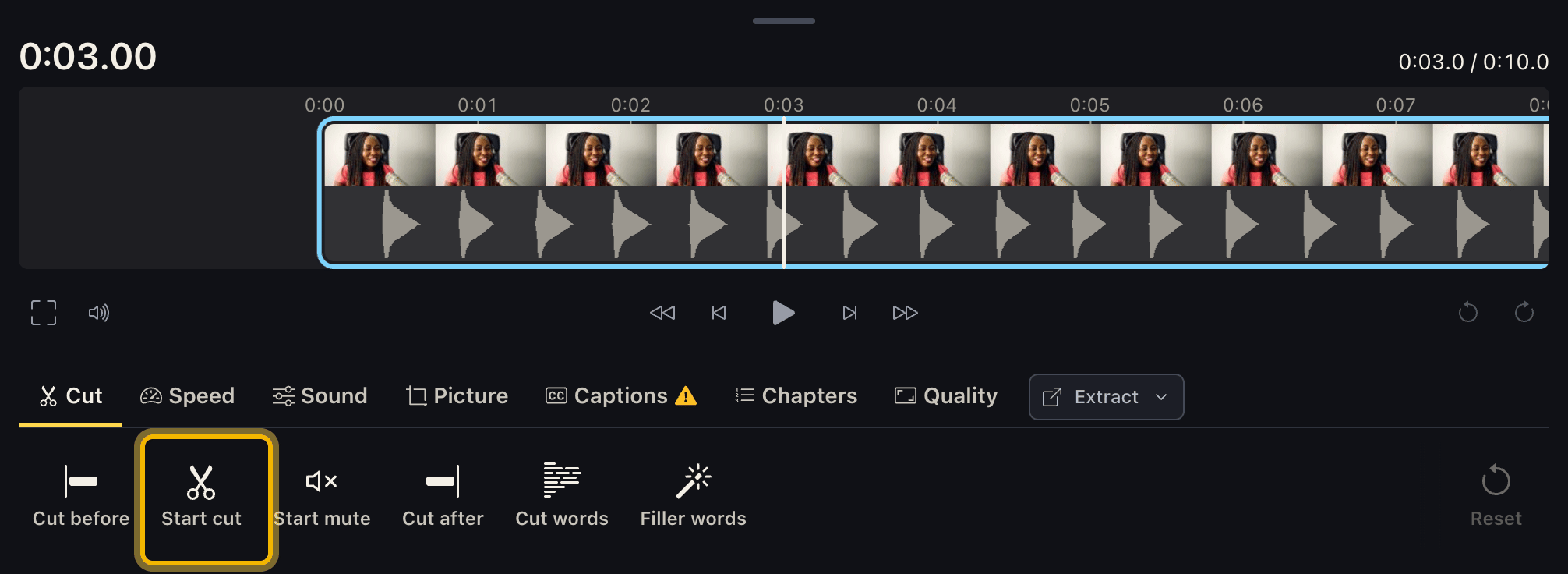
To move the playhead a second at a time, click the strip and use ← and → (with Shift, five seconds).
Mark where it ends. Move the playhead to the end of the mistake and click End cut (or X again). The part being cut shows in blue as you go. Esc lets go of a cut you've started.
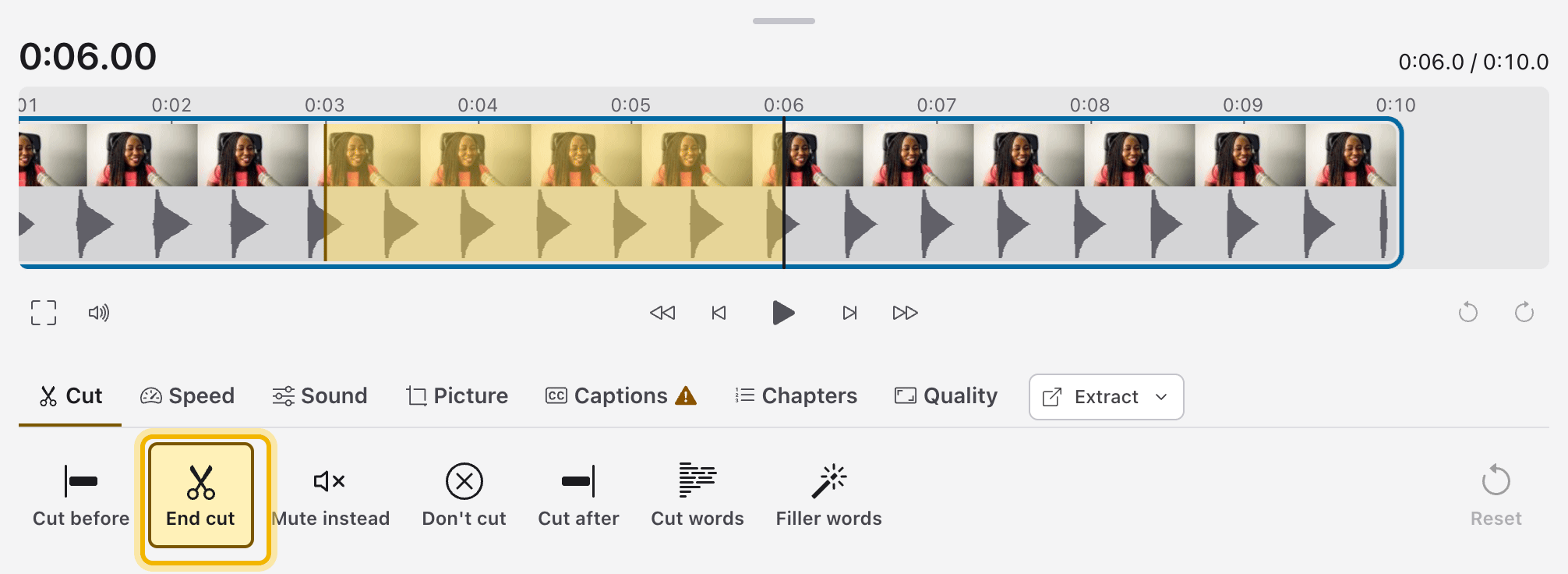
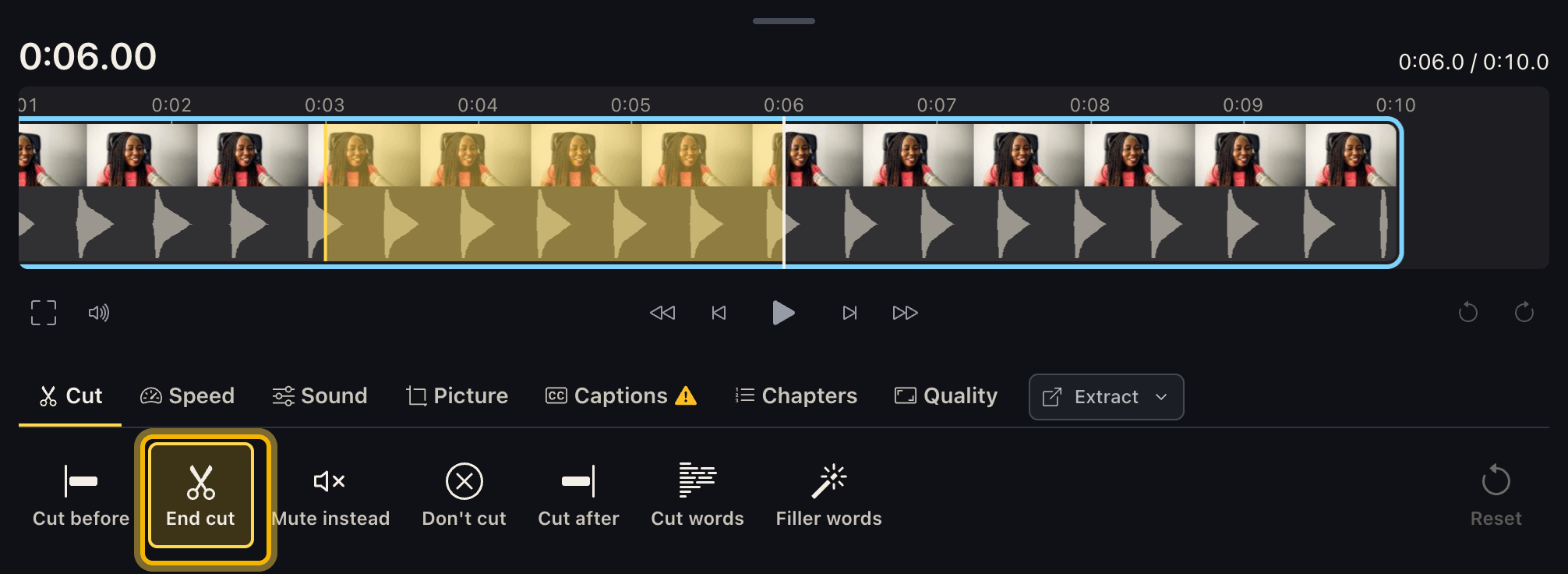
Check the cut. The part cut out is hatched on the strip, and the time says how long the recording will be after cuts. Click a cut to put it back. Make as many cuts as you need.
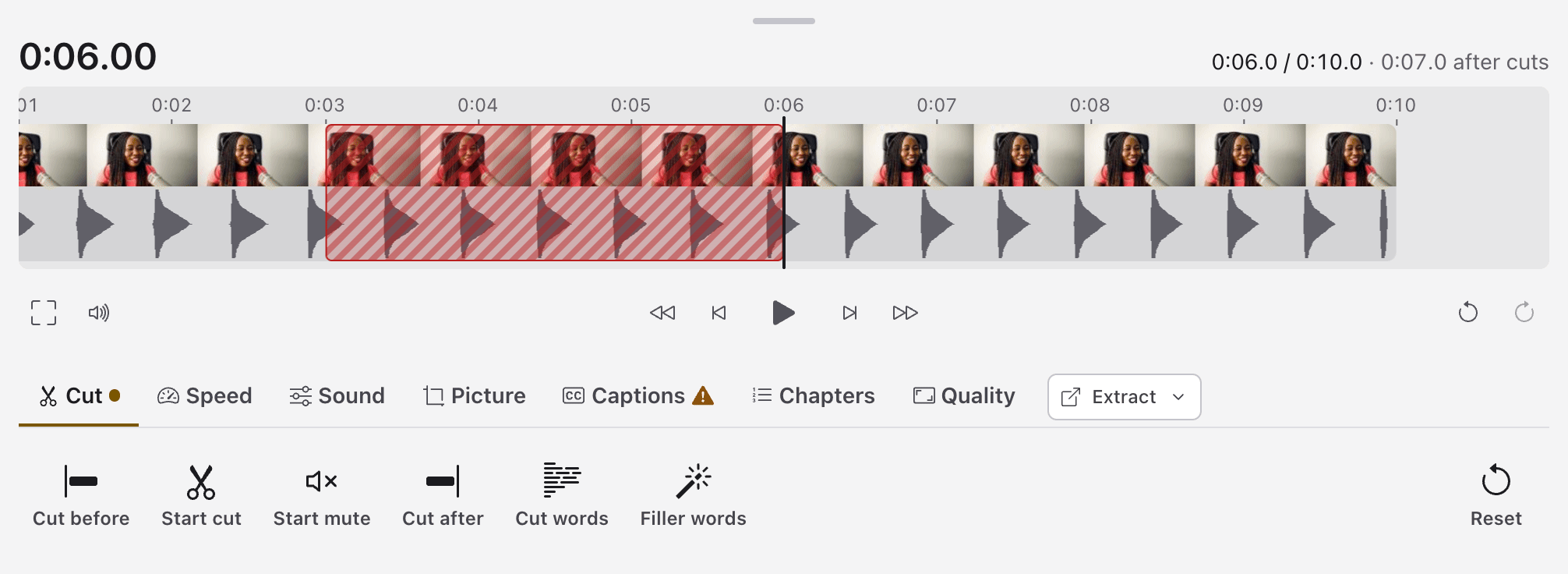
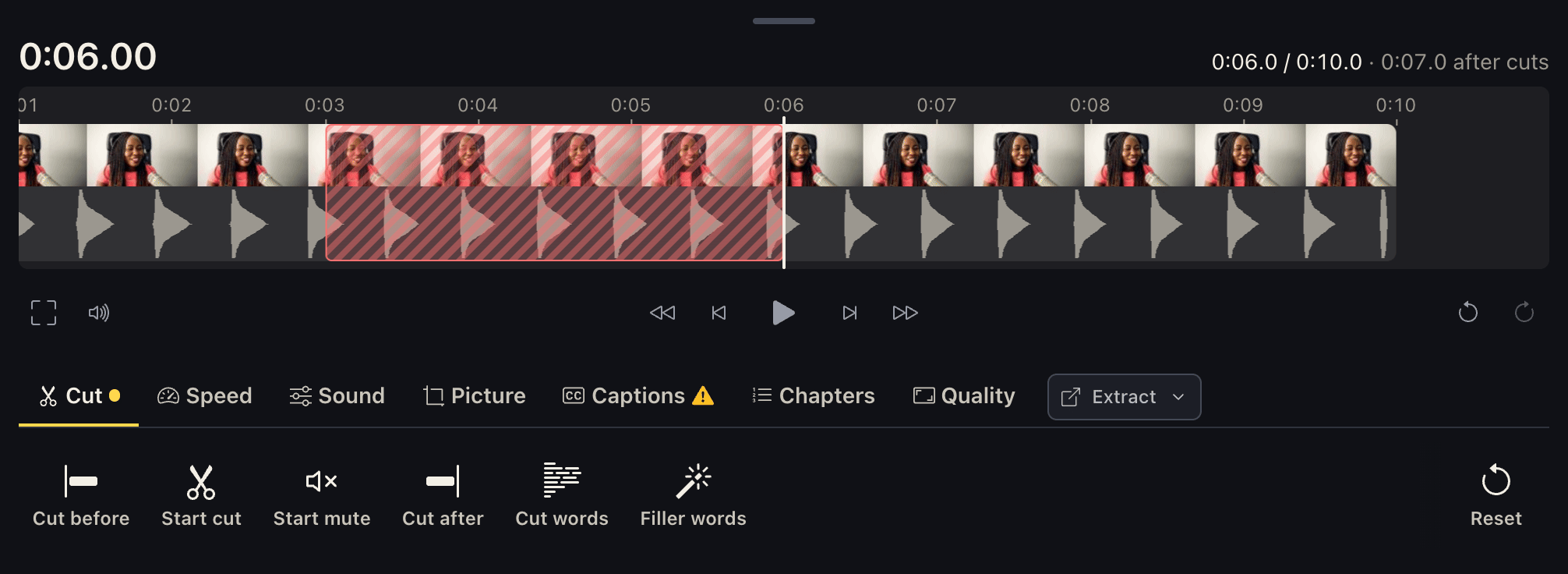
Cut before and Cut after cut everything before the playhead or everything after it (handy for the start and end). Undo takes back the last change, Redo puts it back again, and Reset puts back every cut and mute. Undo and Redo are beside the play buttons, and Reset is at the end of the Cut tab's line.
Play it. The player's play button plays what's kept, skipping the cuts, so you see and hear it as it will be saved. To watch a cut part again, click it on the strip to put it back.
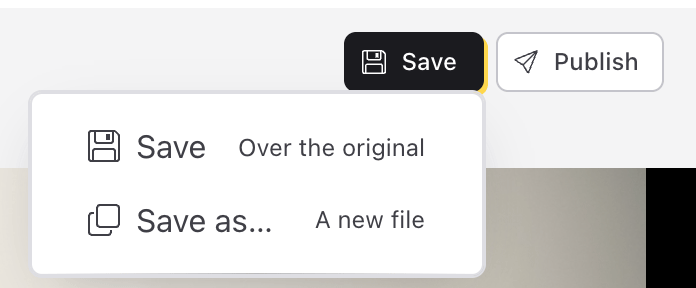
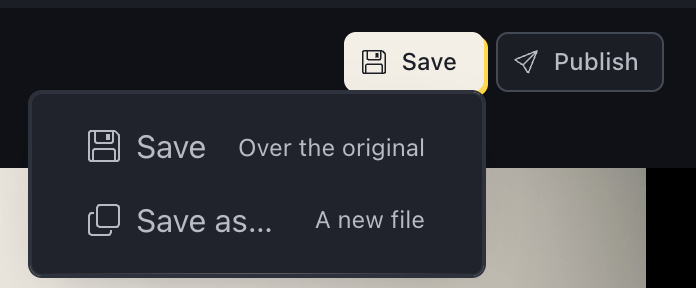
Save. Save, at the top beside the recording's name, is green while there are cuts to save. Its menu has:
- Save (Over the original): replaces the recording. The app asks first.
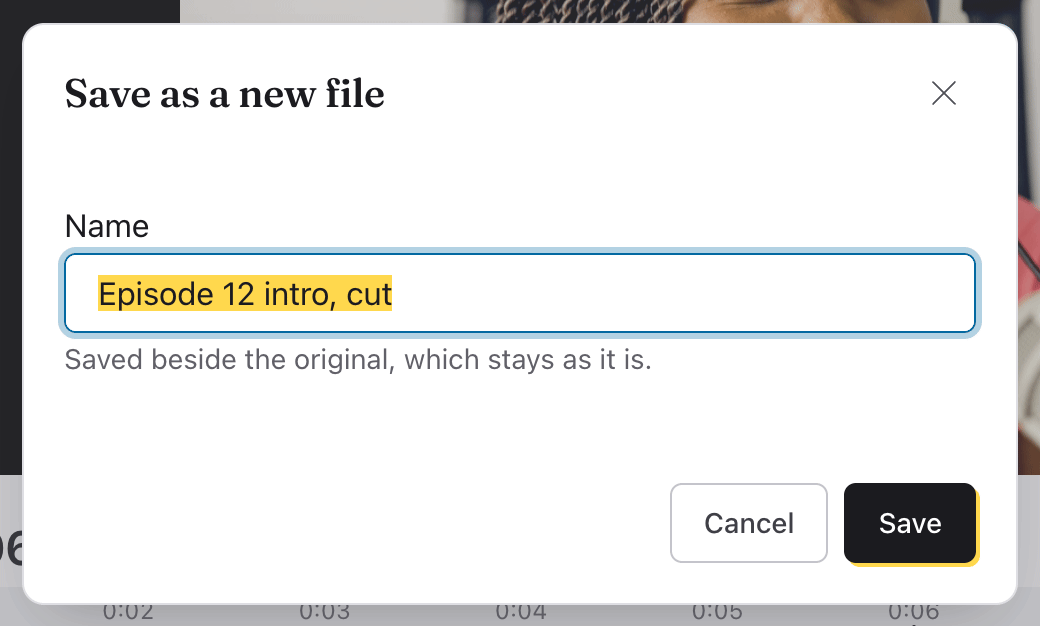
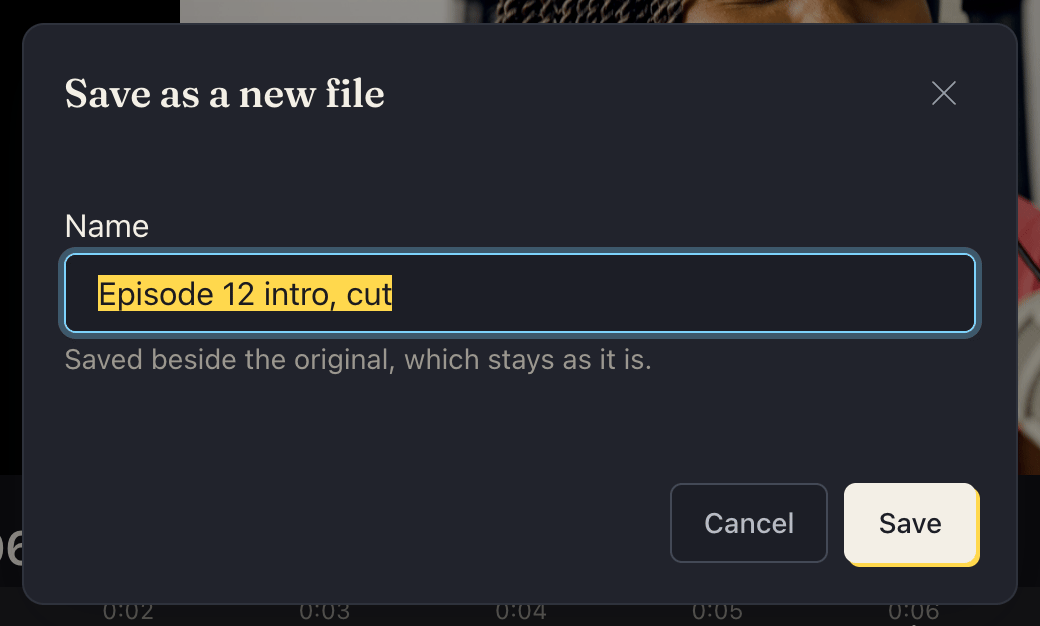
- Save as… (A new file): keeps the original as it is and saves the cut version beside it.
The saved recording opens in the library, shorter.
Next
Something here wrong or unclear? Tell us.