Help Quick guide
Build a project and export a video
Put recordings, a slide and a quiz question together in steps, with you in the corner of the slide, then make it into one video.
What you'll make: a short lesson video: a slide with your camera in the corner, then a second recording, then a multiple-choice question shown as a card. You'll need a couple of recordings and an image (a slide saved as PNG or JPG) in Images: use the + beside Images to pick the image.
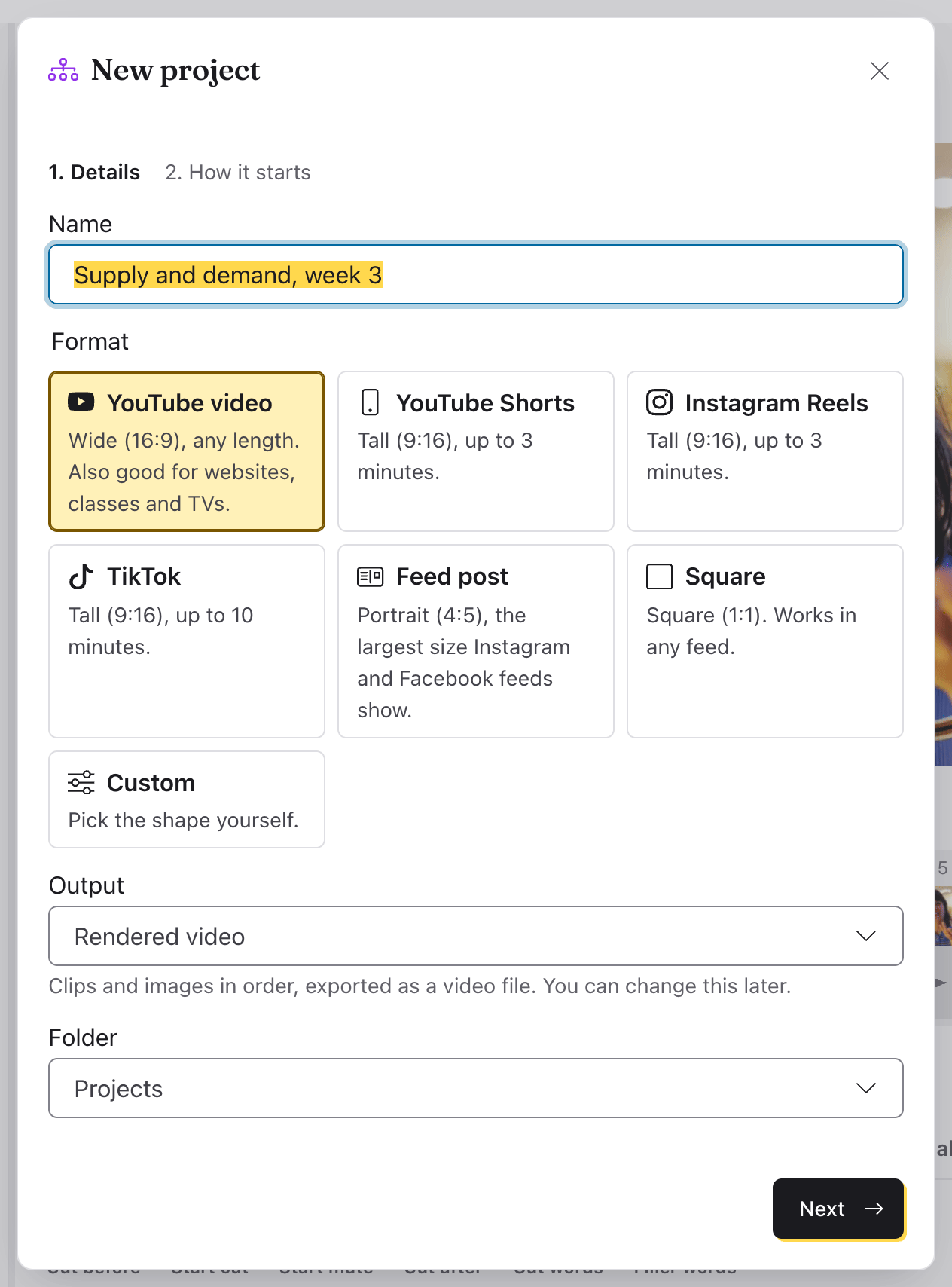
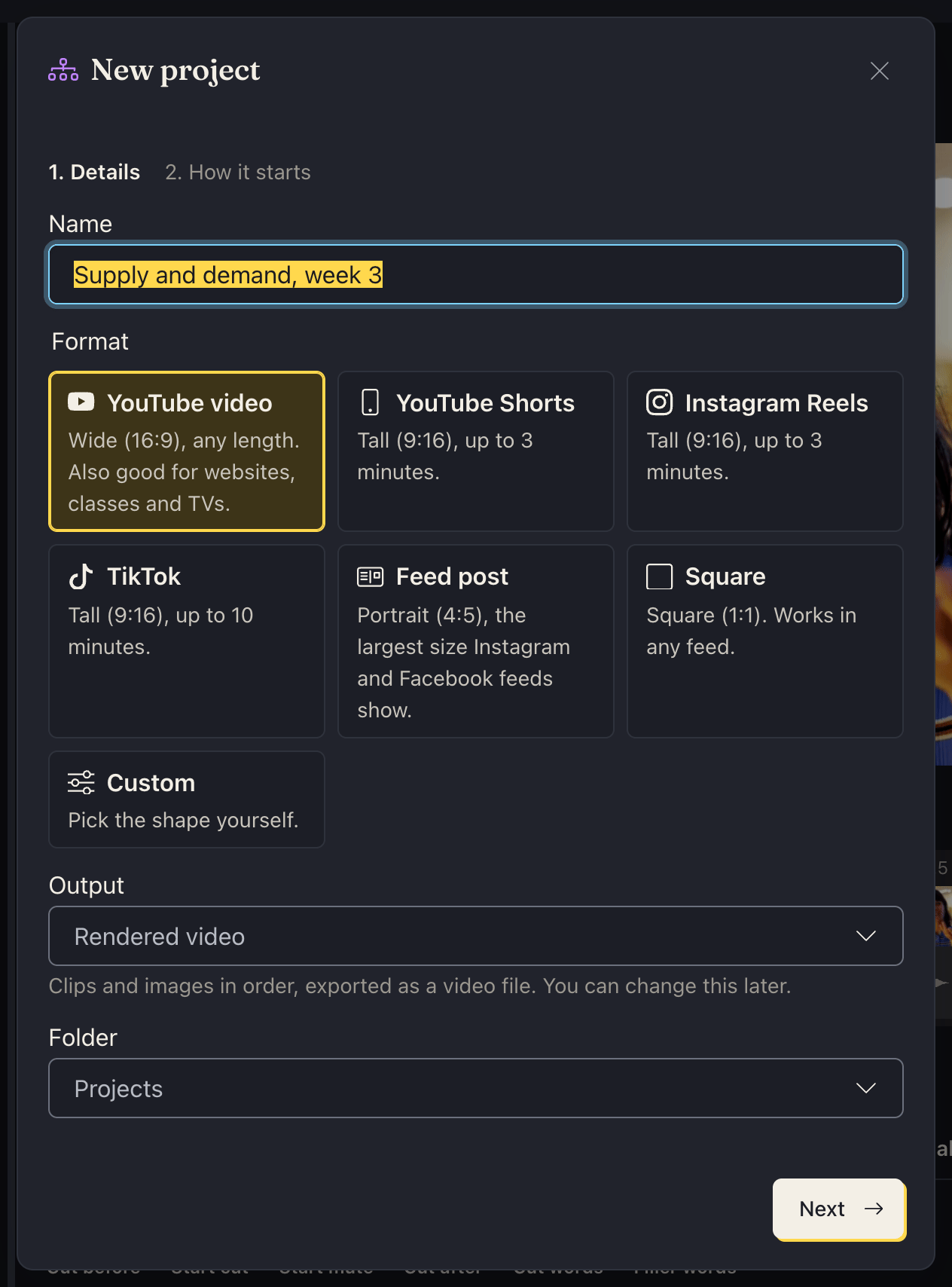
Start a project. Click the + beside Projects in the library. Type a name over Untitled project and choose its Output:
- Rendered video: a chain of steps made into one video file.
- Interactive: questions and branches viewers answer, played in the app or from a link.
- Both: interactive, with one path through it that makes the video.
Leave Format on YouTube video (it's wide). You can change all of this later. Click Next, leave Blank picked, and click Create. A project saves itself as you work: the bar says Saving…, then Saved.
Add the first step. The new project asks What comes first?: click Add a video or image and pick the slide. (You can also drag a recording from the library onto it.) Tap the new step to open it in its own editor: its picture at the top, and its timeline under it, with a video track (the camera icon). Sound you add later (music, a voiceover) gets an audio track (the music note).
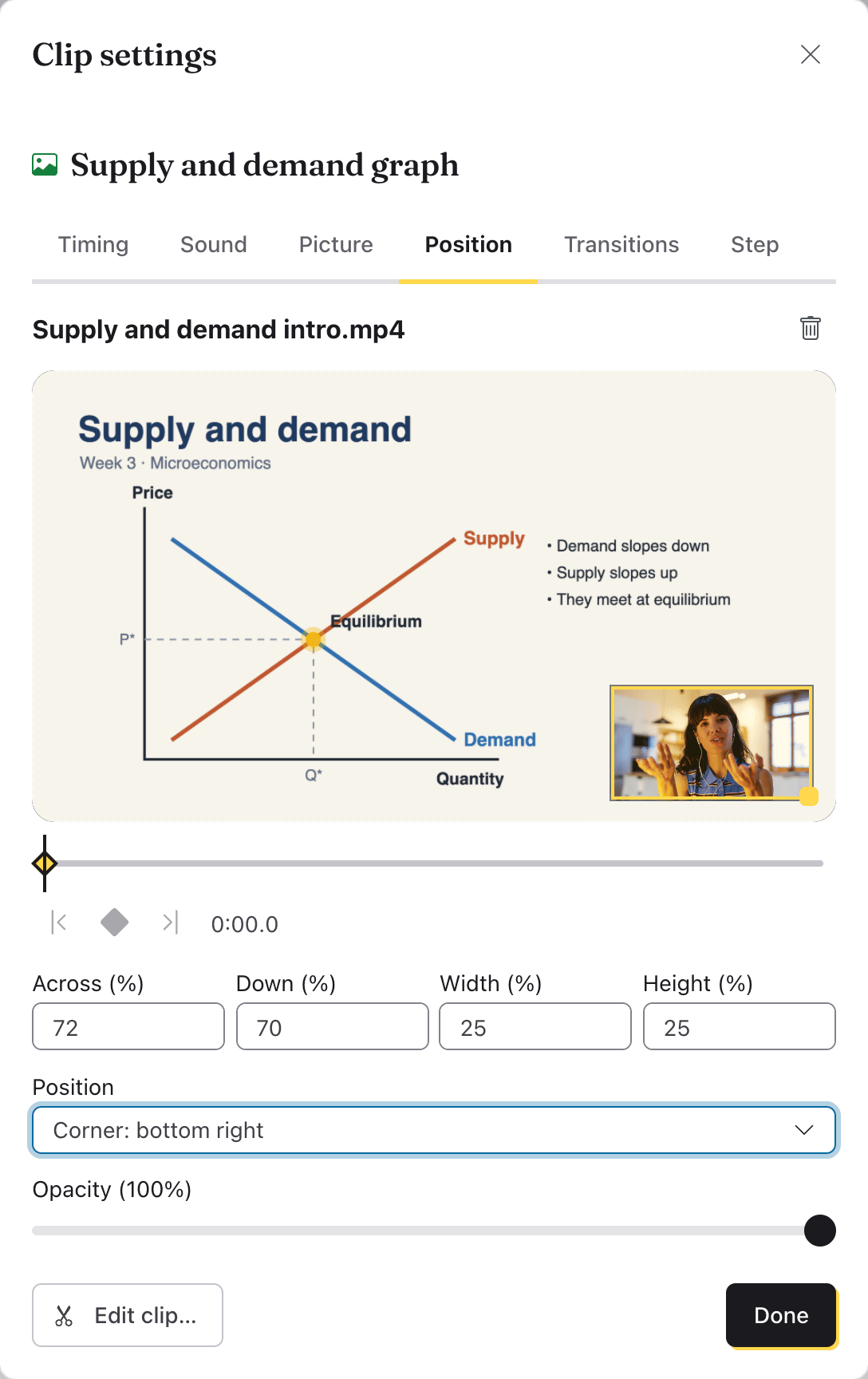
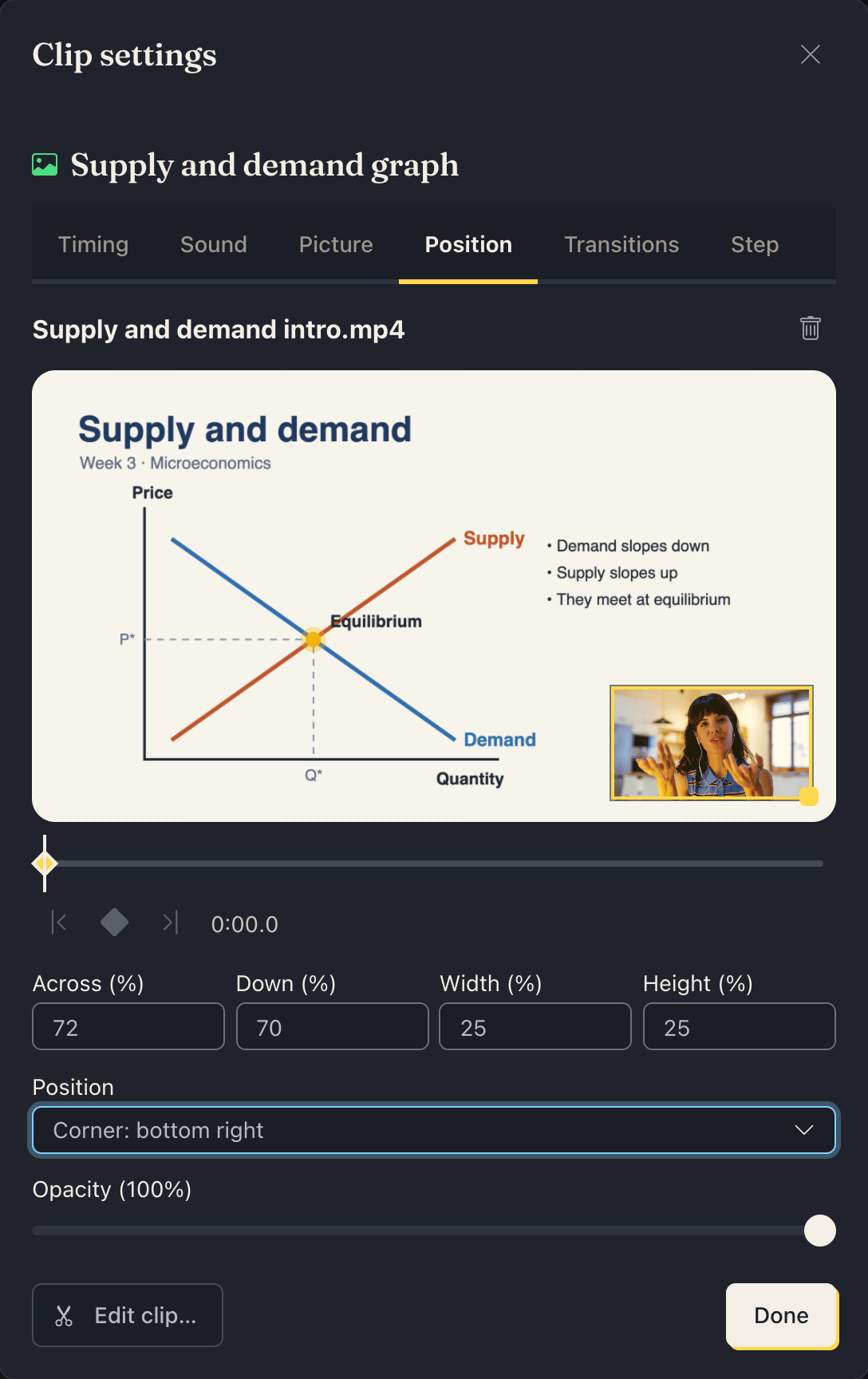
Put your camera in the corner. In the step's editor, Add › Media and pick your recording. It goes on a new track above the slide, in the bottom-right corner, so both show. To move it, double-click it on the timeline (or pick it and click Adjust) to open its Clip settings, and pick another Position, such as Corner: bottom left. Drag the box on the picture, or type the numbers, to fine-tune it. Click Done in the settings, then Done in the step's editor to go back to the steps. The slide stays up as long as the recording plays over it.
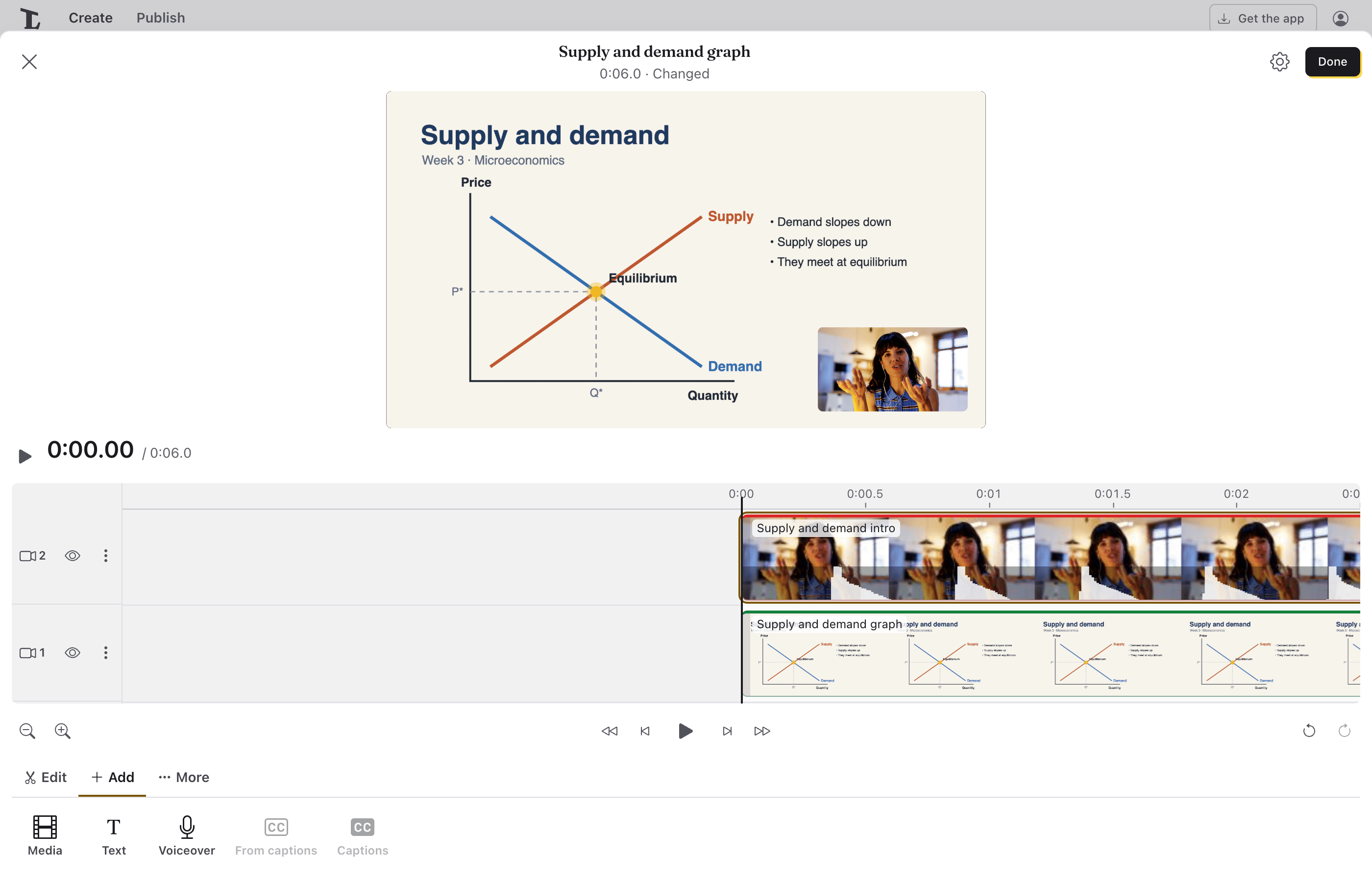
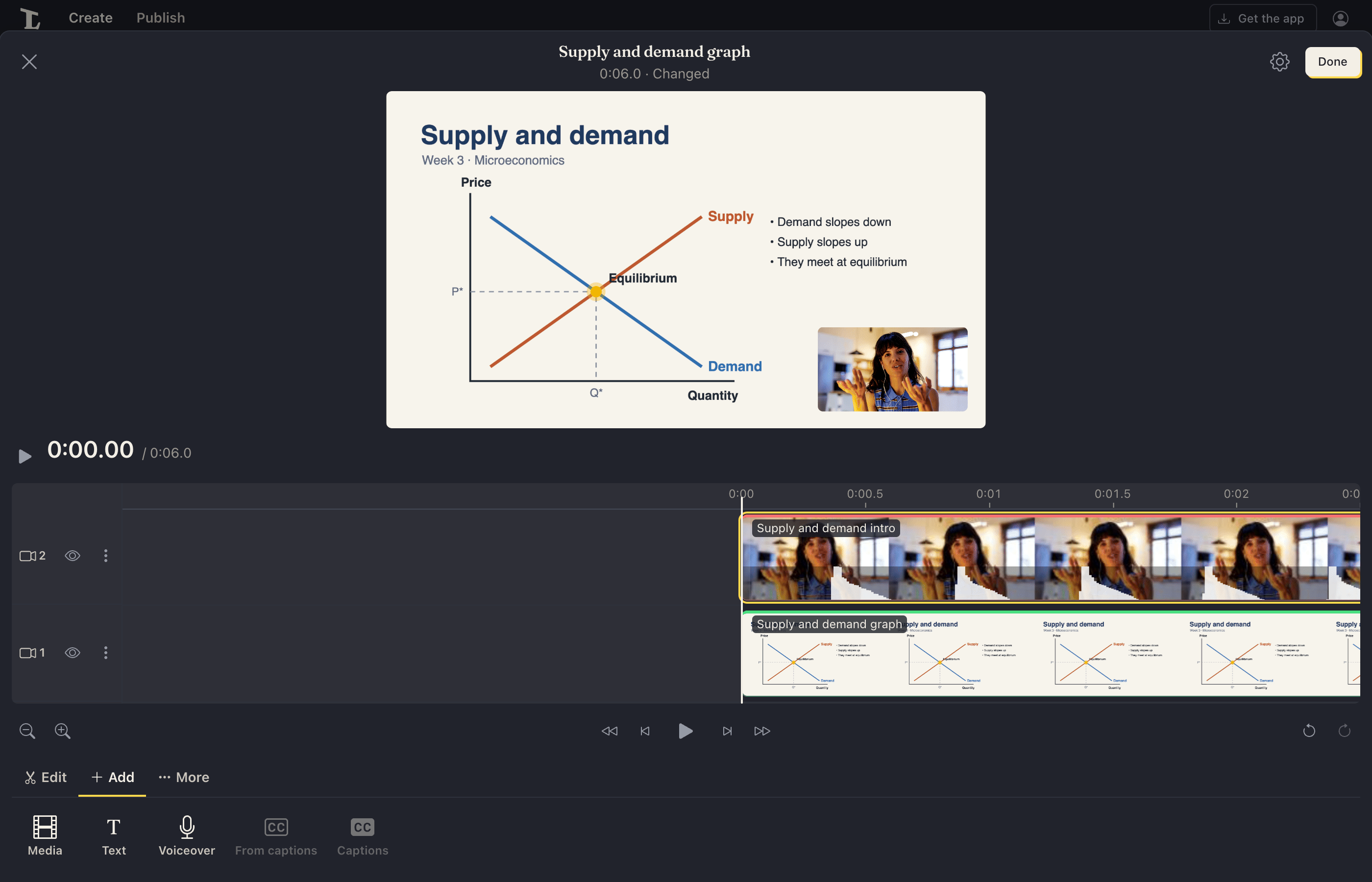
Add the next recording. Add › Clip, image or take… again. It becomes a new step, joined after the one selected.
Add a question. Add › Multiple choice (as a card), then tap the new step to open it. Write the Question and the choices (Add a choice for more), tick the right answer, and click Done. In a rendered video the question shows as a card for a few seconds, then the answer.
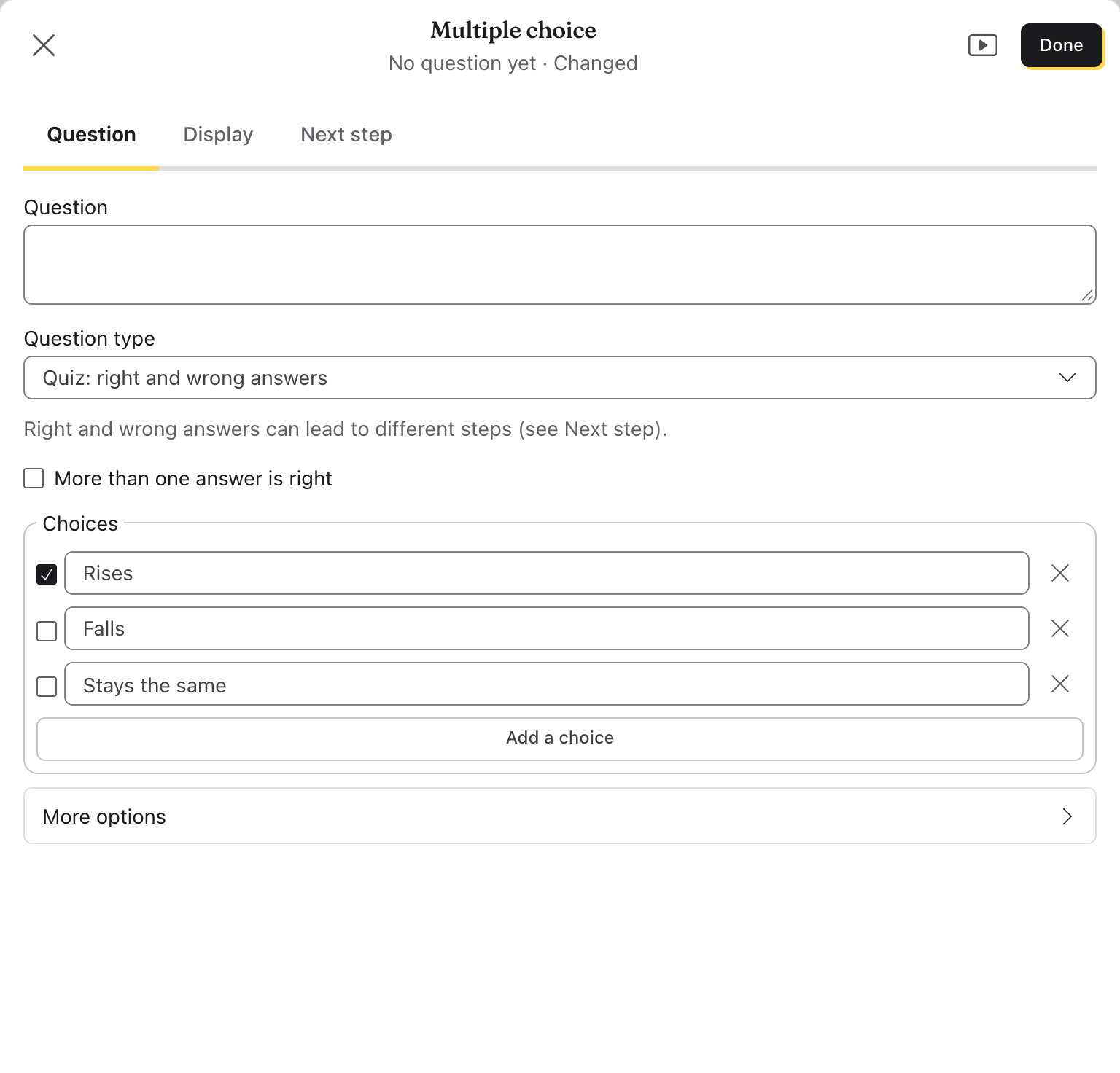
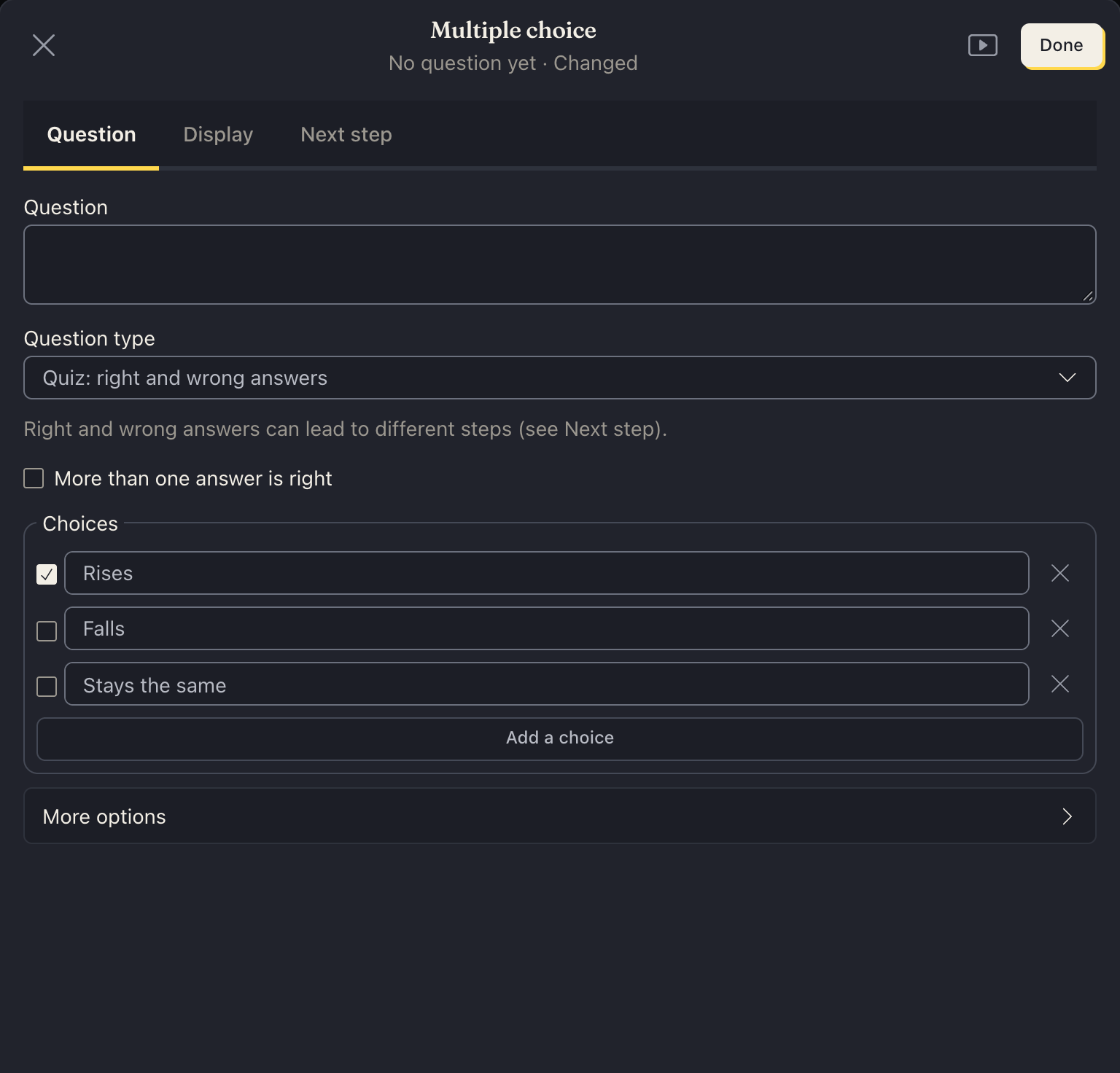
The steps show joined in a diagram, in the order they play. If something needs fixing, such as a question with no words, a problem button in the bar lists it.
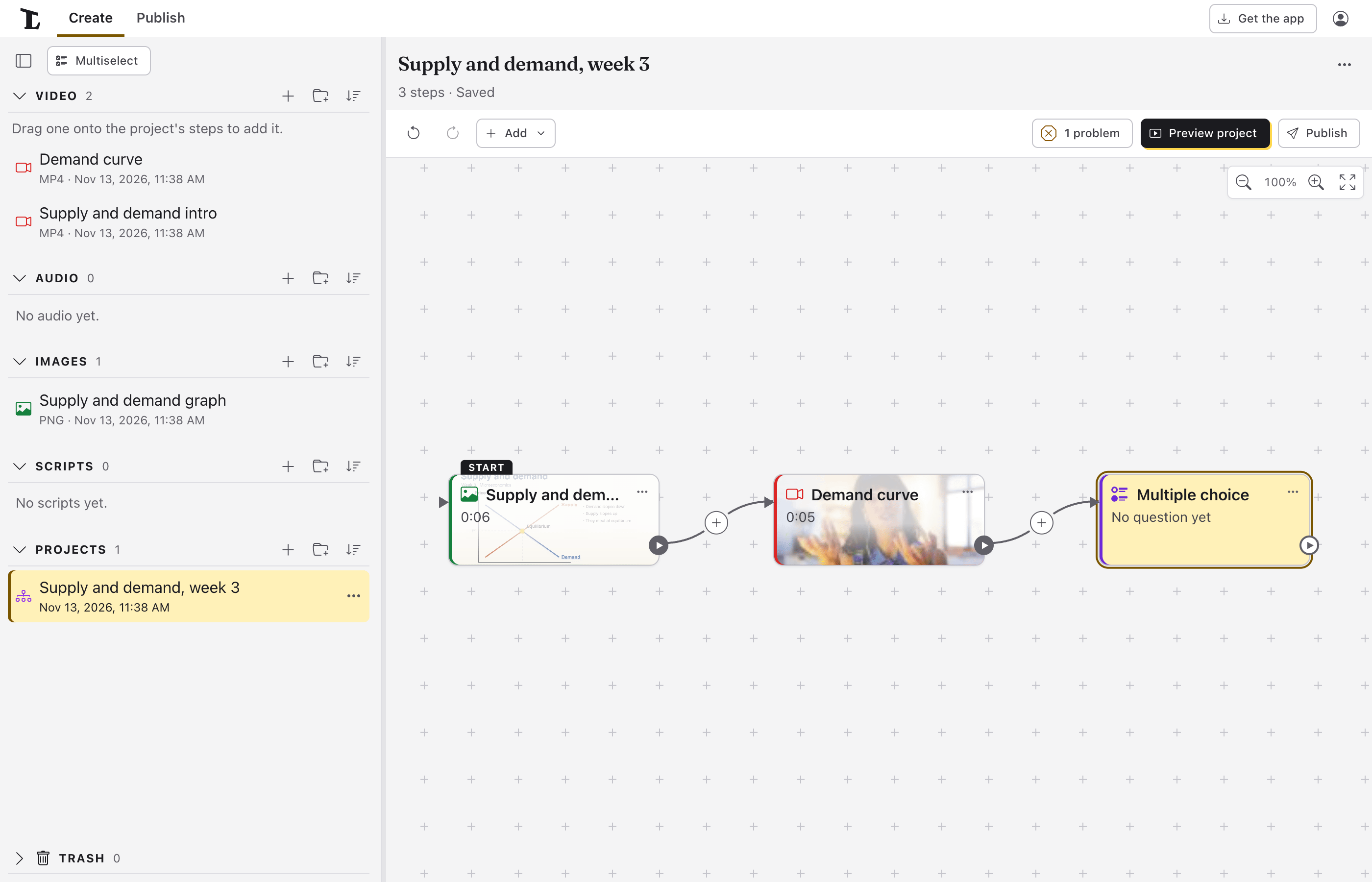
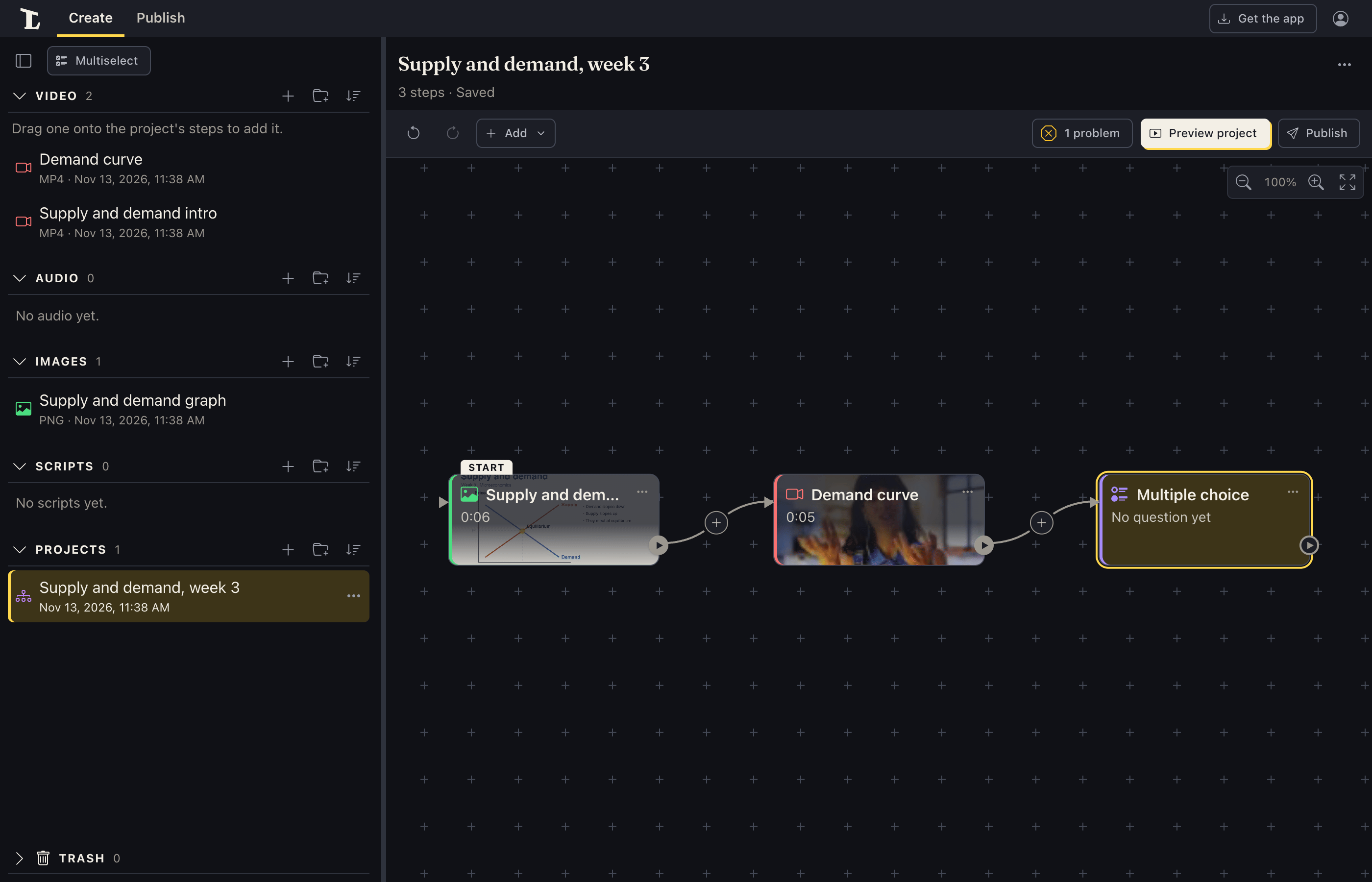
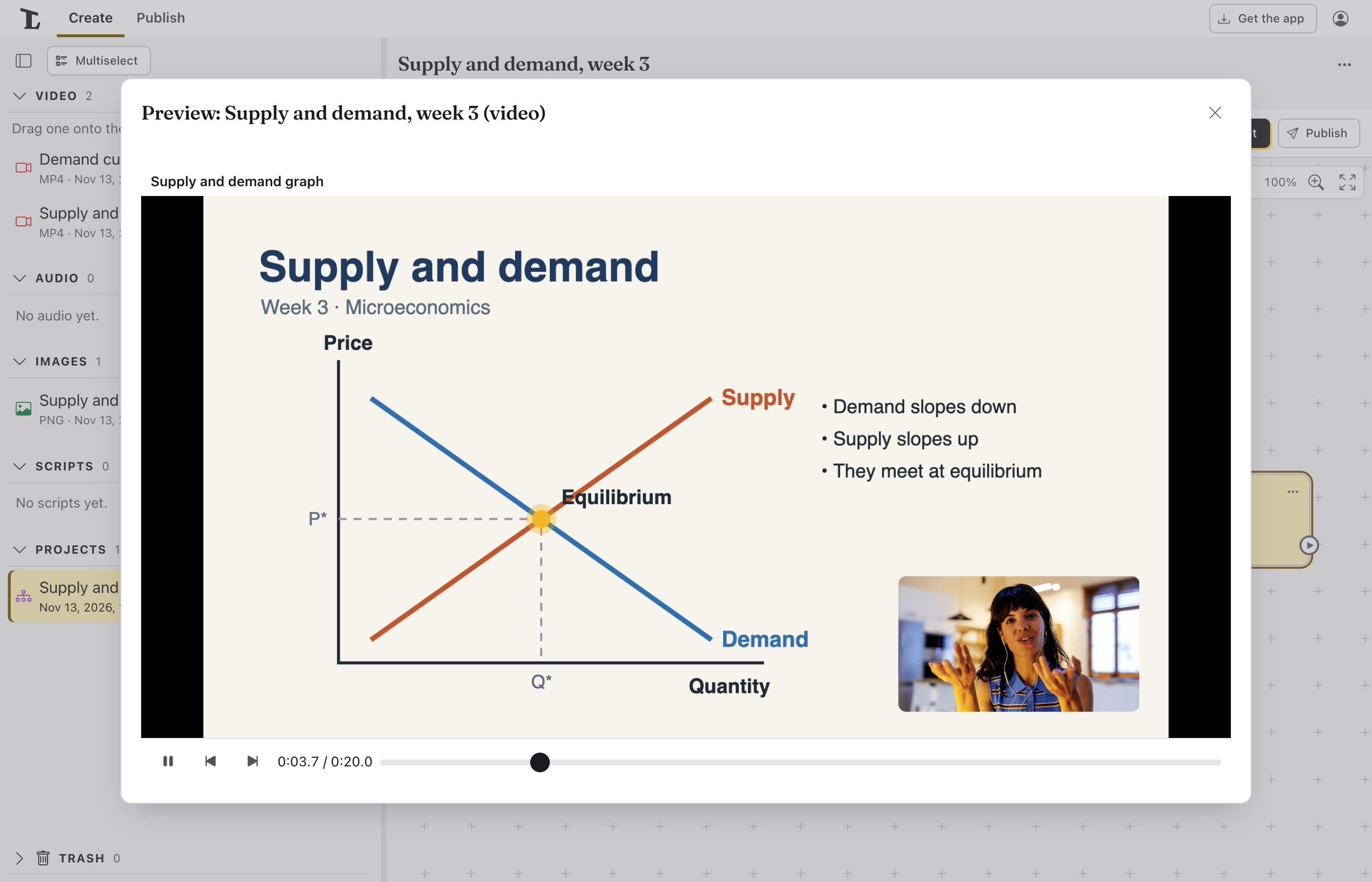
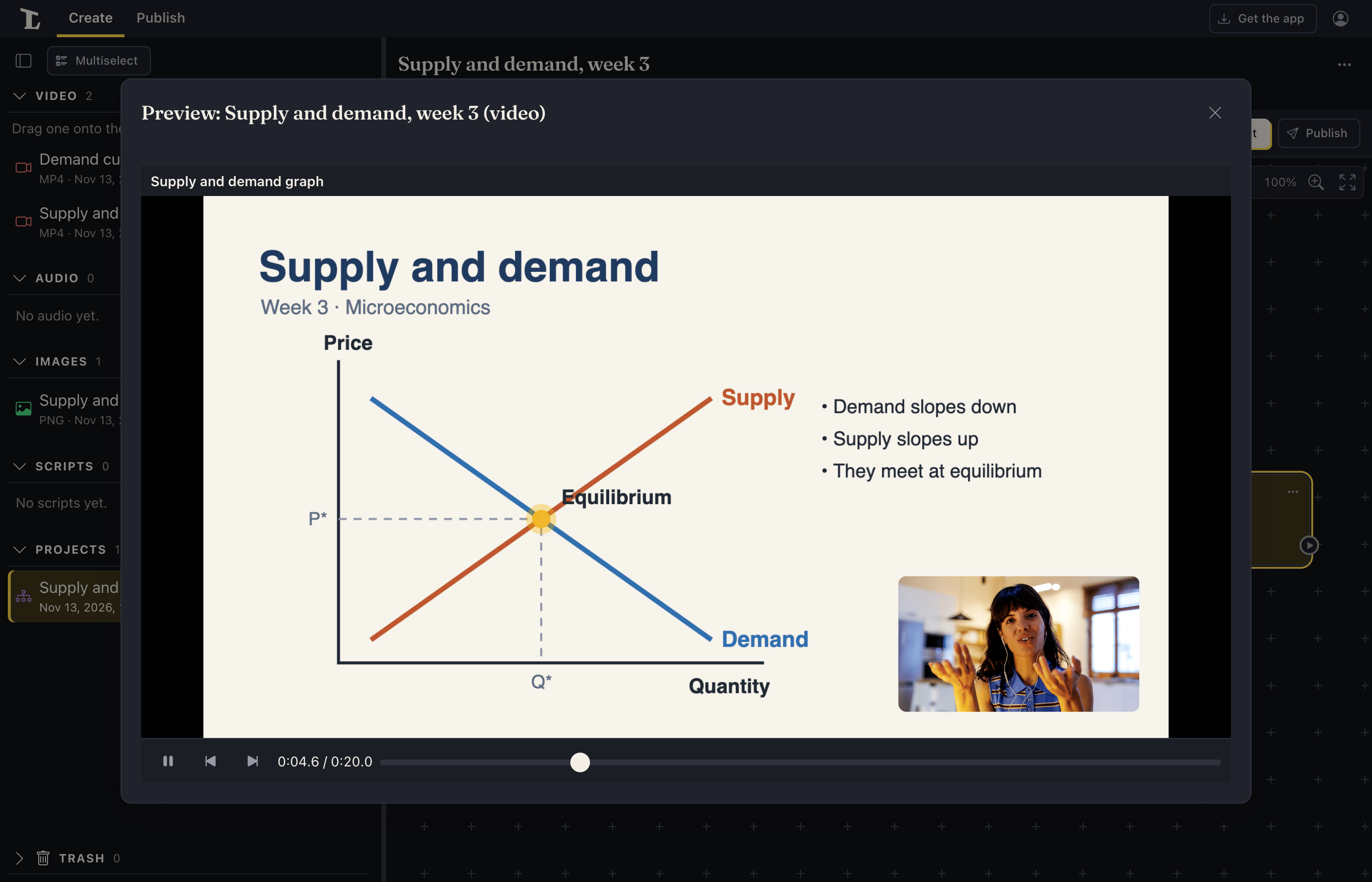
Preview it. Click Preview project in the bar. The finished video plays in a window over the editor. (Preview on a step plays just that step.) Projects save by themselves as you work.
Export the video. Click Publish in the bar, beside Preview project. It opens the Publish tab with the project picked: the video as viewers get it, and under it a card for each way out. Video file has the video's size, quality, frame rate and file name, captions and chapters. Click Export video. If Lectern finds anything to fix or check, a button beside the project's name says how many (1 issue detected); it lists each one, with Show in the editor.
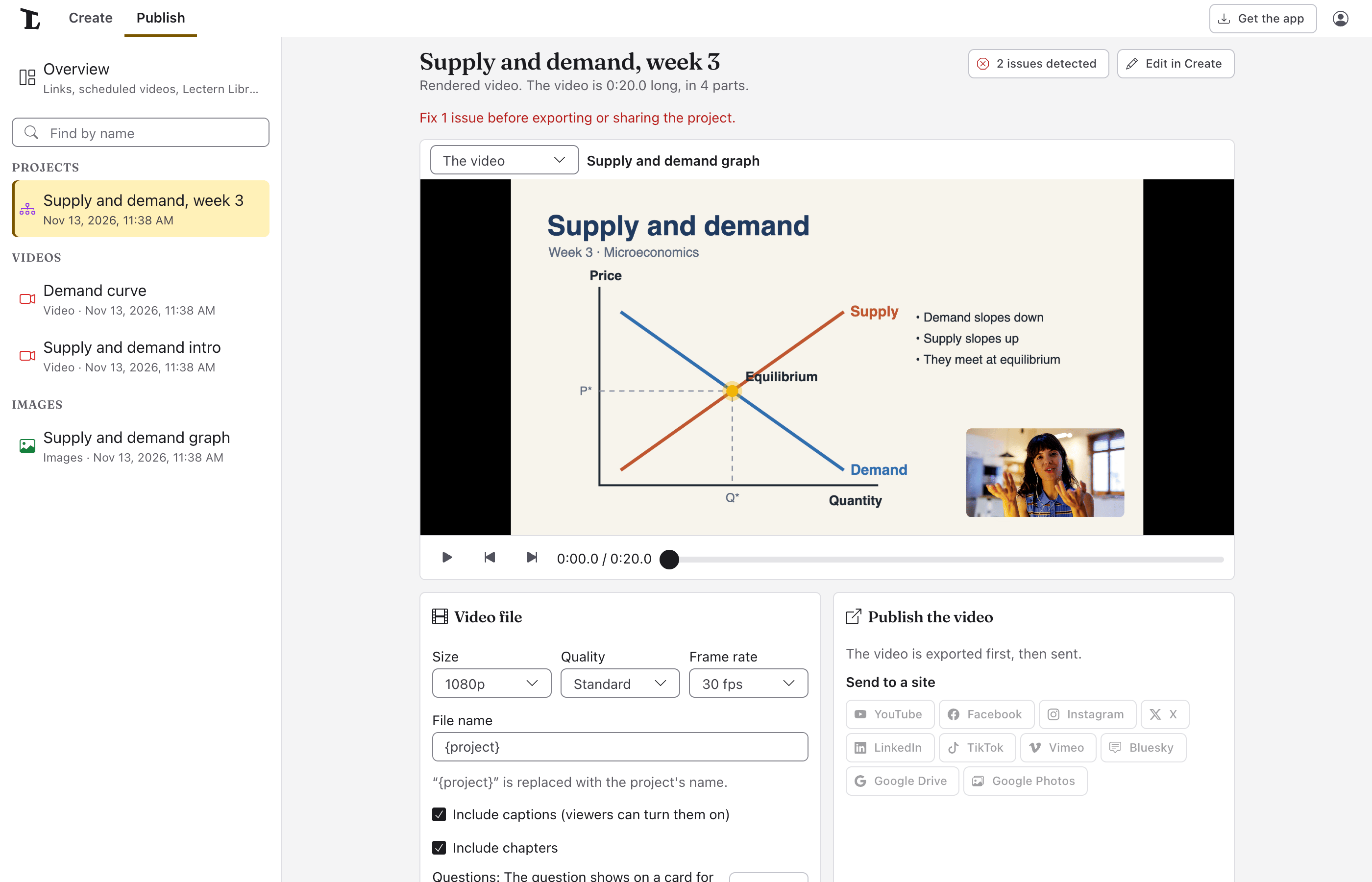
Edit in Create, beside the project's name, goes back to the editor. Exporting carries on meanwhile; open Publish again to see it. Finished videos are listed under Exported, with Publish….
In a browser. A recent Chrome or Edge makes the video file itself (keep the tab open until it's done). Where a browser can't, or can't do something the project uses, Publish says so before you start.
Next
Something here wrong or unclear? Tell us.