Help Quick guide
Share a link, post to YouTube, or go live
Three ways a video reaches people, from a private link to a live service.
What you'll do: get a finished video to the people who need it. Pick the way that fits:
- A share link: anyone with the link can watch, with no account. Good for a class or a few families.
- Send to a site such as YouTube, Facebook or Vimeo. Lectern gets the file ready and opens the site's upload page; you finish there.
- Go live: stream as you record, or play a finished video as a live stream (a recorded service at its usual time, say).
Where. Sending to a site works in the Lectern app for Windows, Mac and Linux, and in a computer's browser (on a phone, use Share…). Going live works in the Lectern app for computers and phones, and in a browser through Lectern (a browser can't send a stream straight to YouTube). Share links need a Lectern account.
Share a link
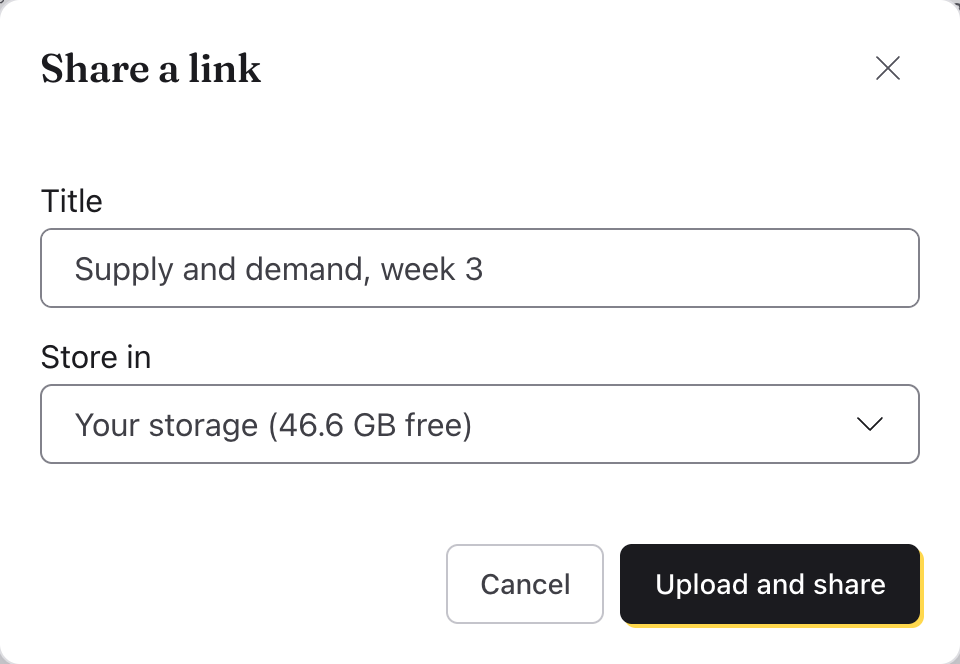
- A recording: open it in Video or Audio, click Publish beside Save, then Share link… under Share a link. (Or pick it in the list on the Publish tab.) A project's video: export it first (see Build a project and export a video), then pick the project on Publish, and under Exported click Share link… beside the video.
- If it has no captions, the app says so first: Continue anyway, Check captions, or Go back and add them. If you're not signed in, it asks you to Sign in.
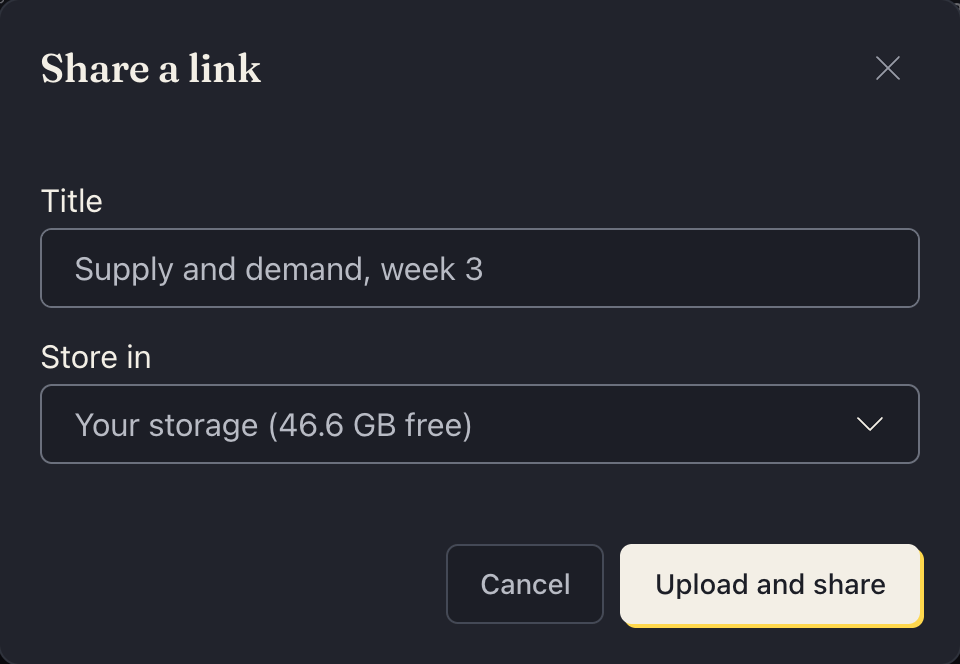
- Give it a Title. If you have more than one place to keep it (your storage and an organization's), choose one under Store in. Click Upload and share.
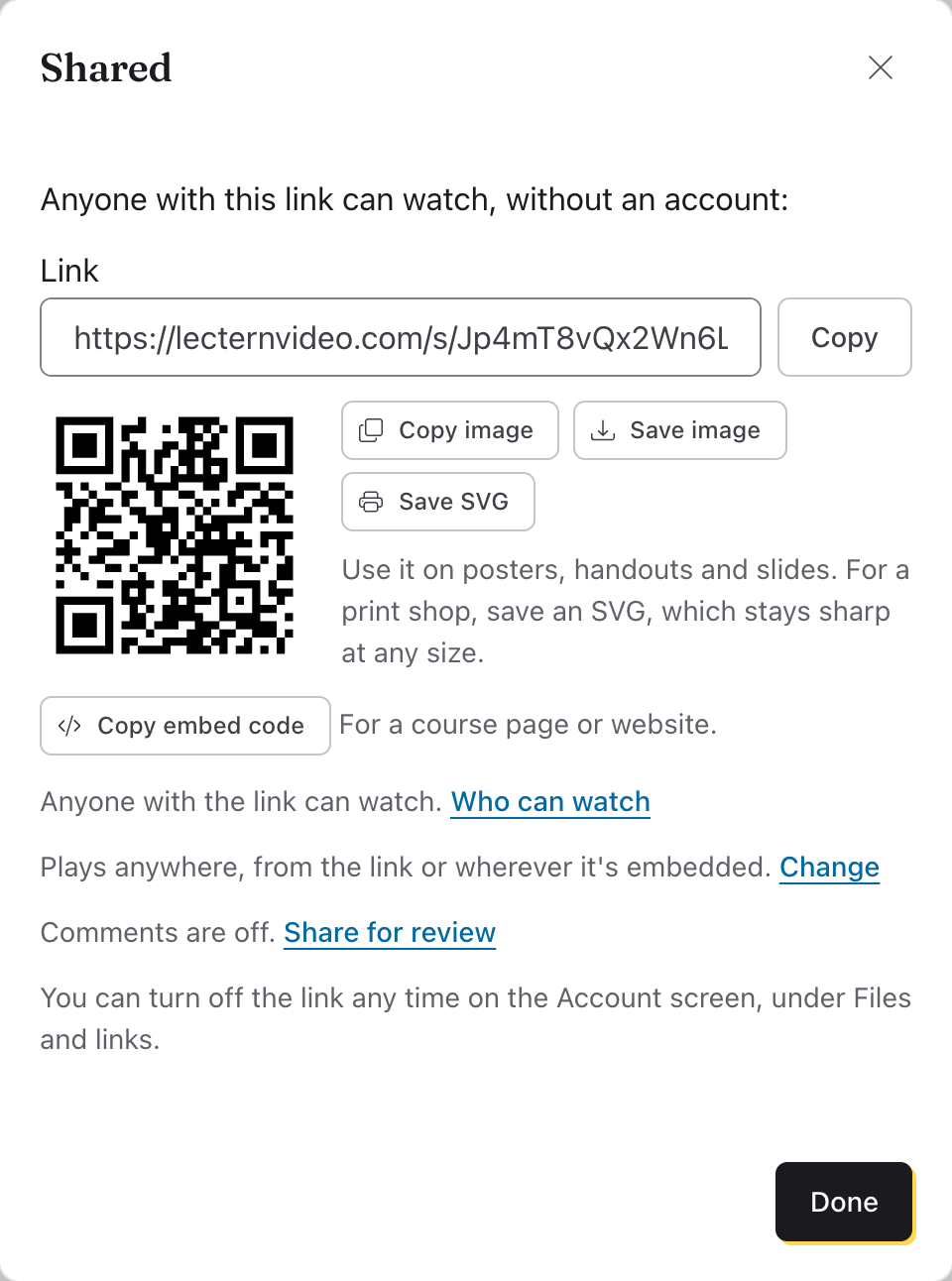
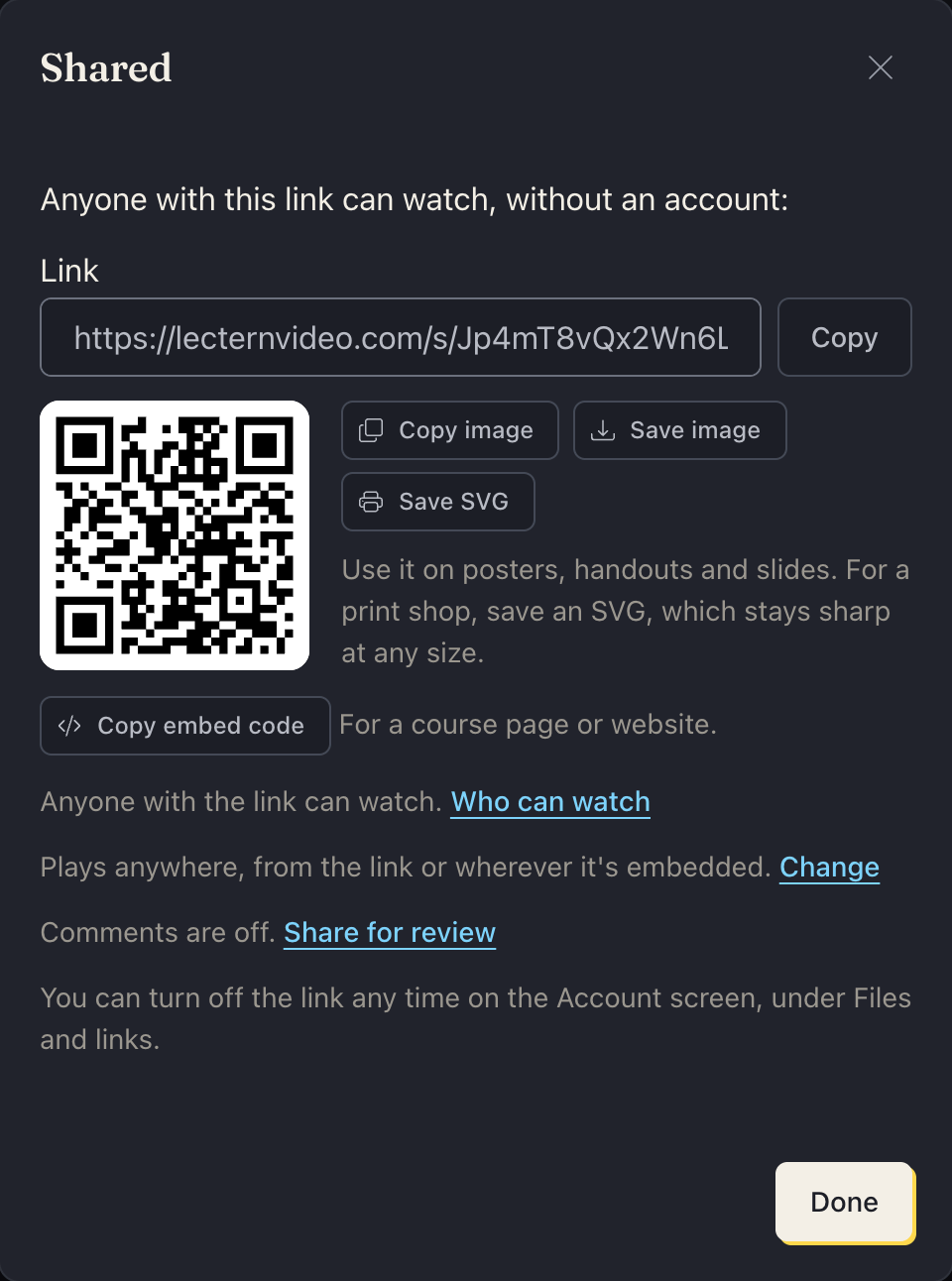
- Copy the Link and send it. Later, Copy link on Publish copies it again (the Overview lists all your links). Turn it off any time on the Account screen's Files and links tab, under Share links.
- To play it inside a course page or a website, click Copy embed code and paste it into the page's HTML (see Put a link in a course page or website).
Post to YouTube (or another site)
- Pick the video on the Publish tab (or click Publish beside a recording's name in Video).
- Under Send to a site, choose the site: YouTube, Facebook, Instagram, X, LinkedIn, TikTok, Vimeo, Bluesky, Google Drive or Google Photos.
- The app saves an MP4, shows it in its folder, and opens the site's upload page in your browser. Drag the file onto the page.
- For YouTube, the app also copies a description to paste: the title and, for a project, chapters from its steps. The captions file is saved beside the video, for YouTube's Subtitles › Upload file.
In a browser it's the same, except the MP4 downloads instead of showing in its folder: drag it from the browser's downloads (or your Downloads folder) onto the site's page, which opens in a new tab. For YouTube the captions file downloads too. A video that isn't an MP4 yet (a WebM) is made into one first, which takes a while; then click Open YouTube (or the site you chose) for its page. Making the MP4 needs a browser that can encode H.264 video, such as a recent Chrome or Edge.
Go live
- Video's + › New camera recording (or, on Windows, Linux, the Mac, Android and a computer's browser, New screen recording or New screen and camera recording; untested on a Mac so far), then Go live on…. (Go live in that menu is the camera's shortcut.) With the screen and camera, pick the Live layout too.
- Choose where to stream: YouTube, Facebook, Twitch, Instagram, TikTok, Vimeo, BoxCast, or Another service (any RTMP or RTMPS server). Each comes with a checklist of what to set up on that site first, with links.
- Paste the Stream key from the site. The app keeps it in your computer's or iPhone's keychain (on Android, with the app's settings; in a browser, with this browser's site data). On a computer with no keyring, only until Lectern quits, unless you choose otherwise. Anyone with a stream key can stream to that account, so keep it private.
- Click Go live and record. The stream status shows under it. If the connection drops, the app reconnects by itself, and the recording carries on whatever the stream does.
In a browser, the stream always goes through Lectern, using your streaming hours; Go live on… says so before you start.
To stream a finished video, pick it on the Publish tab in the app and, under Stream, choose Go live (or Schedule… for later).
For churches: streaming worship music needs a streaming license such as CCLI's, and YouTube and Facebook may still mute songs. Turn on live streaming on YouTube a day ahead the first time; a Facebook Page needs to be 60 days old with 100 followers to go live.
Next
Something here wrong or unclear? Tell us.