Help In depth
Settings
Every setting, tab by tab, from the dark theme to the speech engine and sync.
Settings, in the menu at the top right (your profile picture, or the person icon), opens the app's settings. They're in tabs: General, Recording, Editing, Prompter, Speech and Sync. A change takes effect at once; Done closes the window. Settings are kept on this computer (or in this browser), for every window of the app. The same menu has Help, which opens these pages.
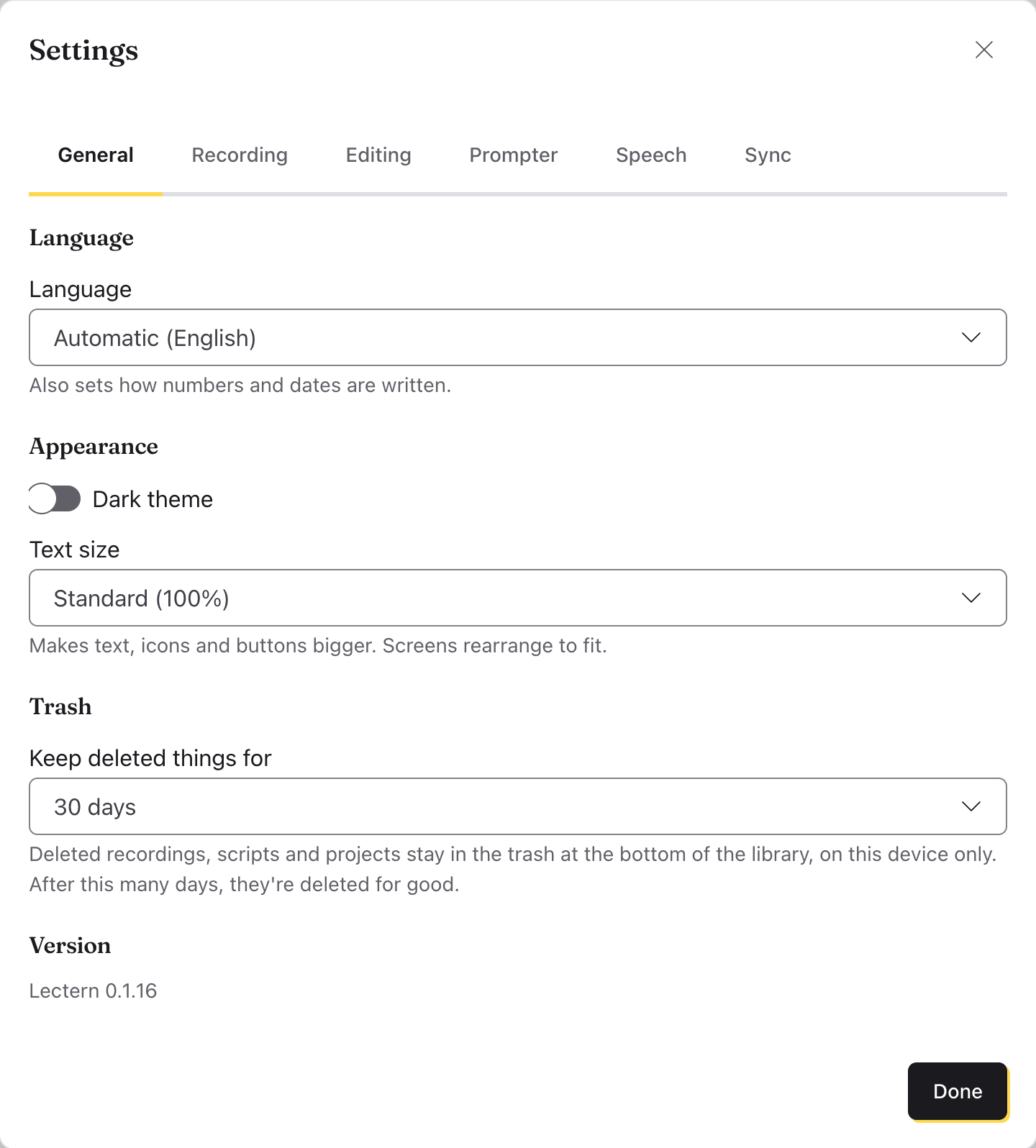
General
Appearance
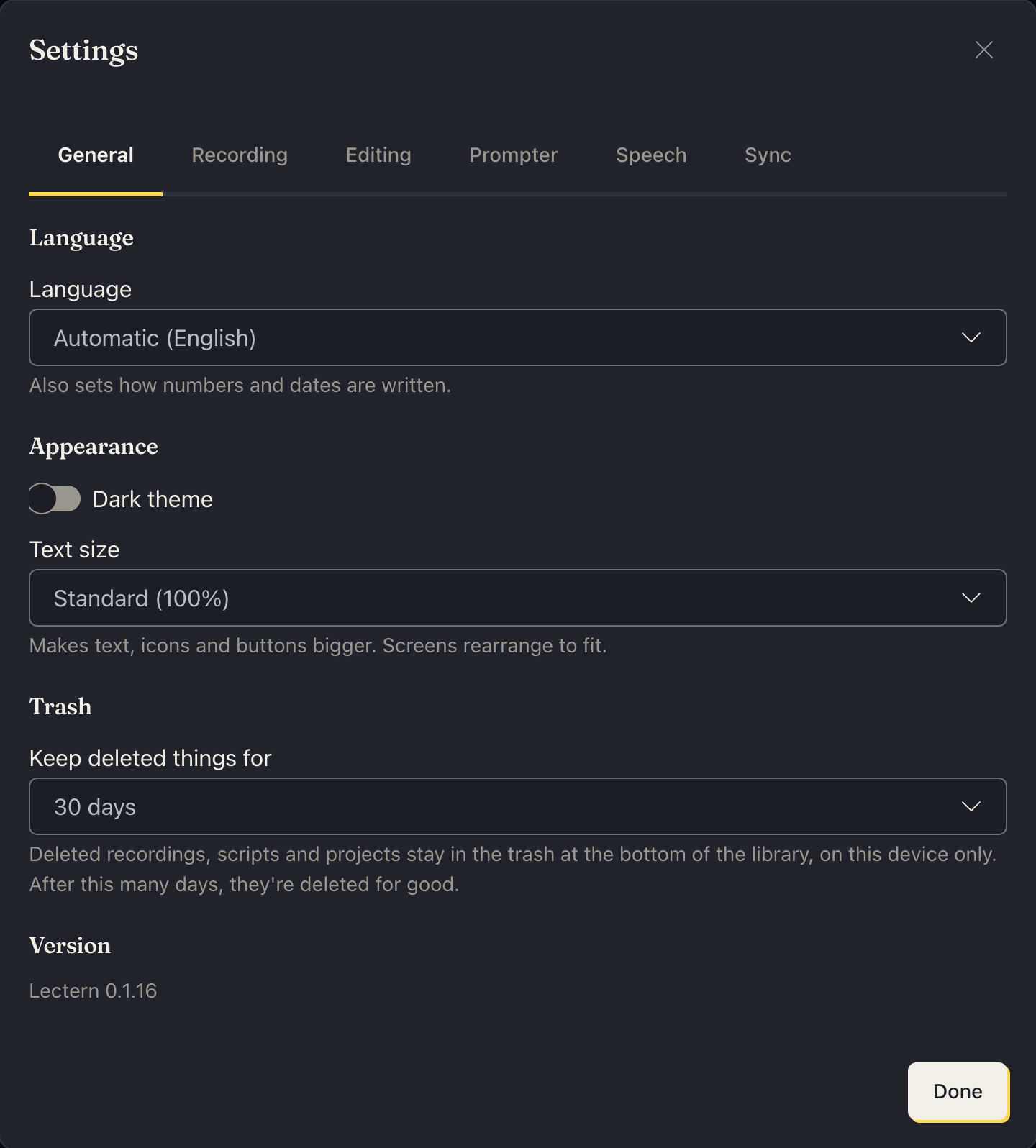
Dark theme switches between light and dark.
Trash
Keep deleted things for: 7 days, 30 days (the default) or 90 days. Deleted recordings, scripts and projects wait in the trash, at the bottom of the library, for this long, then they're deleted for good. Making it shorter deletes anything already older than that.
Crash reports
When Lectern runs into a problem: Ask before sending a report (the default), Send a report without asking, or Don't keep or send reports. A report says what went wrong in Lectern's own code, with the app's version, your system and when. Nothing of yours is in it: no recordings, scripts, file names or account. When Lectern asks, What's in it shows the report itself, and Don't send lets it go. See Privacy and where files live.
Recording
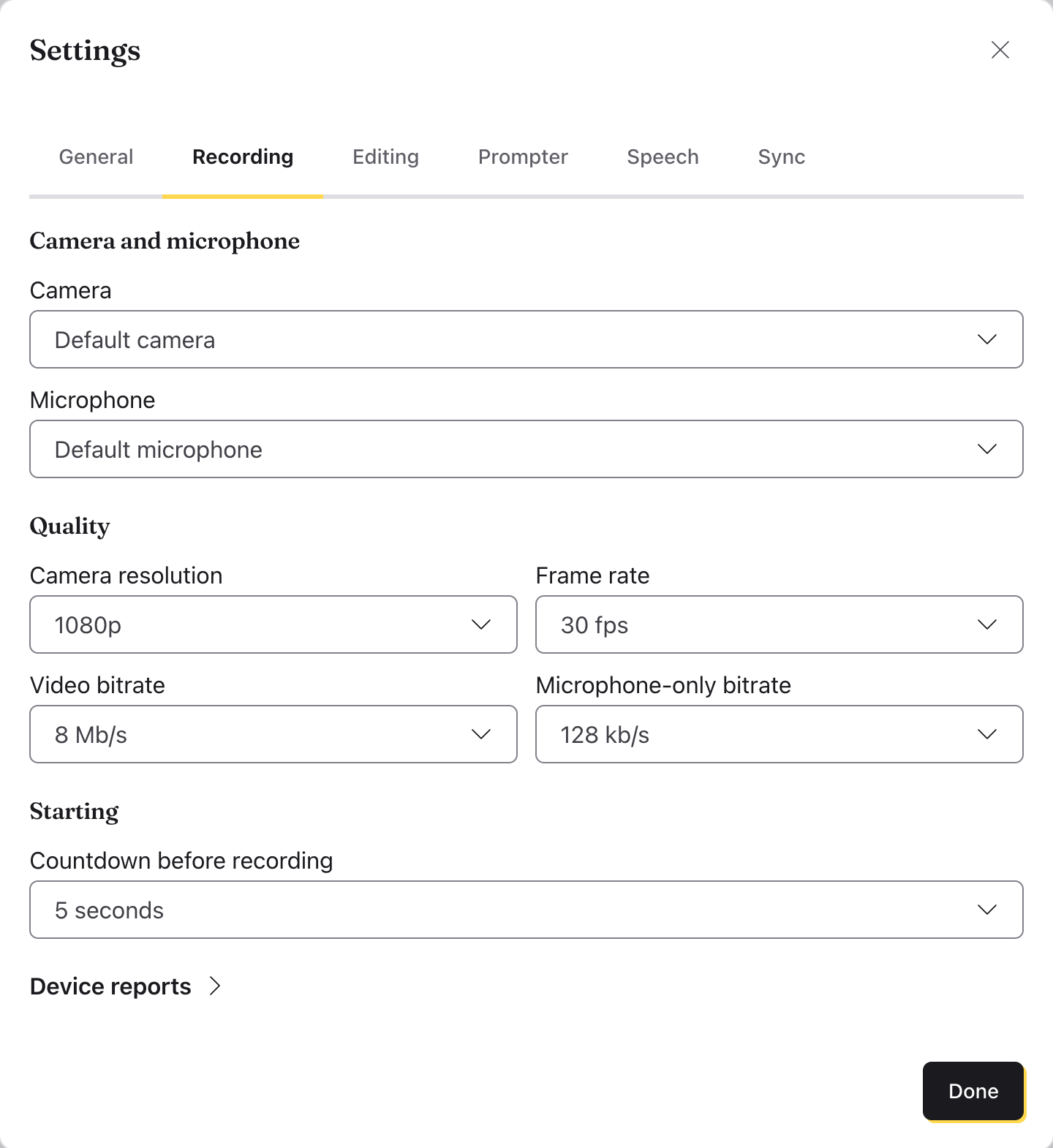
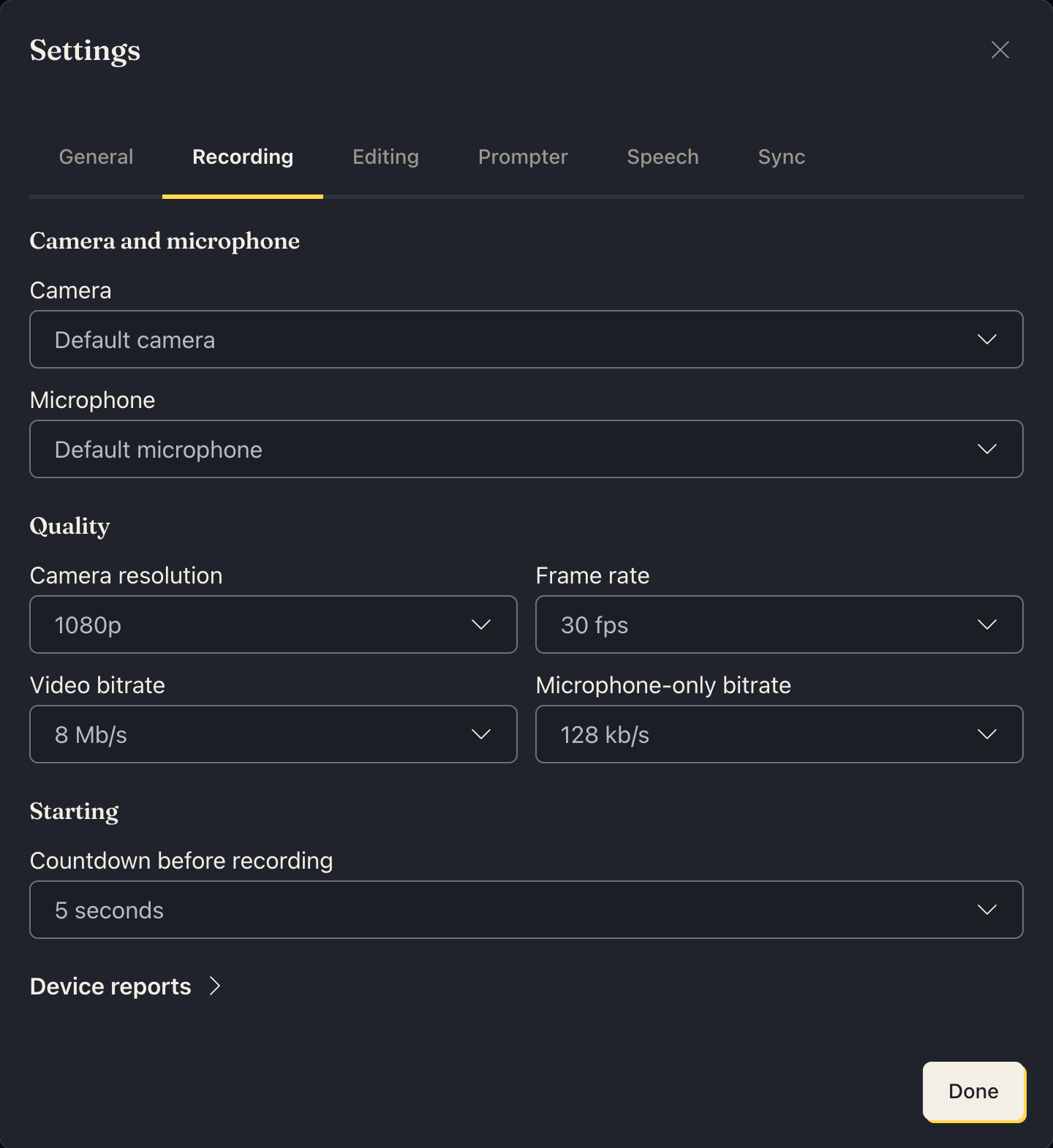
Camera and microphone
- Camera: the camera to record with. Default camera uses the one your computer picks.
- Microphone: the same, for sound. Default microphone uses your computer's.
If a camera or microphone can't be used (it isn't connected, or the app isn't allowed to use it), the reason shows under it, with a way to fix it where there is one.
Browsers only name cameras and microphones once the app may use them. Until then they're listed as "Camera 1", "Microphone 1" and so on, and Show device names asks for permission so their real names show.
Quality
- Camera resolution: 480p, 720p, 1080p (the default) or Camera default. Higher looks sharper and makes bigger files.
- Frame rate: 24 fps, 25 fps, 30 fps (the default) or 60 fps. A camera that can't do the rate chosen uses the closest it can. (The same goes for the resolution.) With Camera default, the frame rate is the camera's own too.
- Video bitrate: how much data a second of camera video gets, from 2.5 Mb/s to 20 Mb/s. The default is 8 Mb/s. More keeps fast movement sharper and makes bigger files.
- Microphone-only bitrate: the same for audio recordings, from 64 kb/s to 192 kb/s. The default is 128 kb/s.
Starting
Countdown before recording: Off, 3 seconds, 5 seconds (the default) or 10 seconds. The countdown shows over the screen after you click Record; a click or Esc stops it, and nothing is recorded.
Device reports
Device reports, folded away at the bottom of the tab, keeps what each camera and microphone said it can do, on this computer, to help work out recording problems. If we ask for it, Prepare download and then Download device reports saves it as a file you can send. Clear deletes them.
Editing
Captions
When I make cuts to video…: Cut and shift captions (the default) or Delete captions. With Cut and shift captions, saving a cut takes out the captions in what you cut and moves the rest up to where they now play. A caption a cut only partly takes keeps the words that are still said, judged from the recording's transcript; a cut pause or "um" inside a caption takes no words. The transcript moves the same way, and a new speed moves both. With Delete captions, saving a cut (or a new speed) deletes the recording's captions and transcript, and you make them again from the cut version. Either way, muting alone leaves them as they are. See Editing media.
Prompter
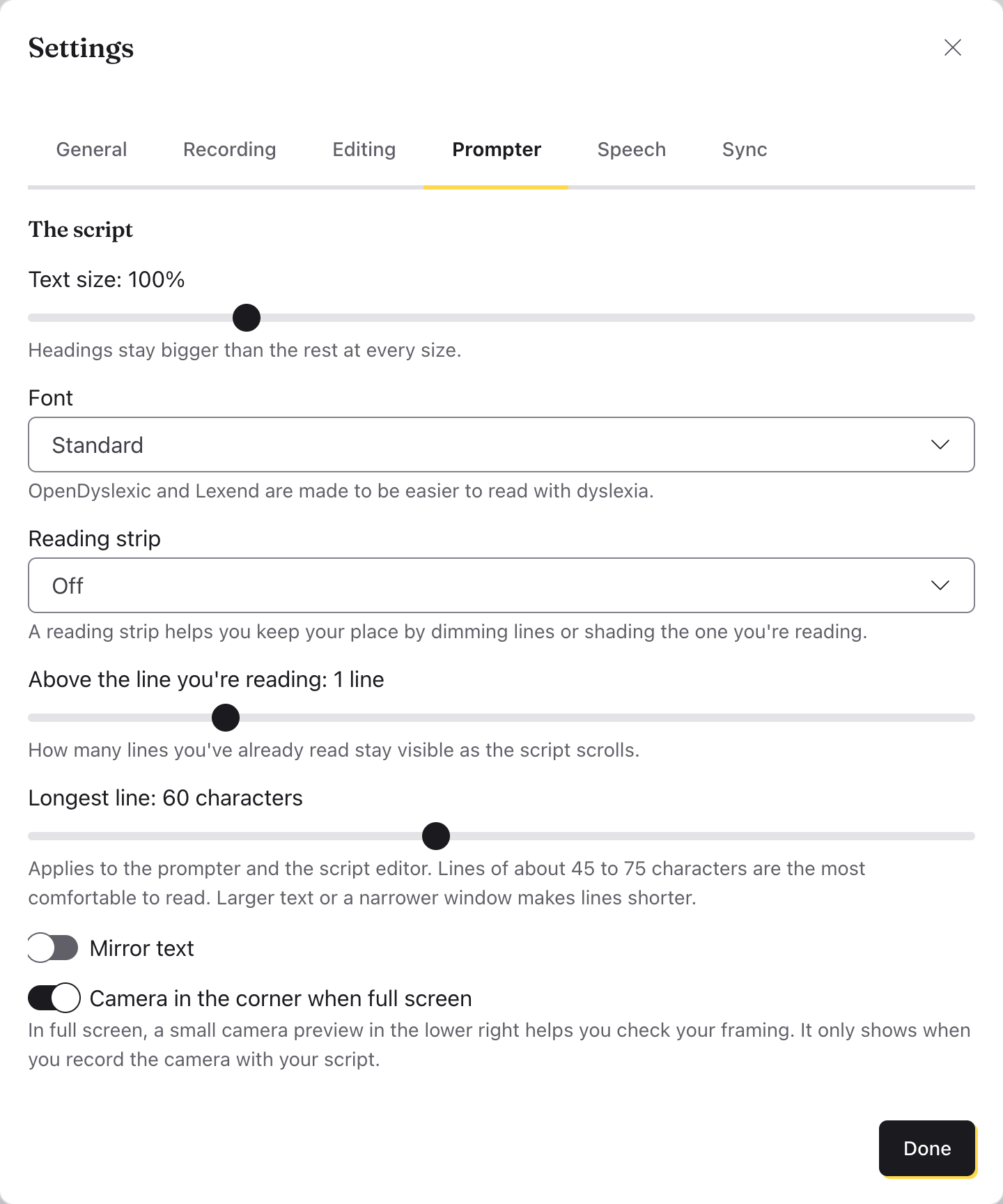
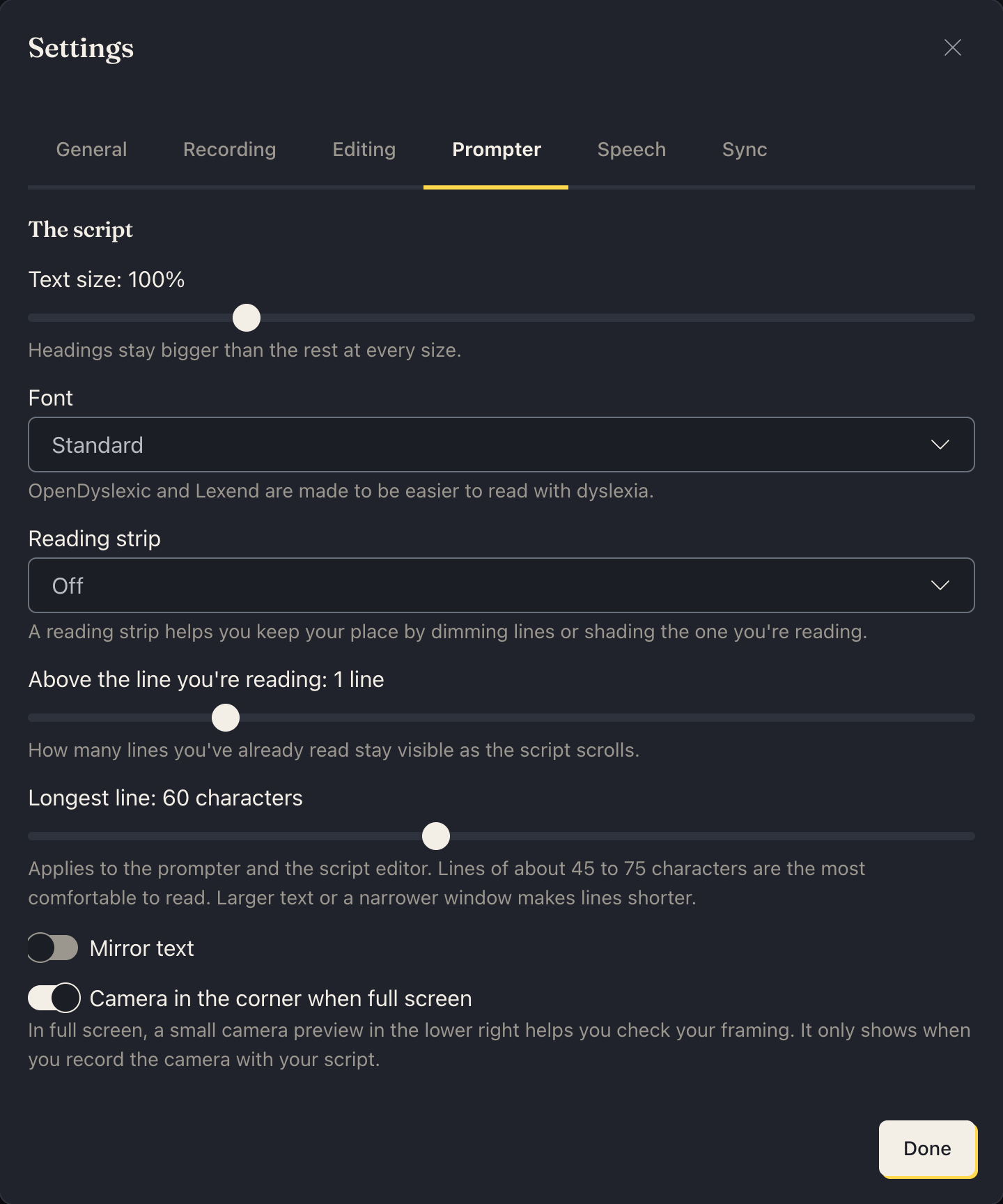
The prompter's sliders button opens this tab too. It's greyed out while the prompter runs or records.
The script
- Text size: headings stay bigger than the rest at every size.
- Font: Standard, or OpenDyslexic or Lexend, two fonts made to be easier to read with dyslexia.
- Reading strip: Off, Shade after the current line (the lines after the one you're reading dim, and the ones before it stay clear, for when the prompter's ahead of you and you're still reading them; Dim the lines after sets how much, and all the way hides them), Shade the other lines (every line but the one you're reading dims; Dim other lines sets how much) or Shade behind the current line (a shade behind the line you're reading, and the rest as it is, for when you read ahead of it; Shade strength sets how much).
- Above the line you're reading: how many lines you've read stay in sight as it scrolls, from none to 5. It's 1 to start with, so the line you're reading is the second.
- Longest line: how long a line of the script can get, in the prompter and the script editor, from 45 to 75 characters (about what's comfortable to read), or no limit. It's 60 to start with. It's the most: bigger text, or a narrower window, makes lines shorter. The script sits in the middle, with room either side.
- Mirror text: for a teleprompter with a glass, which shows the screen reversed.
Reading
- Set speed: for At a set speed, in words a minute.
- Start with recording: the prompter starts when the recording does.
- Clicker keys: B and . start and stop the prompter from anywhere in the window. Turn it off if those keys get in your way.
- Microphone: for With my voice, which microphone it listens to. Not on Windows with dictation, which hears only Windows' default microphone (see Listening to your voice).
While recording
- What to record with a script: what Record with this script records: Camera (the default), Screen, Camera + screen or Microphone only. Anything this computer can't record is greyed out. (The + menu asks each time, so this setting doesn't change it.)
- While recording with a script: Script beside the preview, or Script above the preview (nearer the camera), which keeps your eyes close to the lens.
Prompter window
The prompter window's settings work in the Lectern app for Windows, Mac and Linux. Elsewhere, Show the prompter in its own window is greyed out, saying so.
- Show the prompter in its own window: the prompter opens in a window you can move to another screen or a teleprompter monitor, instead of beside the preview. It opens where you last left it, at the same size (Lectern's main window does too).
- Keep the prompter window on top: that window stays above other windows, such as a video call. It's on until you turn it off. On Linux, KDE Plasma and X11 desktops allow it; GNOME on Wayland doesn't let apps keep a window on top, so there it's greyed out, and the prompter window's own menu (Alt+Space) has Always on Top instead.
- Hide the prompter window from screen sharing (Windows and Mac): video calls, screen sharing and screen recordings, Lectern's own included, show what's behind the prompter window instead, so only you see your script. It's on until you turn it off. On Windows it always works. On a Mac, Lectern's own screen recordings always leave it out; whether video calls and other apps (Zoom, OBS) do depends on how they capture the screen (newer versions of macOS can show it to them), so check before you share. It isn't available on Linux (Linux has no setting for it), so there it's greyed out, saying so. It's for the prompter's own window only; the prompter beside the preview is part of Lectern's window and shows when that's shared.
- The prompter window opens: with more than one display connected, As a window on this display (the default), or Full screen on one of them, such as a second screen or a teleprompter's monitor. Mirror text (above) flips it for a teleprompter's glass. Press Esc in it to make it a window again. On Linux, some desktops (Wayland) choose the display themselves.
Speech
Speech recognition
In the desktop app on a Mac or on Windows, and in a browser, Engine chooses what listens when the prompter follows your voice and when you dictate:
On a Mac: Apple Speech (the default) or Whisper (on this device).
On Windows: Whisper (on this device) (the default), which works without the internet once its speech model is downloaded (148 MB, the first time), or Windows speech (online), which needs Windows' online speech recognition turned on and depends on Microsoft's speech service. That service has had outages, so if Windows speech stops following you, choose Whisper. Windows speech hears only Windows' default microphone, set in Windows Settings › System › Sound › Input; Whisper can use any, chosen in Microphone (above).
In a browser: Your browser's speech recognition (the default where the browser has one) or On this device (Whisper), which hears you in the page, sending nothing anywhere, once its speech model is downloaded (139 MB, the first time). Firefox has only Whisper. Whisper can listen to a microphone other than the default (Microphone, above); the browser's own can't. It's a moment slower to follow you than the browser's own on most computers.
On Linux, Whisper is the only engine, so there's nothing to choose (the tab says so). Captions and text from audio always use Whisper, whatever is chosen here. See Privacy and where files live for what each one sends.
Voice follow timing
Speech recognition reports words a moment after you say them, so while you read steadily, the prompter's highlight keeps your pace in between. It never goes past the end of a sentence, where you might pause. These change how, if it runs too far ahead of you or lags behind:
- Runs ahead of the words heard: Not at all, or up to 1 word (the default), 2 words or 3 words past the last word it heard. Not at all turns the next three off.
- The recognizer is behind you by: from 0 s to 1.5 s; 0.7 s is the default. It counts this much reading as done when a word comes in, so more puts the highlight further ahead.
- Keeps going with nothing heard for: 0.5 s to 2 s (1 s is the default). After this, it waits for the next word it hears.
- Back to the last word heard after: 2 s, 3 s (the default), 5 s, 10 s or Never. After a pause, the highlight goes back to the last word it heard, so it's clear where to pick up.
- The next line moves up: As you start it, Near the end of a line, Three-quarters along a line (the default) or Halfway along a line, so the next line is in place as your eyes get there.
Reset to defaults puts them all back as they were. Like the other settings, they're kept on this device: each device's speech recognition is quicker or slower.
Sync
- Sync new files (on at first): signed in, with storage, new recordings, scripts and projects go to the cloud and to your other devices. What was on this device before syncs when you choose Sync now in its menu. Off, new files stay on this device, and the Sync to the cloud box starts unticked when you record or add media.
- This device's name: when a file changed on two devices before they synced, both are kept, and the other copy is named for the device it came from. Blank, it's the kind of device, such as "Mac", "Android phone" or "Chrome on Mac".
If sync couldn't finish (offline, say), this section says why, and it tries again in a few minutes. See Sync: your library on every device.
On a desktop with no keyring (some Linux desktops), Staying signed in on this computer says so, and has the choice to save your sign-in and stream keys unencrypted. See Staying signed in, and a computer with no keyring.
See also
Something here wrong or unclear? Tell us.