Help In depth
Exporting and sharing
The Publish tab: making a project's video, share links, saving a file in another format, sending it to a site, and streaming it.
Everything leaves the app from Publish, a tab at the top of the app beside Create (and Library, for an organization with one). It makes a project into a video file or a link, and shares, saves, posts or streams a recording, an image or an exported video. The quick guide is Share a link, post to YouTube, or go live.
The Publish tab
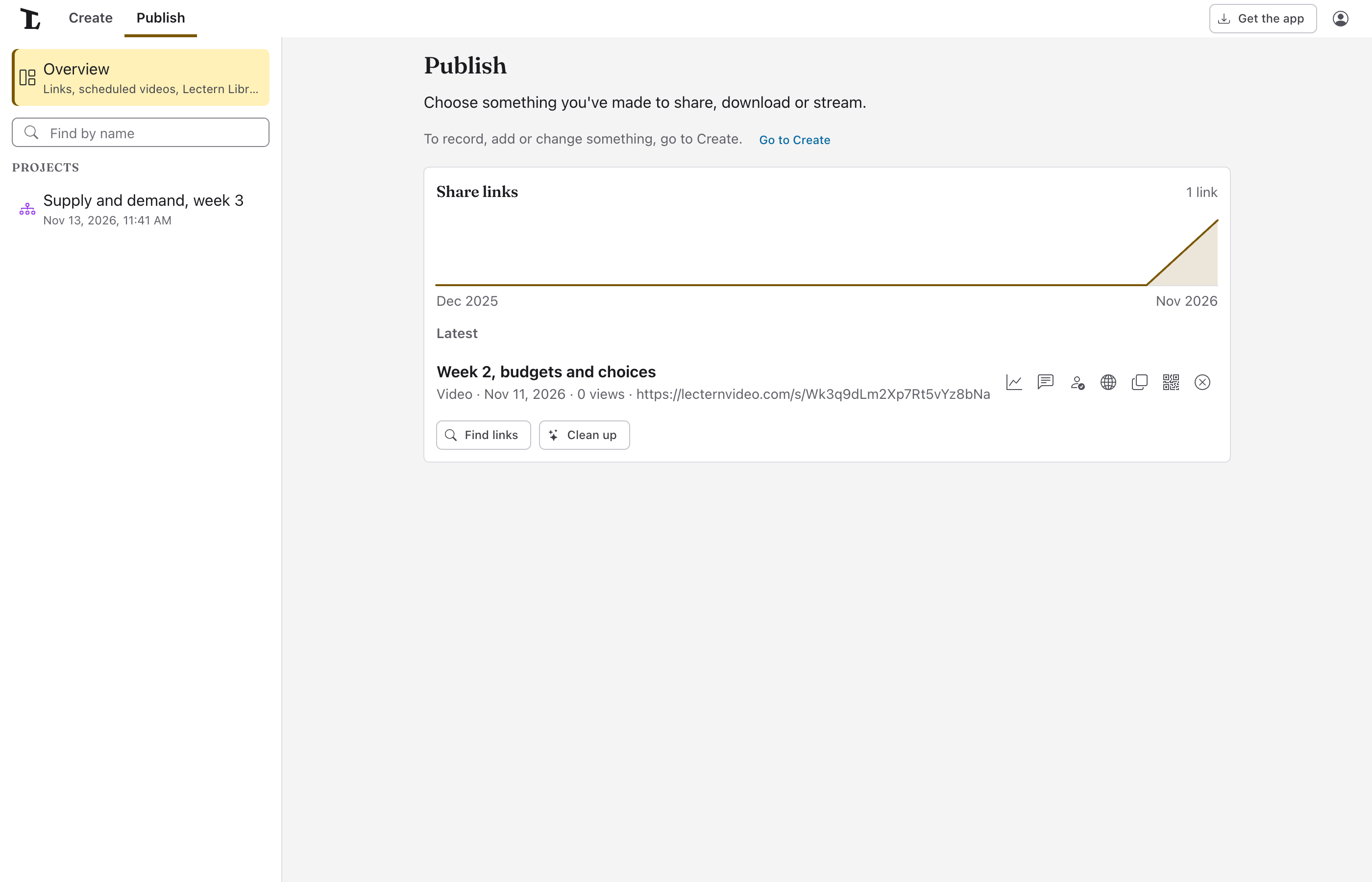
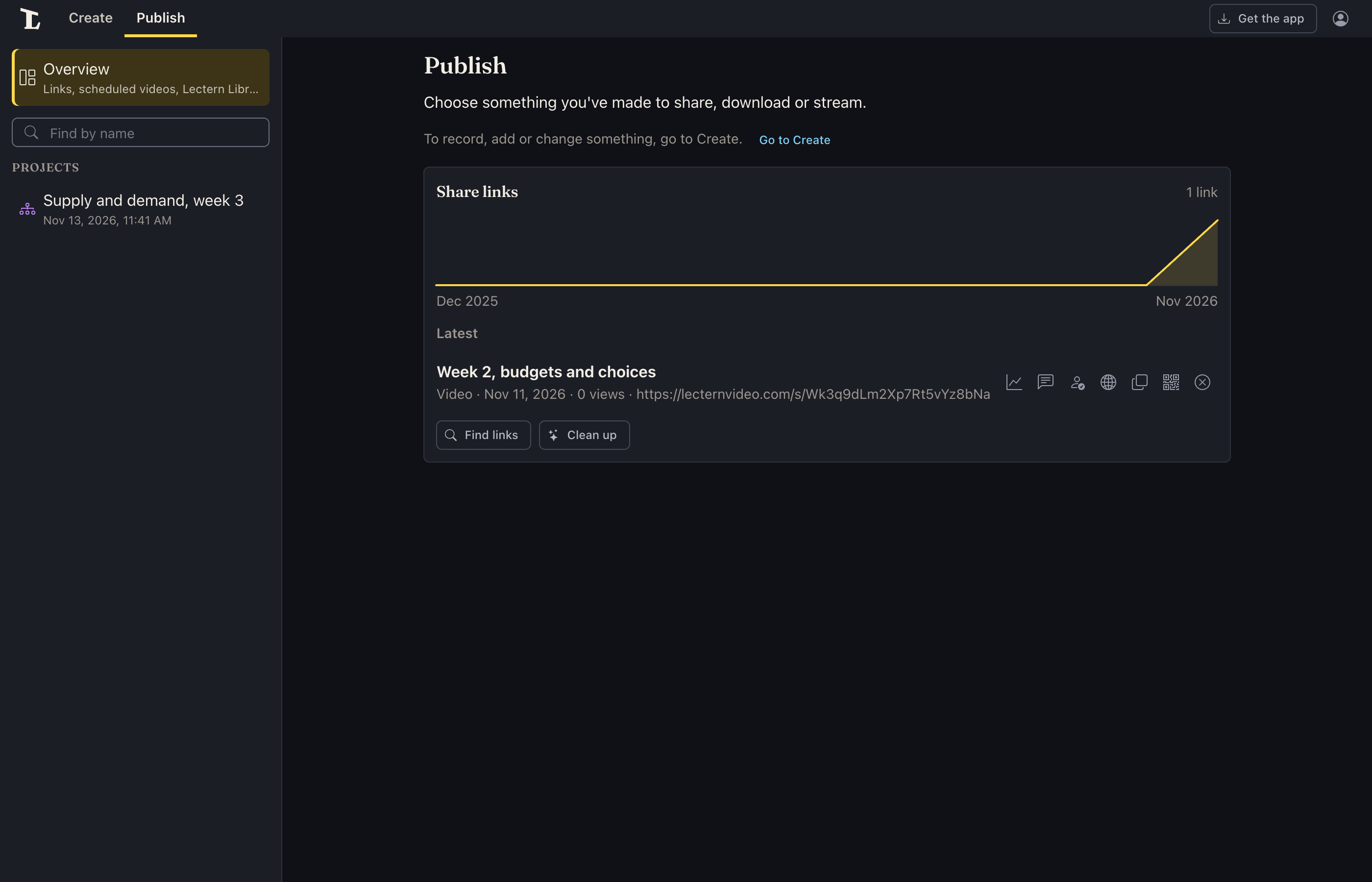
On the left is a list: Overview first, then your Projects, Videos, Sound and Images, with Find by name to find one. Pick one to publish it. Publish, beside Save at the top of a file open in Create, opens this tab with that file picked; so does Publish in a project's editor, for the project.
Overview, with nothing picked, shows your share links (with their views, comments and who can watch), your scheduled videos, and, in an organization with a Lectern Library, Your videos in Lectern Library. Your links and scheduled videos are listed when you're signed in.
Publish for a project: issues, the video file's settings, question cards
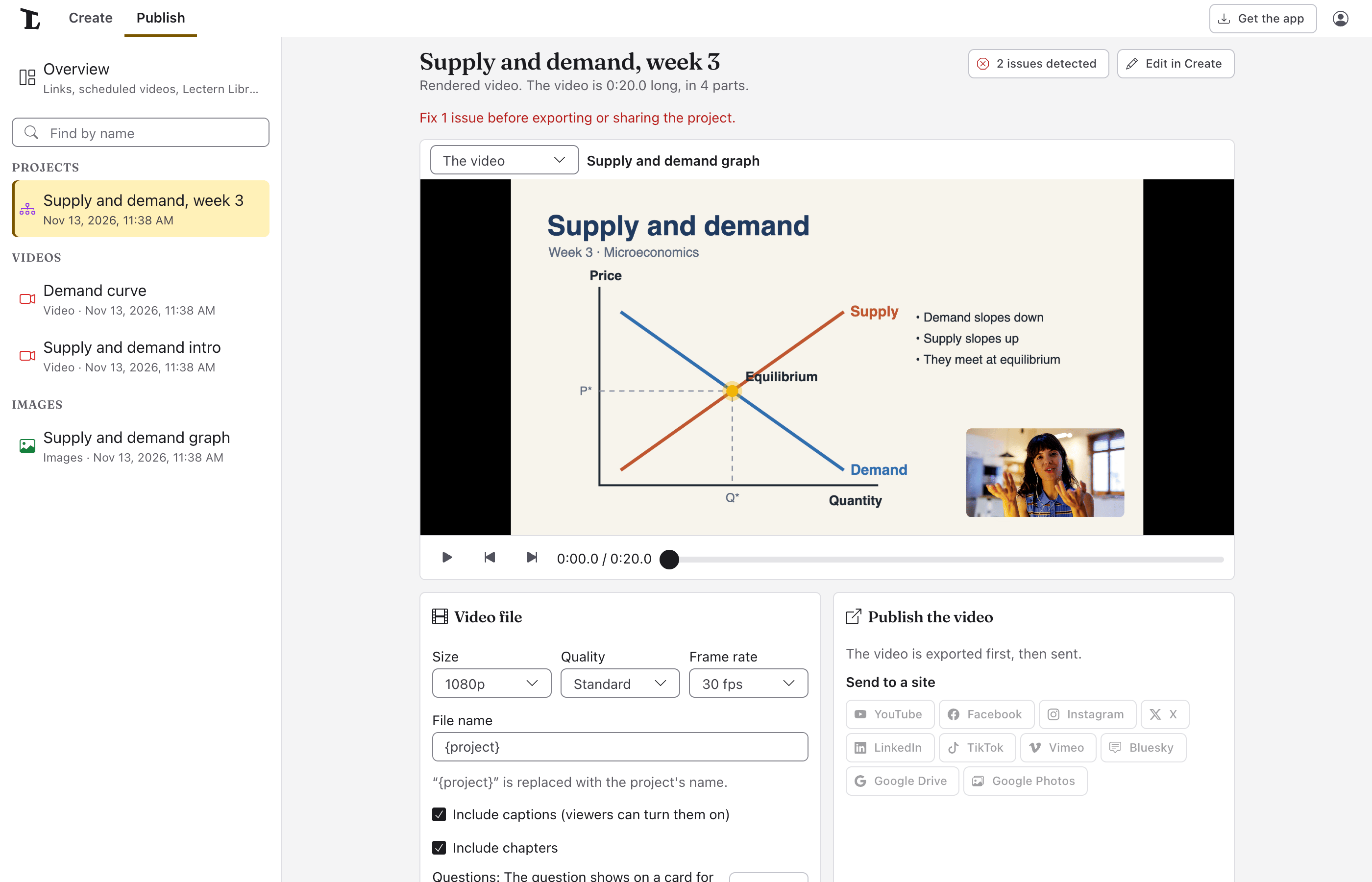
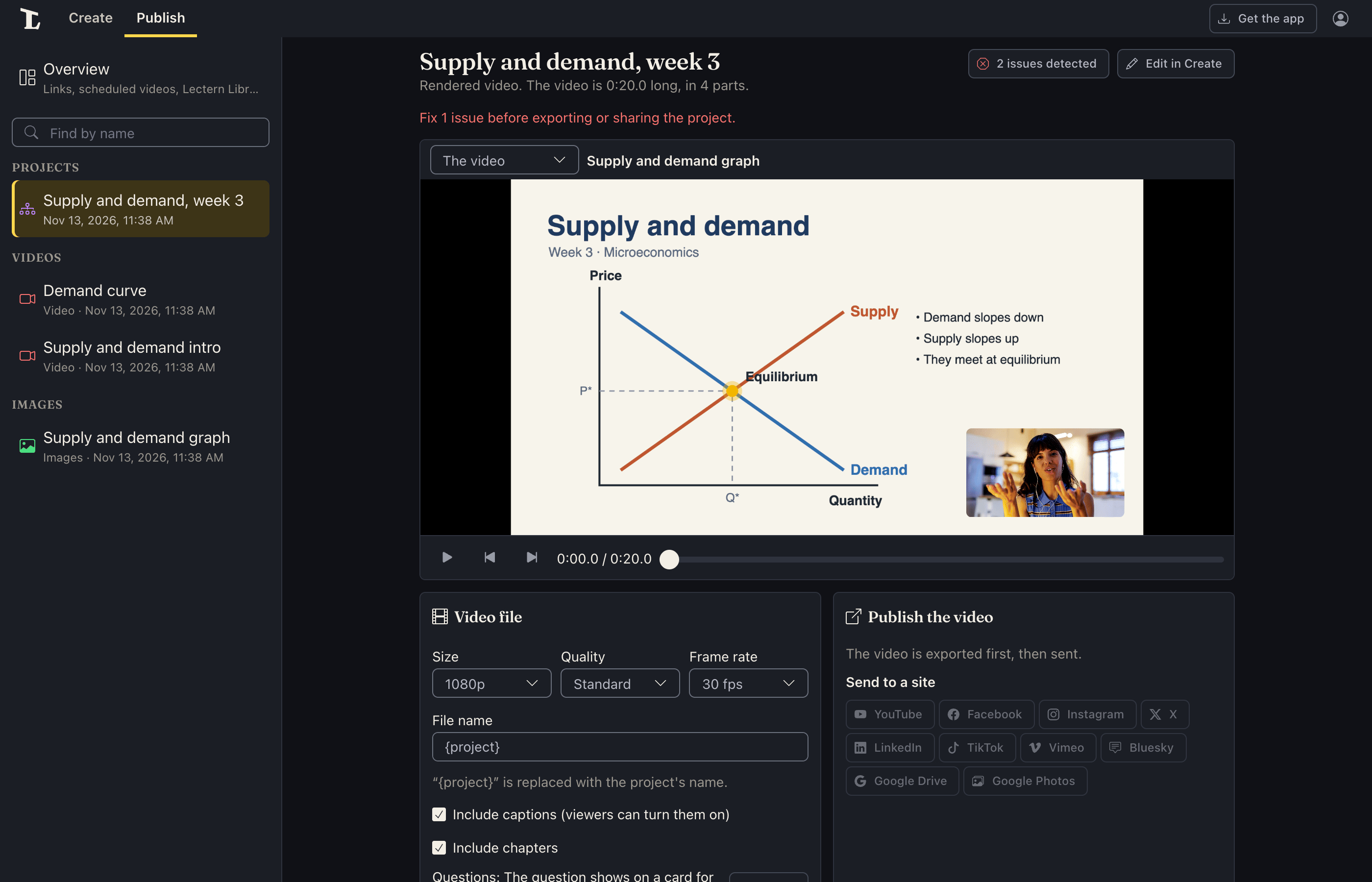
With a project picked (or Publish in the editor's bar, beside Preview project), the page is laid out as a recording's is: the project's name, the video as viewers get it, and under it the cards. Beside the name, Edit in Create goes back to the editor, and when Lectern finds anything, a button says how many (2 issues detected). It opens the Issues: problems that must be fixed (Needs fixing) and ones worth a look (Worth a look), including anything that may be hard for some viewers to see or hear. Show in the editor takes you to each one. While anything needs fixing, the project can't be shared or exported, and Publish says so under the name.
The cards, one for each way out:
- Interactive version (a project set to Interactive or Both): the project as viewers play it in their browser, with its questions, branches and score. Share link shares it, and Copy embed code puts it in a website (see Share a project by link).
- Video file: the settings below, and Export video.
- Publish the video: the exported video's ways out, as a recording has: Send to a site and, in the apps, Go live and Schedule… under Stream. Each uses the newest export, or exports the video first when there isn't one. Lectern Library, a copy, captions… opens the export's own Publish page for the rest.
Under Video file:
- Size: 2160p, 1440p, 1080p, 720p or 480p. It starts as the project's own size. The number is the short side, so in a tall project 1080p is 1080 wide by 1920 high (it says so beside each size); changing the project's shape keeps the size.
- Quality: Draft (small file), Standard or High, for the picture and the sound (96, 160 or 192 kb/s).
- Frame rate: 24 fps, 25 fps, 30 fps or 60 fps: how many pictures a second the file has. 30 suits most videos; 24 looks like film; 25 is the rate of TV in Europe and much of the world; 60 makes fast movement, like scrolling a screen, smoother.
- File name: the project's name, unless you change it.
- Include captions (viewers can turn them on): recordings' captions come along, as captions viewers can turn on and off.
- Burn in captions (always on screen): draws captions into the picture, in the look Style… gives them (see Burned-in captions). Shown when the project has captions. Turned off, the file leaves them out, though the preview and a shared link still show them.
- Include chapters: see Chapters below.
- Questions: how questions show in the video. Change… opens Questions in the video: Shown as cards or Left out, how long each question shows, and whether the answer follows (Then reveal the answer). A question can set its own timing in its settings.
The video is an MP4 file. In a browser that can't make MP4 video with AAC sound (Chrome on Linux, for one), it's a WebM file instead, made with whatever the browser can encode (VP9, VP8 or AV1 video, Opus sound).
A project set to Interactive only doesn't make a file; it's shared by link (see Share a project by link). To make a file too, set its Output to Both in the editor.
Export video, and the Exported list
Export video makes the file, in the apps or in a browser. In a browser, it's made on your computer by the browser itself, so keep the tab open until it's done. A recent Chrome or Edge can, and so can other browsers with any of the video encoders it tries (H.264, VP9, VP8, AV1); where a browser has none, Publish says so. Clips and sounds played faster or slower keep their pitch, as they do in the app, and looks are drawn the same in every browser. Captions and chapters go in the file as they do from the app. (QuickTime Player doesn't list a browser-made MP4's captions or chapters; VLC and most other players do, and both are also kept beside the file, for Send to a site.) A file the browser can't play (HEVC video in some browsers, for one) can't go in a video made there: Publish says which. Exporting works at any length. A bar shows how far it's got (Getting ready, Drawing titles, images and cards, Putting it together), and Cancel stops it. It carries on if you go back to the editor (Edit in Create, beside the project's name), and shows here again when you open Publish.
Finished videos are listed under Exported, each with:
- Publish…: the video's own Publish page, with the same choices as a recording has (below).
- A folder button that shows the file in its folder.
Exported videos are kept in the library's Exports folder (see
Privacy and where files live).
Publishing a file: share, save, post, stream
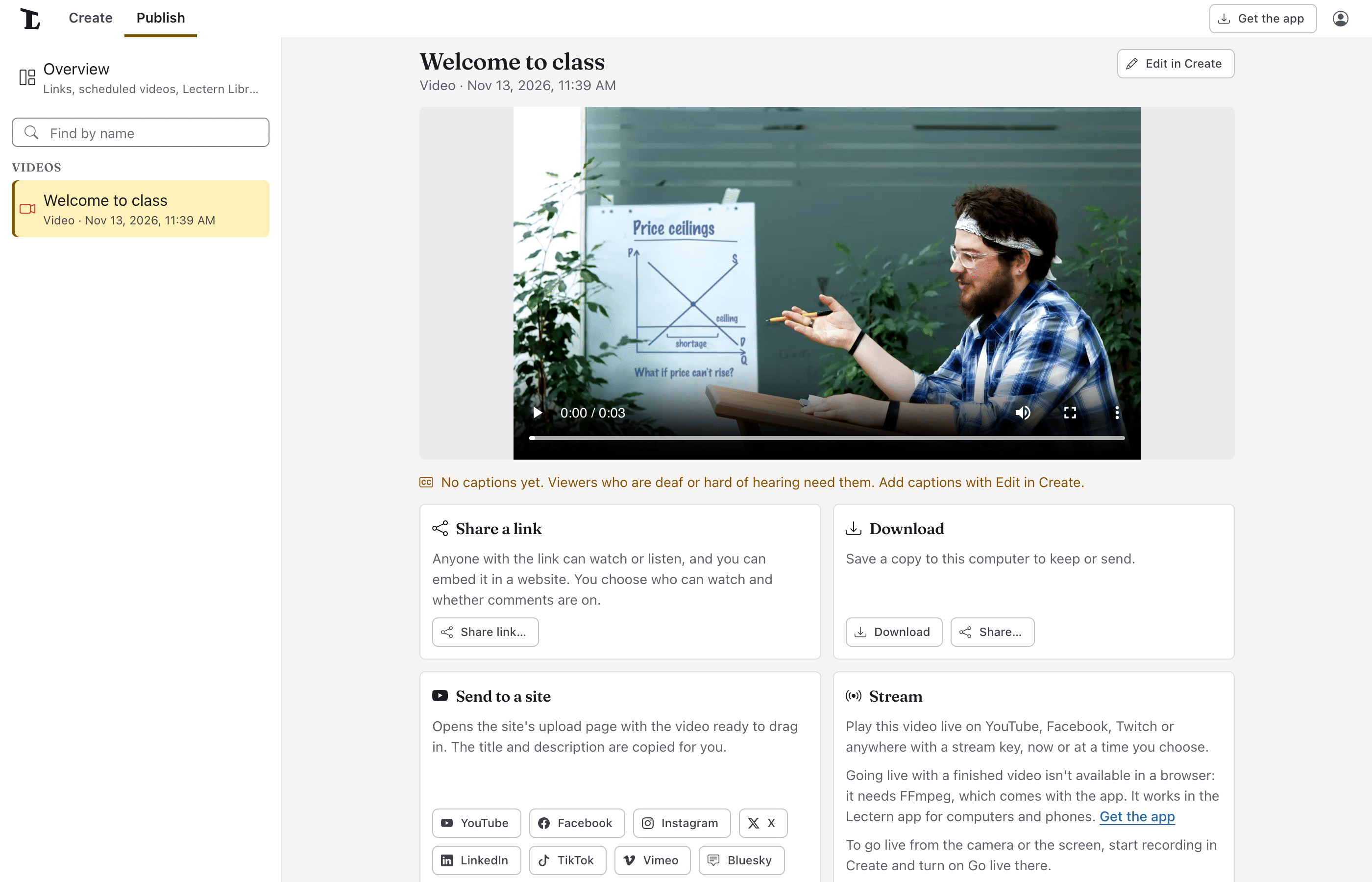
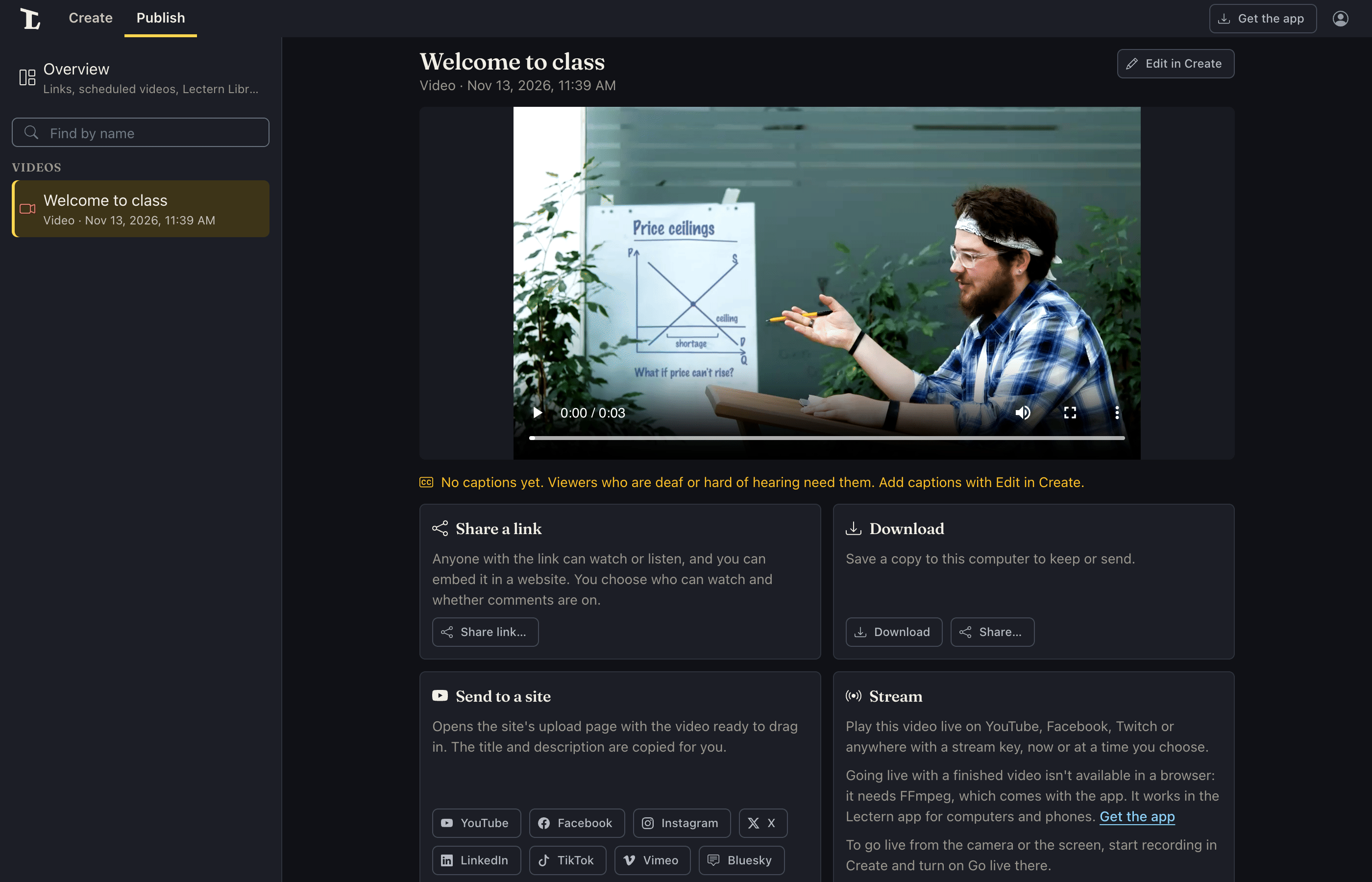
With a recording, an image or an exported video picked on Publish (or its Publish button clicked in Create), it plays at the top, with Edit in Create to go back and change it. A video or sound with no captions says so there. Under it are cards, each a way out; what's in them depends on where you are.
- Share a link: Share link… puts it on a web page anyone you send the link to can watch or listen at (see Share links). Once it's shared, Copy link copies that link again, and Share a new link… makes another.
- Lectern Library: in an organization with a Lectern Library. A recording synced to the cloud, or shared by link, can go in it with Publish to Lectern Library…; once it's there, Change in Lectern Library… and See in Lectern Library. See The Library.
- Save a copy (Download in a browser): see below.
- Captions file: for videos, Save as .vtt… and Save as .srt… in the desktop app (Download .vtt and Download .srt in a browser, Share as .vtt… and Share as .srt… in the phone apps). Greyed out (None yet) until the video has captions; in a browser, shown only once it has them.
- Send to a site: for videos, on a computer; see below.
- Stream: for a finished video in the apps, Go live and Schedule… (see Live streaming). In a browser, the card says that's in the apps, with a Get the app link. To go live from the camera or the screen instead, Go to Create and start recording there. Upcoming streams goes to Publish's overview, which lists what's planned.
- In the desktop app (in a browser): what the desktop app adds for this file (saving as MP4, making captions), with Get the app….
Before a file leaves your device (a link, a save, a post, going live), the app checks its captions, once each time the app is open. With none, or with stretches of speech they miss, it says so (Missing captions?): Go back, Continue anyway, or Check captions, which takes you to the file in Create and starts the check. For an audio recording it checks its transcript.
Save a copy, in the desktop app: Save to a folder… for an MP4 video, an M4A audio file or an image. For other kinds, Save as MP4… (or Save as M4A… for audio), which converts it, and Save the original…, which doesn't. Share… opens the system's share menu on Windows and Mac. It isn't available on Linux (Linux has none), so there it's greyed out, and Show in folder… finds the file, to send it from there. When it's saved, the app says where, with Show in folder.
Download, in a browser: Download saves the file as it is. Share… opens your system's share menu with the file (Mail, Messages, nearby devices, other apps), where the browser can: Chrome and Edge on Windows and Chromebooks, Safari, and phones' browsers. Elsewhere, such as Firefox, there's only Download.
Share links: who can see them, how long they're kept, turning them off
A share link is a web page where the video plays, for anyone you send it to. Viewers need no account and no app. They get the video, its captions (on to start with, with Turn captions off under the video), a Chapters list to jump to, and a Transcript made from the captions.
A video also goes up as smaller copies (1080p, 720p and 360p, whichever are smaller than it), made on your device after it uploads: the page plays the one that suits the screen and the connection, so a phone on a slow connection gets 360p and a big screen the video as you made it. If the video keeps stopping to load, the page drops to a smaller copy by itself, and a Quality picker under the player lets viewers choose one (a shared project's player has the same). The copies don't count against your storage. If a browser can't play the video as you made it (some phones record in a format not every browser plays), the page plays a copy instead. A browser that can't make the copies shares the video as it is. To share it smaller still, make it smaller first with the Quality tab in Create.
To make one for a recording, click Publish beside its name, then Share link…. For a project's video, click Publish… beside it under Exported on Publish, then Share link… (or, for a project that only makes a video, Share link under Video file, for the newest). To share an interactive project itself, see Share a project by link. You need:
- A Lectern account. If you're not signed in, the app asks you to sign in first.
- Storage to keep the video in: your own, or your organization's. See Accounts, Pro and storage. Without any, the app offers Get storage.
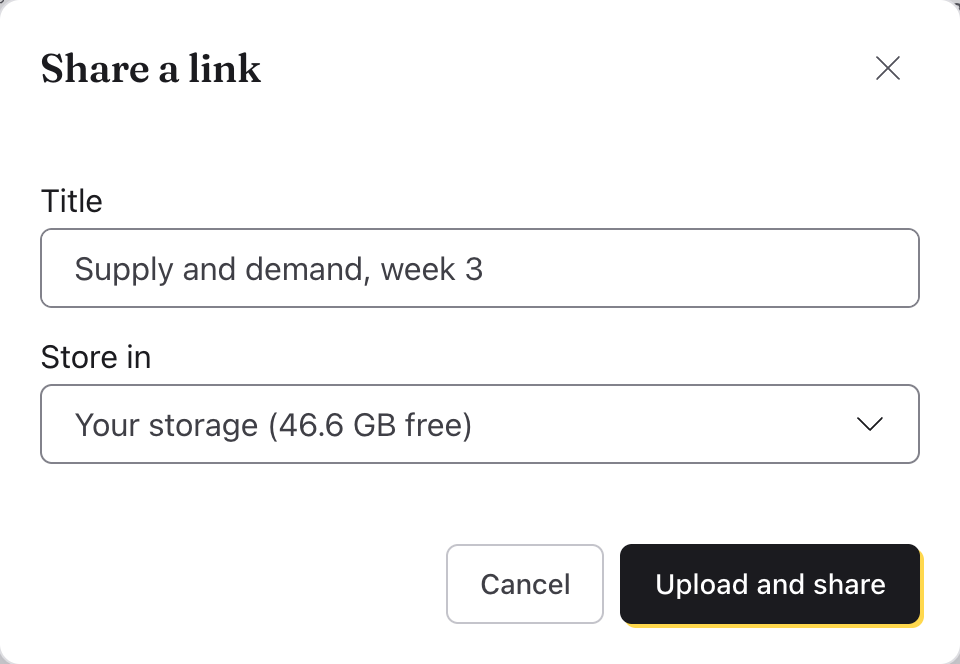
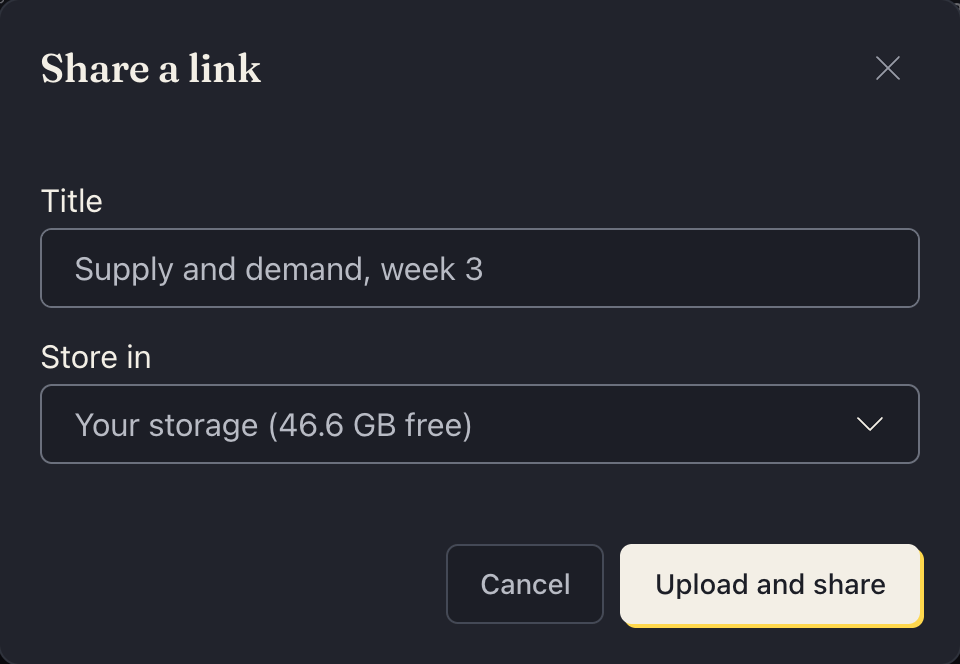
In Share a link, give it a Title. If you have more than one place to keep it (your storage and an organization's), choose one under Keep it in. If it has captions, Start with captions on (on at first) says whether viewers start with them on; they can turn them on or off either way. Click Upload and share. When it's uploaded, copy the Link and send it.
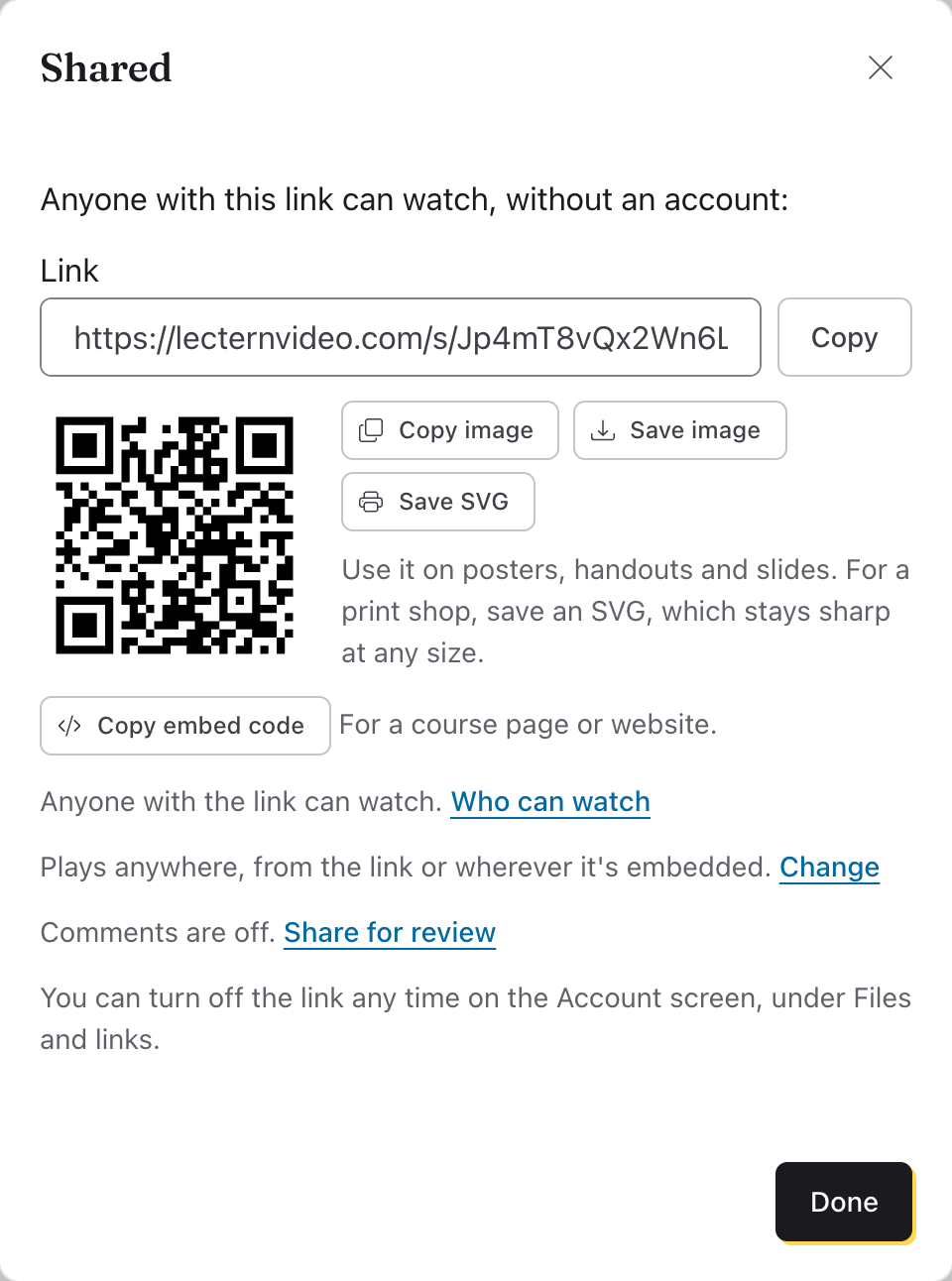
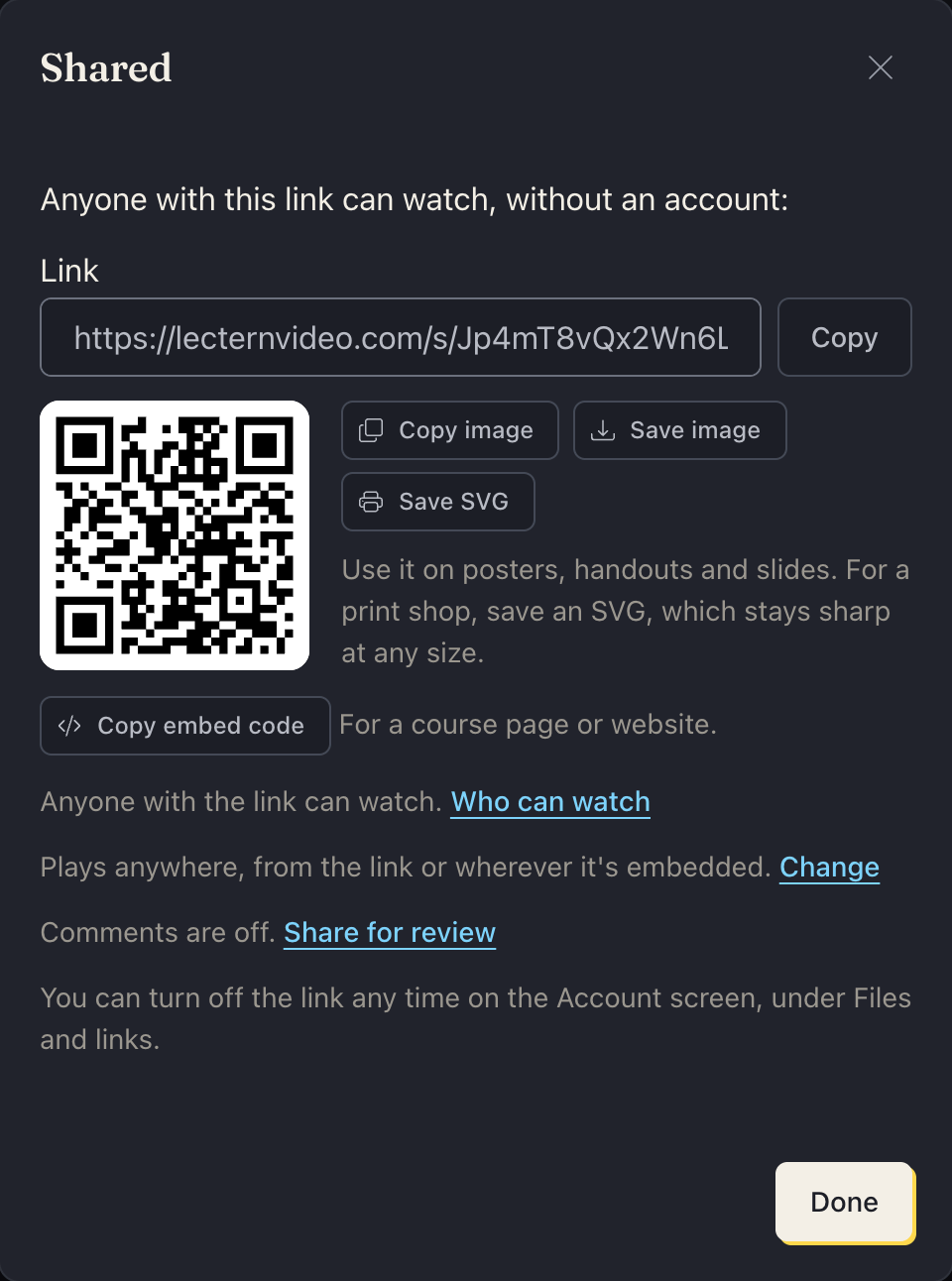
A QR code, for print: under the link is its QR code, for a poster, a handout or a slide: pointing a phone's camera at it opens the link. Copy image copies it, to paste into a document. Save image saves it as a PNG that prints sharp at 4 inches (on a phone, it opens the share sheet, to save it to Photos or send it). Save SVG saves it at any size, for a print shop. It's there later too: QR code beside the link on the Account screen's Files and links tab, beside a project's Copy link on Publish, and beside a stream's link.
Who can see it: anyone who has the link. There's no password, and search engines are asked not to list it. Send it only to the people it's for.
How long it's kept: until you turn it off. There's no end date. If your storage ends and isn't renewed, your links stop playing at once (see the 90 days).
Turning it off: on the Account screen's Files and links tab, under Share links, click Turn the link off beside it, then Turn it off. That's for good: the link stops working and can't be turned back on, and its video stops playing within a minute, even for someone who had the page open. The video stays in your storage until you delete it under Files in the cloud.
Only videos and audio can be shared. Videos from a project are shared once exported; a recording can be shared by putting it in a project.
Share a project by link
A project set to Interactive or Both is shared whole: its steps, questions and branches play on the link's page, as in the app's preview. Viewers need no account and no app. Captions start on, unless the project says otherwise (Start with captions on, in the project's settings under Viewers), and Turn captions off under the player turns them off for the whole video, every part of it, until it's pressed again. On Publish, click Share link under Interactive version. Each scene is baked into a video on your device first (at 720p and 360p, so phones and slow connections get the smaller one): in the apps, or in a browser that can make H.264 video, such as a recent Chrome or Edge. Where a browser can't, Publish says so. As for videos, you need to be signed in, with storage to keep it in.
Share a link says roughly how much it uploads. Choose where to keep it under Store in if there's more than one place, and click Share link. It shows each step (Baking each scene, then Uploading), and Stop stops it: nothing is published until the end. When it's done, Copy the link or Open it.
A project has one link. After it's shared, Publish has Update link and Copy link (and QR code) instead. Update link publishes the project as it is now, at the same link: only scenes that changed are baked and uploaded again, so a fixed caption or question goes up in moments. Anyone partway through finishes the version they started (it's kept for a day); anyone who opens the link after gets the new one.
On the Account screen's Files and links tab, Share links lists a project's link as Project, with its version, and a video's as Video.
Put a link in a course page or website
A shared video or project can play inside another page: a Canvas, Blackboard or Moodle page, or your church's website. When it's shared, click Copy embed code under the link (on Publish, it's beside Copy link). Then paste the code into the page's HTML: in most editors, an Embed button, an HTML editor or Source view, or an Embed or Custom HTML block.
It shows the player alone, without the link page's header, title, chapters or transcript. Captions still work, and a project's questions are answered right there, their answers kept as on the link's page. A small Made with Lectern link sits beneath it. The video's own full-screen button, or a project's Full screen, fills the screen, if the page allows it (the code asks it to).
It fills the page's width at the shape of a widescreen video. If the
editor strips its style, it's 640 by 360; change width and height in
the code to make it another size. A project in another shape keeps its
shape: a tall one is 360 by 640, no wider than that, so it doesn't run off
the bottom of the page.
Anyone who can see the page can play it, as with the link. Turning the link off stops it playing there too.
Only on your websites
A link plays anywhere at first: from the link itself, and on any page its
embed code is pasted into. To keep it to your own websites, click
Change beside Plays anywhere when it's shared, or the globe beside it
on the Account screen's Files and links tab (Where it plays).
Choose Only on my websites and list them, one a line: church.org,
canvas.school.edu. Their subdomains count too, so church.org covers
www.church.org and media.church.org.
Then it plays only embedded on those sites. Another website that copies the embed code gets an empty frame, and the link opened on its own says where it plays instead of playing. Embed codes you've already pasted keep working on your sites, and Anywhere turns it back.
A few things to know:
- List every site the page is on. A course in Canvas is on your
school's Canvas address (
school.instructure.com, say). Google Sites puts embeds in a frame of Google's own, so list bothsites.google.comandgoogleusercontent.com. - It isn't a lock. It keeps other websites from showing it and people from watching by the link, as other video sites' "domain privacy" does. Someone determined can still save what plays on your page.
Who can watch: invited viewers, and selling it
A share link plays for anyone with it. To keep it to people you choose, click Who can watch when it's shared (or the person button beside the link on the Account screen's Files and links tab) and choose Only people I invite. Then the link's files are served only to them, and the page asks each viewer to prove who they are, once in a browser:
- By email. Add addresses, one a line. A viewer enters the address it was sent to and gets a six-digit code there to type in. Someone signed in to Lectern with an invited address is let straight in.
- By an access code. Make up a word (
SPRING-2027), or let Lectern make one, and give it out: on a handout, in a class. Limit how many times it works, or not. - By buying it from you. Sell it with what you already use: Stripe, Gumroad, Patreon or Ko-fi through Zapier, or a form. Give that service the purchase address under Selling it: each purchase it posts there invites the buyer's email, and a refund takes it back. The money goes to you; Lectern never handles it or takes a cut. Keep the address private (anyone with it can invite people); Make a new one if it gets out.
Removing someone from the list stops them the next time they open it (a pass lasts up to 30 days in a browser). Embedded on your website, an invited-only link asks the same way. Switching back to Anyone with the link opens it up again.
Comments on a shared video or project
A share link can take comments, for review: a colleague watches and leaves a note at a moment of the video ("at 1:23, the slide's the old one"), or on a step of a project, and you answer or resolve it. Comments are off until you turn them on: click Share for review when it's shared, or the speech-bubble button beside the link on the Account screen's Files and links tab, or Comments on Publish; then switch on Anyone with the link can comment.
With comments on, a Comments section sits under the player on the link's page. Anyone with the link comments by name, with no account; a comment at a moment has the time beside it, and pressing it goes there. Readers can reply. Comments can't have links or web addresses in them.
In the app, the same dialog lists every comment with where it is: Resolve hides it from readers (you still see it under Resolved, and can Reopen it), Reply answers it in your name, and Delete removes it with its replies. You're emailed new comments at most once an hour, unless you turn off Email me new comments. Turning comments off keeps what was said for you; readers stop seeing them.
Who watched: a link's views
Every share link counts its views, from the first play. Open them with Views on Publish (beside Answers), or the chart button beside the link on the Account screen's Files and links tab. You'll see:
- Views, viewers, time watched and how many finished, for the last 7, 30, 90 or 365 days, and views by day.
- Who kept watching: for a video, how many were still watching at each point, so you can see where people stop.
- Steps reached: for a project, how many viewers got to each step.
- Watched from: the link itself, embedded on a website (and which), or the organization's Library; and on computers, tablets or phones.
- Each viewer, for a link kept in an organization's storage: their views, time watched and whether they finished, by the name the project asked for, or "Someone" for a viewer who gave none.
Viewers who aren't signed in are counted by the same random id as their answers, so a project that keeps no answers (Keep viewers' answers off in its settings) counts each viewing on its own. No network addresses are kept. Views are kept for about 13 months.
Viewers' answers: a link's results, and a spreadsheet
If a project keeps viewers' answers (Keep viewers' answers in its settings), you can see them in the app. Open them from:
- Publish, with the project open: Answers, beside Copy link.
- The Account screen's Files and links tab: the chart button beside a project's link, under Share links.
- For an organization's admins: the chart button beside a link on the organization's Storage tab (see Organizations).
A project has one link, so these are the project's results, every version together. If viewers answered more than one version, Version shows one at a time.
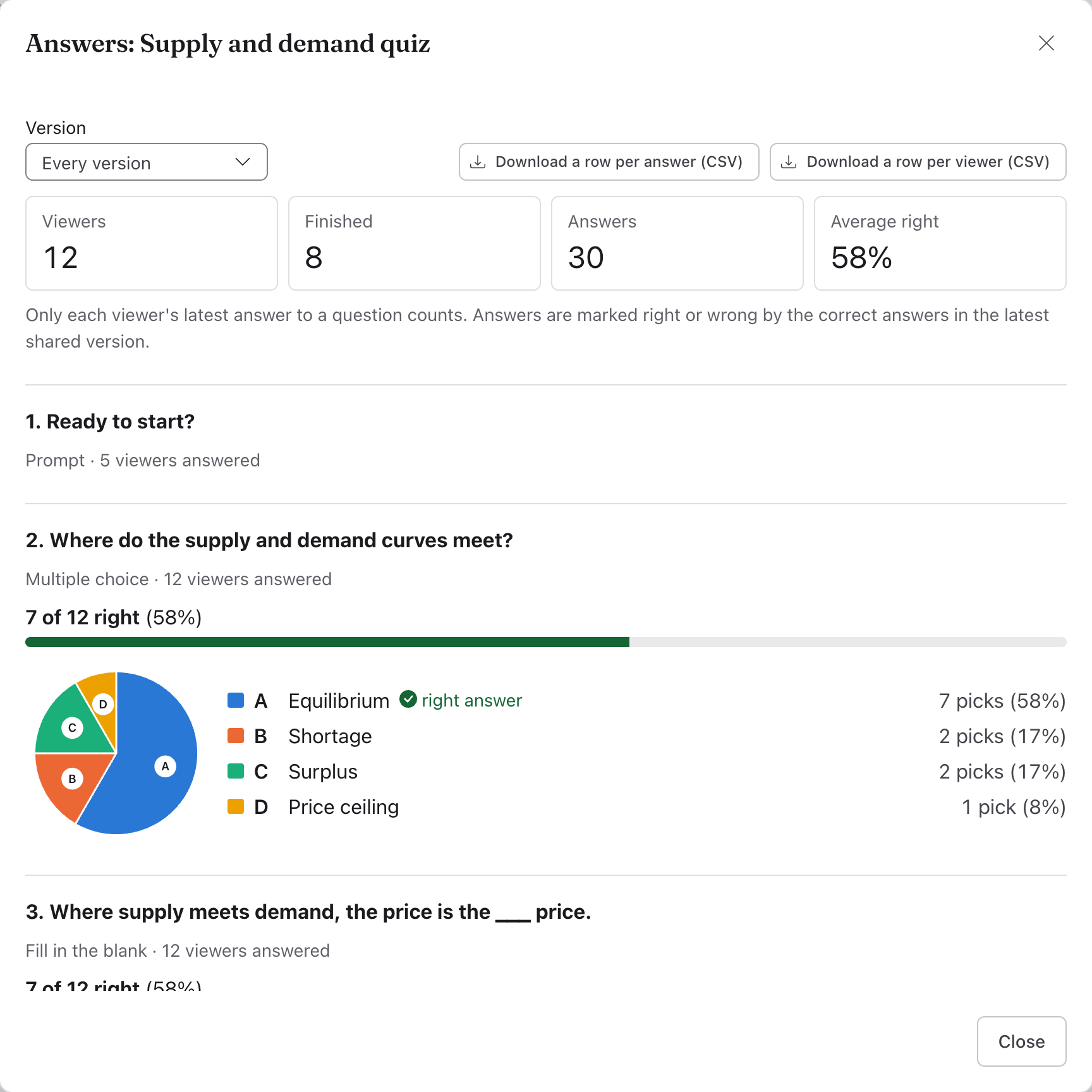
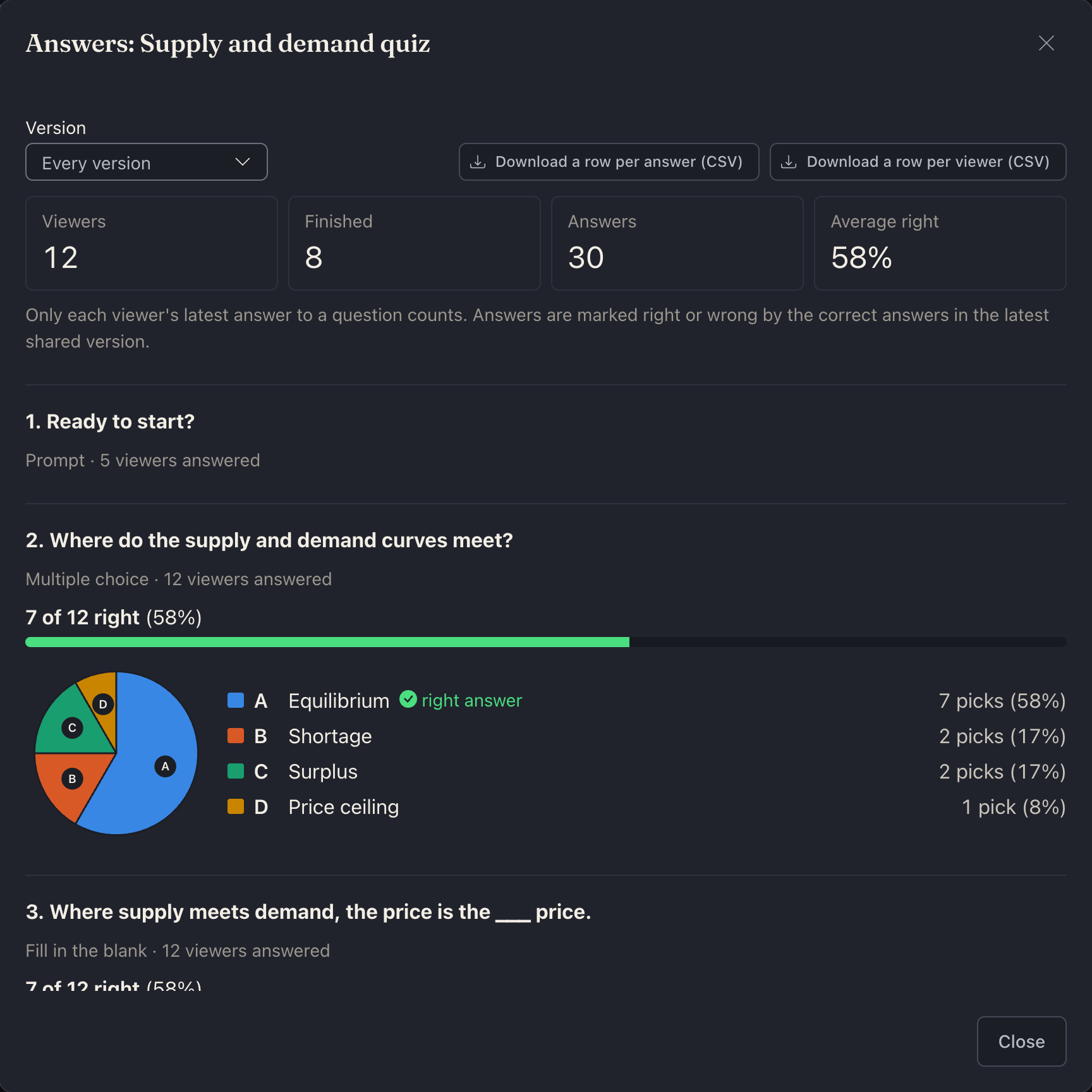
At the top: how many Viewers answered, how many Finished (reached the end), how many Answers there are, and Average right: on average, the share of questions with right answers that each viewer got right. Then each question, in the order viewers reach them, with how many viewers answered it:
- Each viewer's latest answer counts. Someone who goes through twice, or answers again, counts once, with their last answer. The spreadsheet keeps every try.
- Right and wrong go by the right answers in the project as it's shared now. If you fix a wrong answer and Update link, earlier answers are marked again here (the score viewers saw doesn't change).
- Multiple choice: a pie chart of how many picked each choice, with the same counts listed beside it, the right choices marked right answer, and how many viewers got it right.
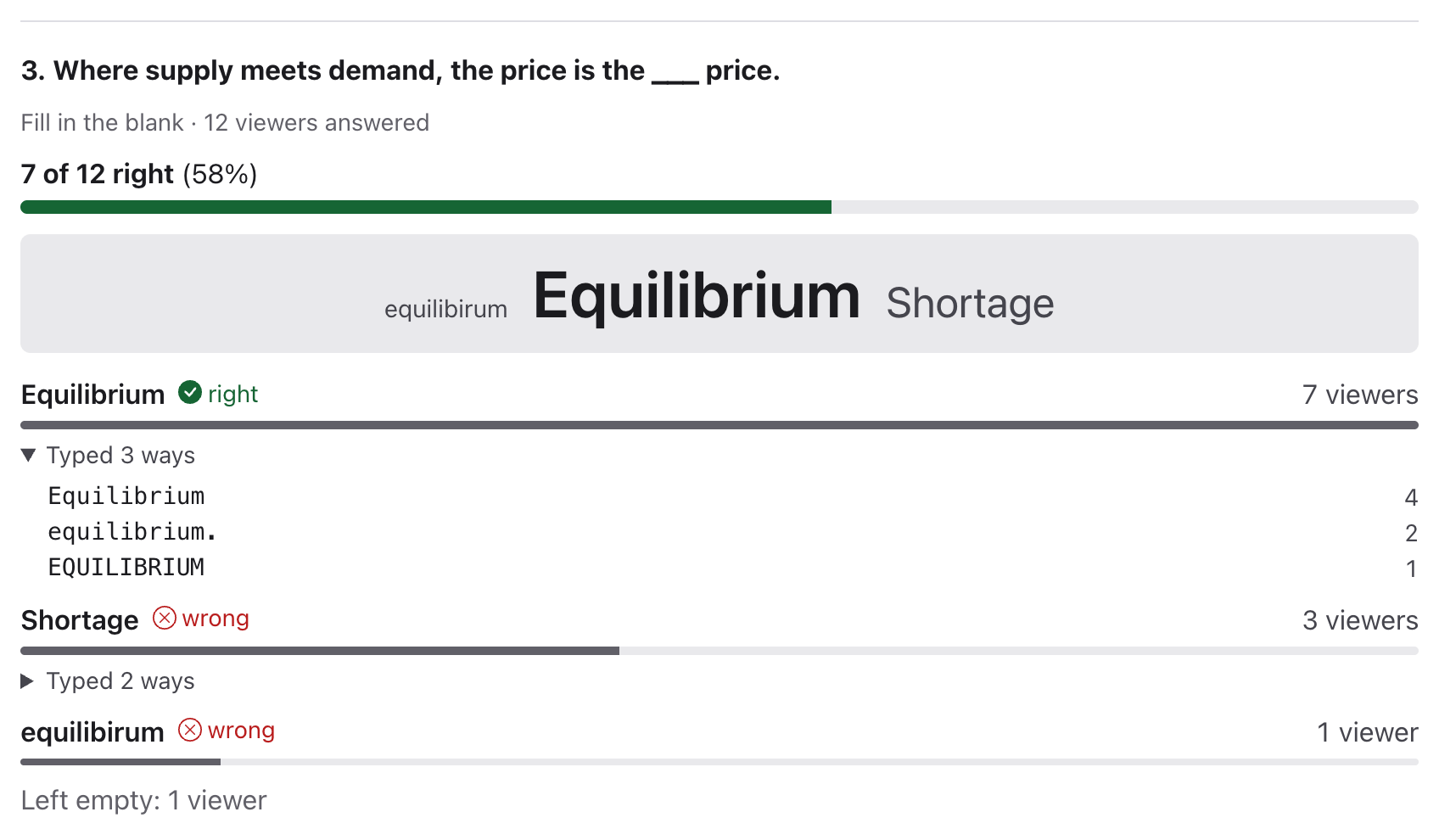
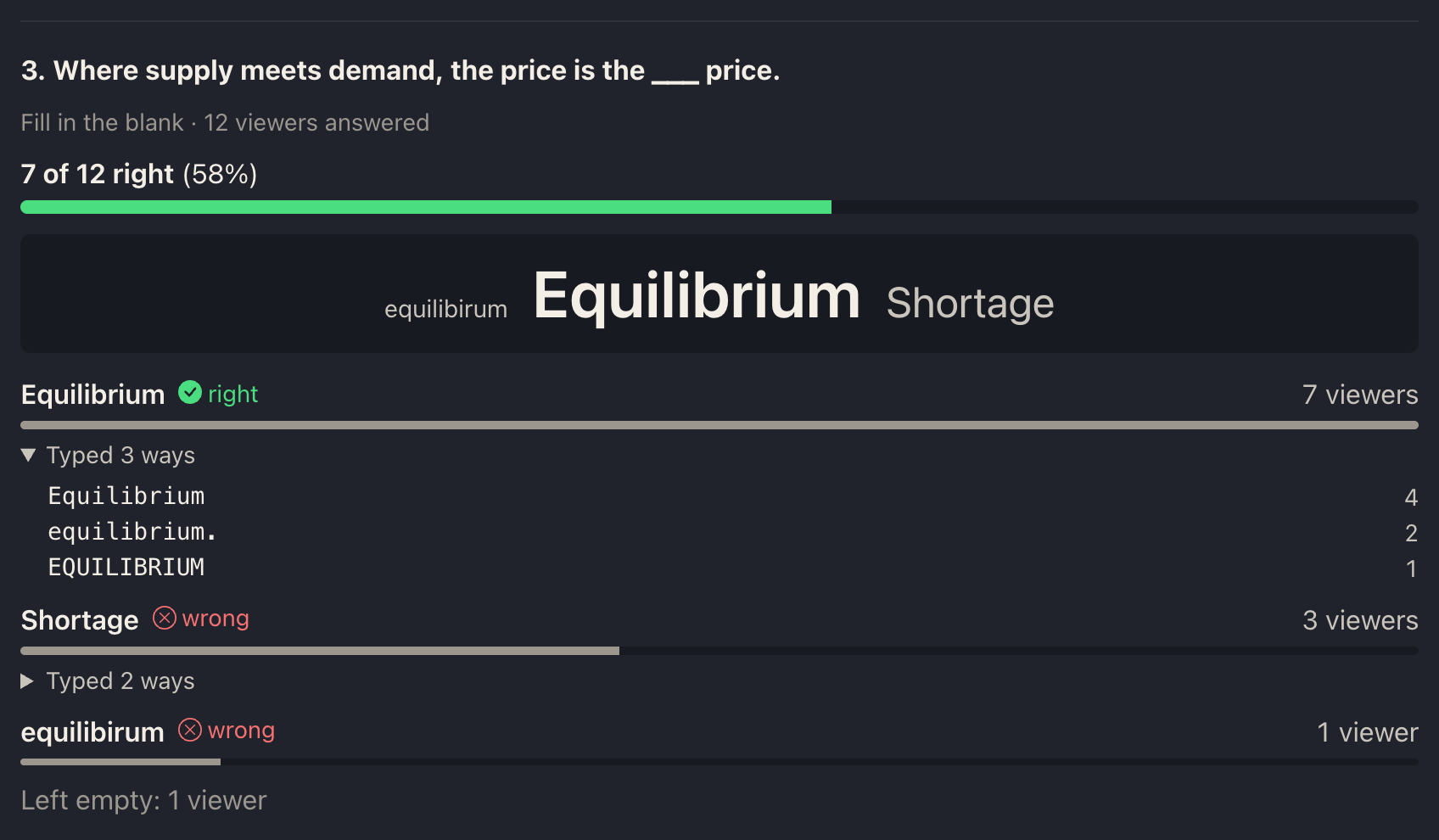
- Fill in the blank: the answers, the most given first. Answers that differ only in capital letters, accents, spacing or punctuation are grouped, and so are small typing slips: one letter added, dropped, changed or two swapped (none for words under 4 letters, one under 9, two under 15, three for longer). Answers with different numbers in them ("1984" and "1985") are never grouped, and neither are a right answer and a wrong one. Typed 3 ways shows how a group's answers were typed. With 10 answers or more, and some given more than once, a word cloud shows the most given larger.
- Prompts: how many viewers pressed the button.
For a link in an organization's storage, Each viewer lists every viewer with how many they got right, their points and whether they finished. Viewers who gave their name (Ask viewers their name) are listed by it; others are Viewer 1, Viewer 2 and so on, in the order they first answered.
As a spreadsheet: Download a row per answer (CSV) has a row for each answer: the viewer's number and name, the question's number and text, the answer, Right (yes, no, or empty with no right answer), the points, which try it was, whether it's their latest, when (in your time zone), and the version. Download a row per viewer (CSV) has a row for each viewer, with their latest answer to each question and whether it's right (and, for an organization's link, whether they finished and their score). Either opens in Excel, Numbers or Google Sheets. In the desktop app it's Save, and on a phone Share. The spreadsheet is made on your device from the answers, for the version shown.
Answers are personal data. The app reads them when you open them and forgets them when you close them; it doesn't keep a copy. Lectern keeps them for a year (see Privacy).
Post to: YouTube, Facebook, Vimeo and the rest
In the desktop app and a computer's browser, a video's Send to a site card on Publish lists YouTube, Facebook, Instagram, X, LinkedIn, TikTok, Vimeo, Bluesky, Google Drive and Google Photos. Lectern doesn't sign in to these sites or upload for you. Instead it:
- saves the video as an MP4 (converting it if needed),
- shows the file in its folder,
- opens the site's upload page in your browser,
- tells you what to do there ("Drag the video into YouTube's upload window").
You drag the file onto the page and finish there, signed in as you usually are.
In a browser, the MP4 downloads instead of showing in its folder: drag it from the browser's downloads (or your Downloads folder) onto the page, which opens in a new tab. A video that's an MP4 already downloads as it is. Another kind (a WebM) is made into an MP4 first, in the browser, which takes a while; the page then opens from the Open button (YouTube's, say), as a browser opens a new tab only straight from a click. Making the MP4 needs a browser that can encode H.264 video, such as a recent Chrome or Edge; where it can't, the app says so. The chapters aren't written into a browser's MP4; YouTube reads them from the description.
For YouTube, the app also:
- saves the captions file beside the video (in a browser, downloads it), to add in YouTube Studio under Subtitles › Upload file;
- copies a description for you to paste into YouTube's Description box: the title, then the chapters with their times. If the video's chapters don't meet YouTube's rules (at least 3, each 10 seconds or longer), only the title is copied, and the app says why.
Chapters
Chapters let viewers jump to a part of the video.
A recording's: open it in Video or Audio, then the Chapters tab, and Add chapters (or Edit chapters). Play to where one starts and click Add at playhead, then name it. Click a chapter's time to play from it, its name to rename it, or Start it at the playhead to move it. Save chapters keeps them beside the recording: its share link lists them, Save as MP4… writes them into the file, and Send to a site › YouTube copies them into the description. Cutting the recording moves them with what's kept.
A project's: they come from steps: in a scene's settings, tick Show as a chapter viewers can jump to. Each chapter is named after its step and starts where the step does.
With Include chapters ticked on Publish, the chapters are kept in the video file, listed on its share link's page, and put in the YouTube description that Send to a site copies. For YouTube, a first chapter that starts late gets an "Introduction" before it, from 0:00.
On phones: Save to Photos and Share…
In the phone apps, a file's Save a copy card on Publish has Save to Photos (on an iPhone or iPad) or Save to Gallery (on Android), and Share…, which opens the phone's own share sheet for any app on it. Captions can be shared as .vtt or .srt (Share as .vtt…, Share as .srt…). A video can go live from there too, with Go live under Stream (see Live streaming). Send to a site isn't in the phone apps or phones' browsers; use Share… instead.
The phone apps aren't out yet.
See also
Something here wrong or unclear? Tell us.