Help In depth
Organizations
Plans by size for a school, a church or a department, with shared storage and streaming, and the screens for its admins.
An organization's plan gives its people a seat each. A seat brings Pro's platform on every device they sign in on (sync, share links, review links, devices together, streaming through Lectern), and room in the organization's shared storage for share links. Plans are bought by the year in a tier, by how many people it holds: Team (up to 10), Group (11–50), Organization (51–200), Large (201–500) or Unlimited (any number). Each tier includes a level of shared storage and streaming.
Starting a plan
Work out a plan on the pricing page: its tier, a bigger level of shared storage and streaming if you want one, and whether you're a nonprofit, school or church. Then Buy this plan opens Lectern in your browser with those choices made. Make an account, or sign in, then name your organization and click Continue to pay by card on Paddle'sStripe's checkout.
Or, in the app: on the Account screen, Start an organization's plan, under For a team on the Plans tab or Start one on the Organizations tab. Choose the tier and the level, and it shows how the price adds up.
Whoever buys the plan is its first admin, and invites everyone else. To pay by invoice instead, or for a custom plan (more storage than the biggest level, contract terms, single sign-on), write to us.
Joining with an invite code or your work email
You need a Lectern account (see Accounts, Pro and storage). Then, either:
- An invite code from your organization, like
K7QX-M2PD-9VTR. Type it on the Account screen's Organizations tab, under Join one, in Invite code, and click Join. Or type it in Invite code when you make your account. An emailed invite has a link that fills it in for you. - Your work or school email. If your organization has verified its email domain and turned on Join by signing in, you join by signing in with a confirmed address there. Confirm your email first (the code we email you, on the Account screen).
Your organizations are listed on the Account screen's Organizations tab, with what happens to what you share there if you leave. Open shows what your seat gives you and how much of the shared storage you're using. Its Leave button gives up your seat: Pro and the storage stop for you at once.
What you share there, when you leave
Each organization decides, and you're told which when you join:
- "What you share in its storage stays with it if you leave." Your files there and their share links stay and keep working, but they're the organization's: they're no longer in your Files in the cloud or your share links, and its admins look after them. Joining again doesn't give them back. Deleting your account leaves them with the organization too.
- "What you share in its storage goes with you if you leave." Your files there move to your own storage, as many as fit, and their links keep working. What doesn't fit stays in the organization's storage, still yours, for 30 days: we email you when you leave and a week before it's deleted. To keep it, make room or get Pro (from 50 GB), then move each file to My storage under Files in the cloud. Joining again also keeps it.
Either way, what's on your own devices is yours.
For admins: people, invite codes, email domains
Admins find their organization in the menu under their name, at the top right. Its screen has six tabs: Overview, People, Storage, Billing, Activity and Settings.
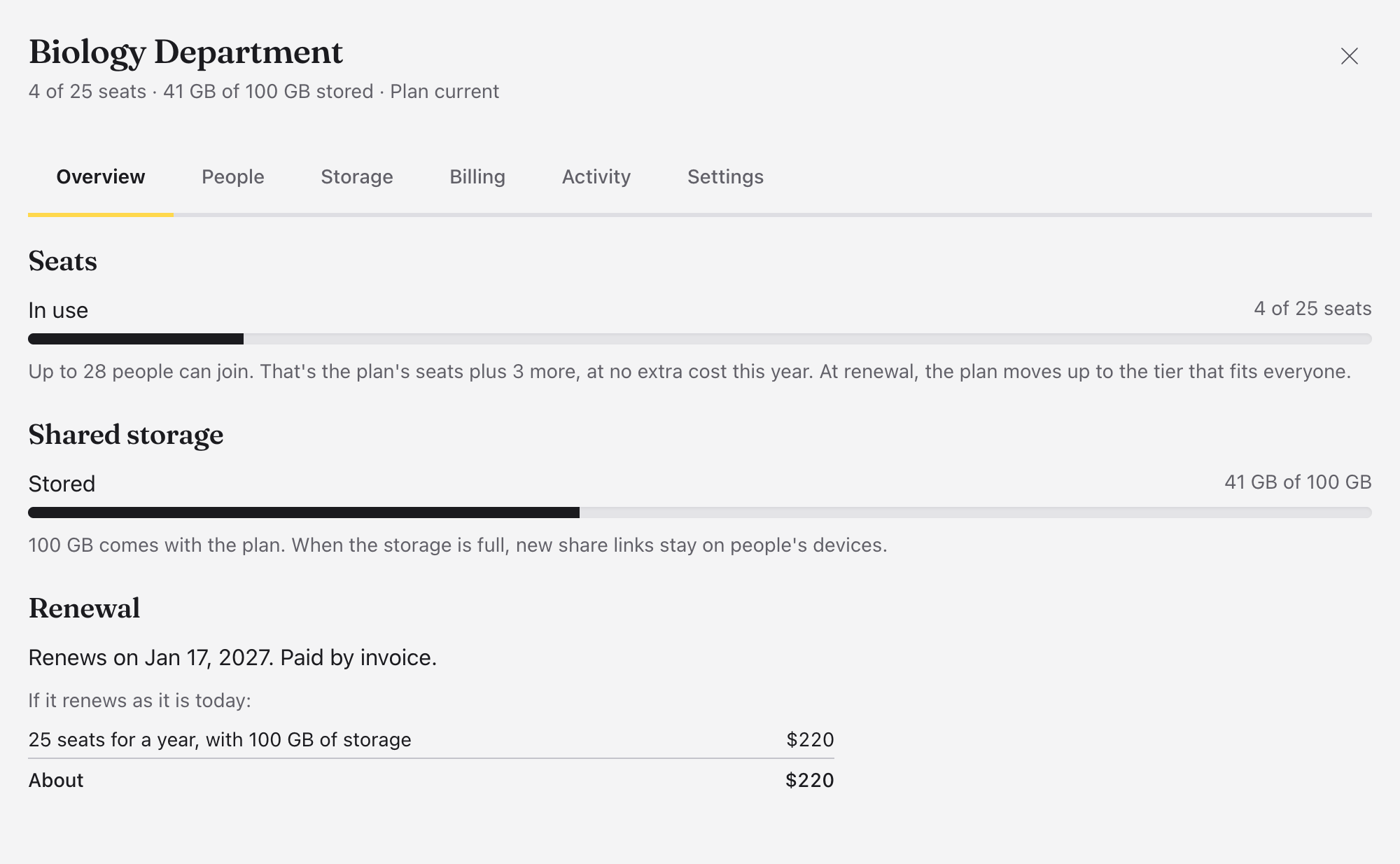
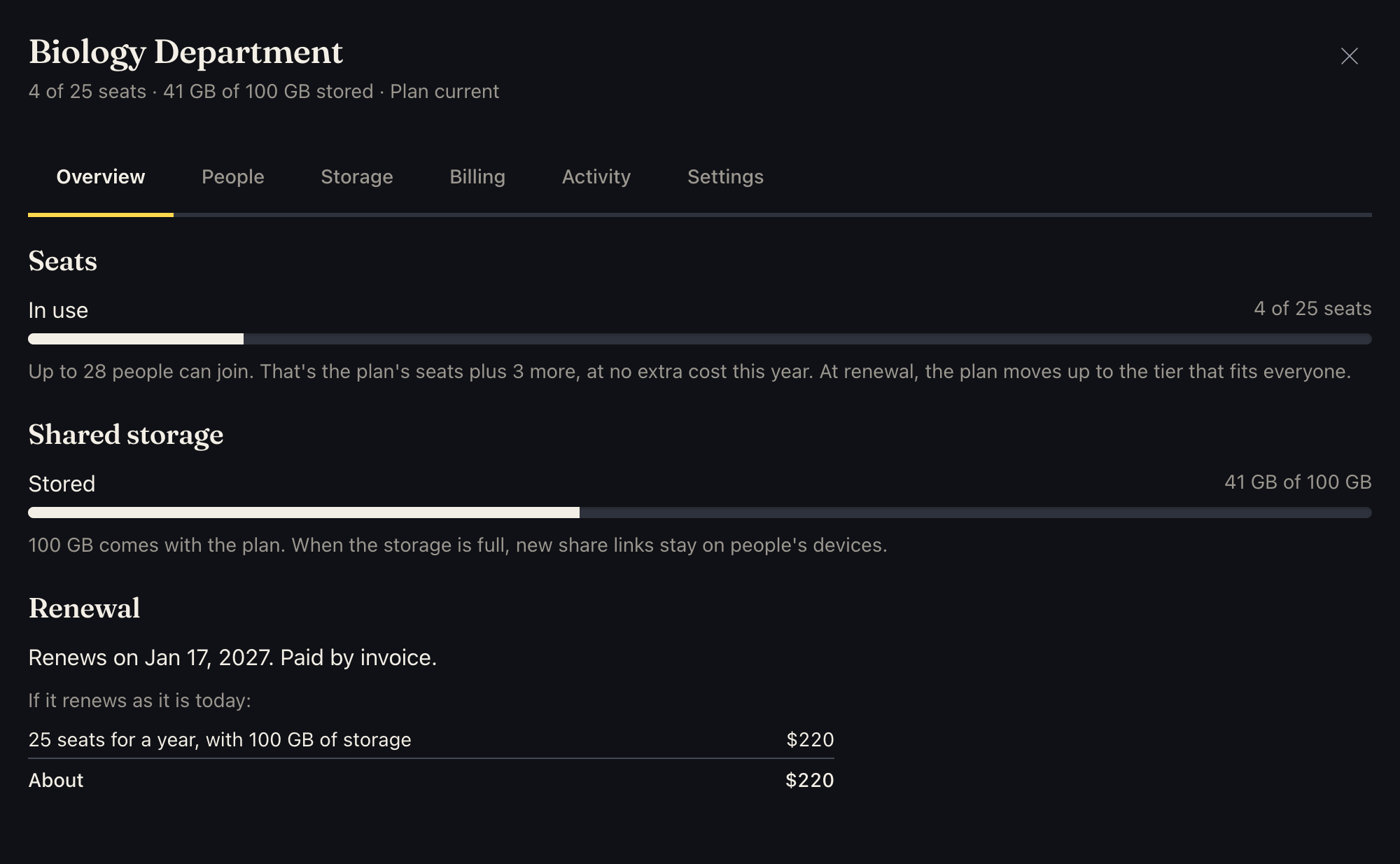
Overview shows any warnings first, then the Seats in use, the Shared storage used, and when the plan renews, with what it would cost if it renewed as it is today.
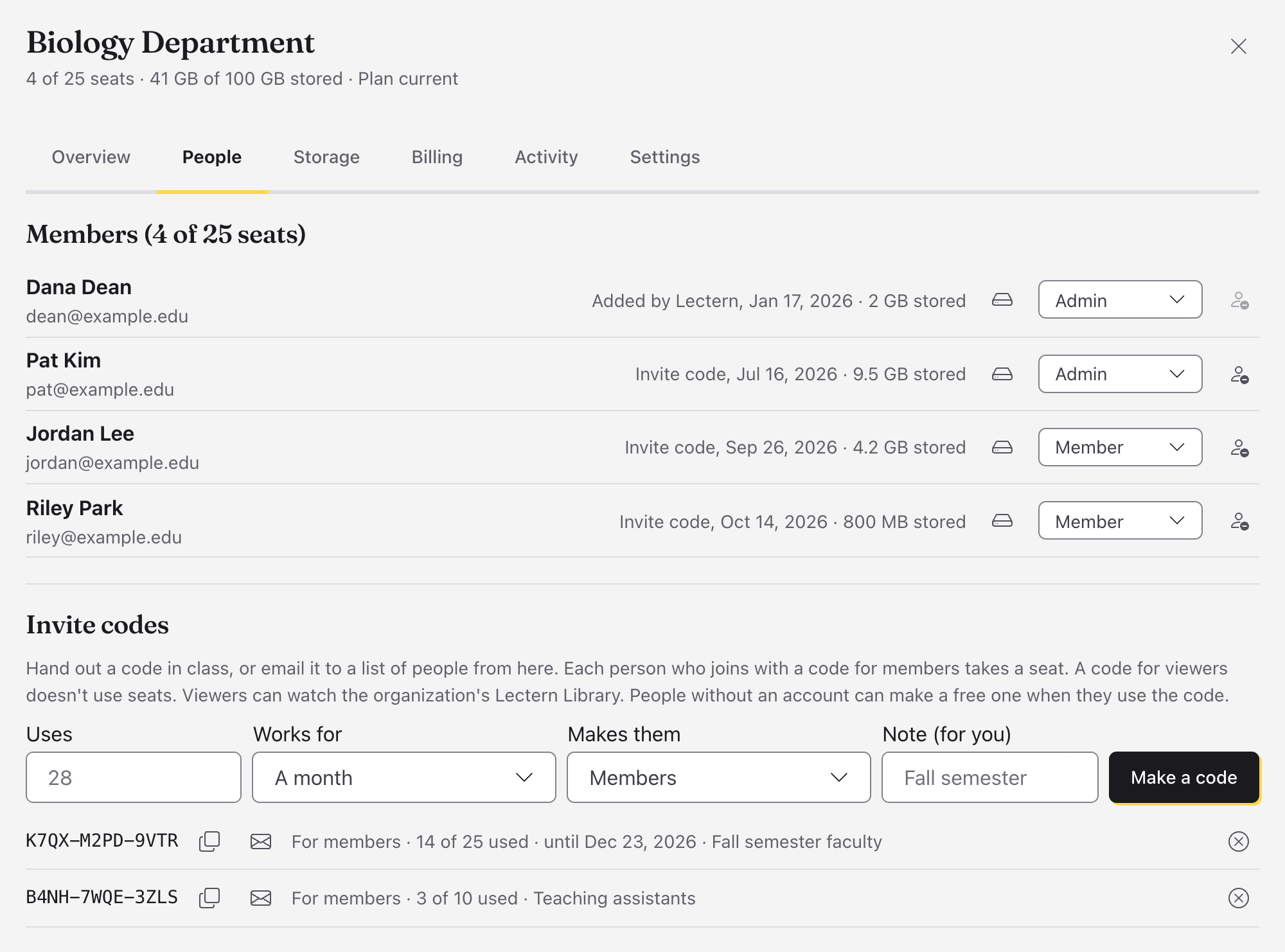
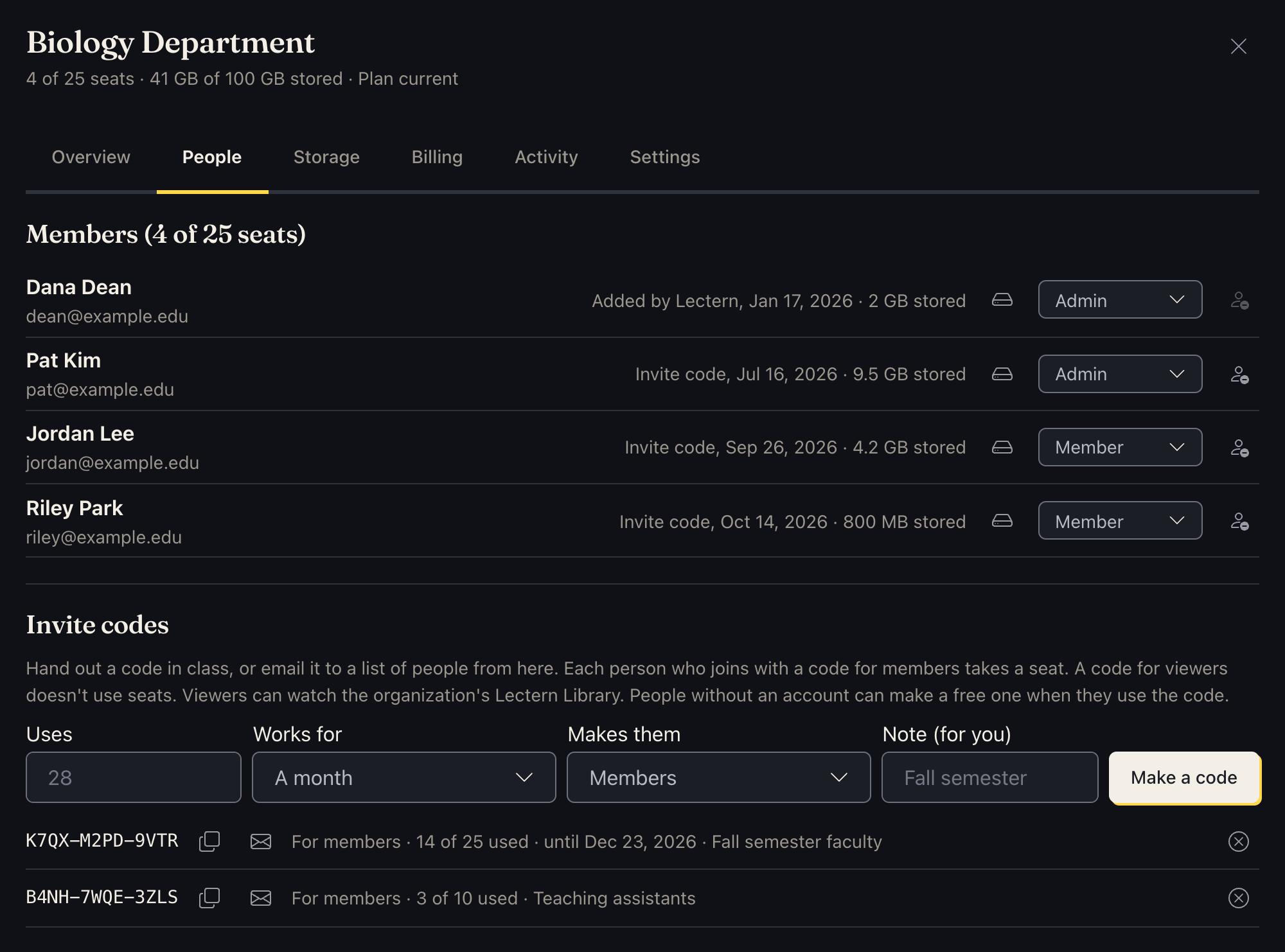
People has three parts:
- Members: each person, how they joined (Invite code, Email domain or Added by Lectern) and how much they've stored. Make someone an Admin or a Member, set their own storage limit, or remove them. Removing frees their seat; what they shared in its storage stays with the organization or goes with them, as the Storage tab says.
- Invite codes: Make a code, with how many Uses it has, how long it Works for (A week, A month, Three months, A year or Until turned off) and a Note (for you), such as "Fall semester". Hand it out in class, or Email the code to up to 100 addresses at a time. Each use takes a seat. Turn the code off when you're done with it.
- Email domains: add your domain (such as
example.edu), and ask your IT office to add the DNS record shown (a TXT record). Click Check the record; it can take a while to show. Once it's Verified, turn on Join by signing in: anyone with a confirmed address at that domain, or under it (cs.example.edu), can then take a seat by signing in. Only one organization can verify a domain; a department can use invite codes instead.
A plan takes people past its tier by 10% (at least one more), so no one is turned away the day it fills. At renewal, the plan moves to the tier that holds the most people who were in it at once.
Activity lists what admins did in the organization, and who joined and left, newest first. No one can change it.
Settings renames the organization, and has Admins must use two-step sign-in: with it on, an admin signs in with a code from an authenticator app as well as their password before they can manage the organization's people, storage, share links and billing. Members aren't asked. Turn two-step sign-in on for yourself first. An organization needs an admin, so make someone else an admin before you leave it.
Shared storage and its rules
Each tier comes with a level of storage and streaming: a Team has level 2 (100 GB of shared storage and 16 hours a month of streaming through Lectern), a Group level 3 (250 GB, 24 hours), an Organization level 4 (500 GB, 32 hours), Large level 5 (1 TB, 64 hours) and Unlimited level 6 (2 TB, 128 hours). A bigger level costs the difference on top of the tier (a Team at level 3 is $44 a year more), chosen on the Billing tab; chosen mid-year, it's charged for the rest of the plan's year and renewed with it. The nonprofit discount is off the tier, not the level. See the levels.
On the Storage tab:
- Who can store files here: Everyone in the organization or Only admins.
- Limit each person's share: a limit for everyone, in GB. A person can also be given Their own limit from People. A limit below what they've stored stops them adding more; nothing is deleted.
- Go past the plan (overage): for plans paid by invoice (custom plans), storage past the plan can be billed at renewal ($2.50 for each 100 GB a month), up to the Overage limit you set. Otherwise, new share links stay on people's devices until there's room, or until the plan moves up a level.
- When someone leaves, what they shared here: Stays with the organization (the default), or Goes with them (see above). It applies to people as they leave, and people are told when they join.
- Who uses it: how much each person has stored, with Download as a spreadsheet. What people who left handed to the organization is one more row.
- Files: every file in the shared storage, Biggest first or Oldest first, with who stored it. Pick some and Delete… to free the space at once.
- Share links: the links to projects in the shared storage, with who made each, when, whether it's on and how many answers it has. The chart button shows a link's answers: each question's results, each viewer's score and whether they finished, and a spreadsheet to download (see Viewers' answers). The person who made the link sees the same from their own Account screen, unless they've left and handed it to the organization. Turn off stops one playing; the trash button deletes it and its viewers' answers. Its files stay until you delete them under Files.
When the storage is full, people's new share links stay on their own devices until there's room.
Streaming hours
Each plan's level includes streaming through Lectern (see Live streaming): 16 hours a month at level 2 (a Team), more at each tier and level up, for everyone in it to share. A bigger level has more (see above). One stream through Lectern goes out at a time for the organization.
Invoices and renewals
Billing shows the plan (its tier, storage, price, and the year it covers) and its Invoices: Paid, Open, Overdue or Void. Open one to see its lines, Open the invoice to print it, Email it to your finance office, or Pay by card. Invoices are due 30 days after they're made.
A plan paid by card can move to a bigger tier or level on the Billing tab; for other plans, write to us. What's added is charged for the rest of the year, so everything renews on one date. Tiers and levels only go down at renewal.
Admins are reminded 30 days before the plan renews.
If a plan ends without being renewed, its members lose the Pro it gave them (the app itself stays free), nothing new can be stored, and the files in its storage are deleted 30 days after it ended (not 90, as for a person's own storage).
The tiers, a year, at the nonprofit price (for nonprofits, schools and churches: tick the box when you buy) and at list:
| Tier | People | Includes | Nonprofit | List |
|---|---|---|---|---|
| Team | up to 10 | level 2: 100 GB, 16 h a month | $120 | $180 |
| Group | 11–50 | level 3: 250 GB, 24 h | $300 | $450 |
| Organization | 51–200 | level 4: 500 GB, 32 h | $750 | $1,125 |
| Large | 201–500 | level 5: 1 TB, 64 h | $1,000 | $1,500 |
| Unlimited | any number | level 6: 2 TB, 128 h | $1,500 | $2,250 |
For more storage than that, invoices and contract terms, or single sign-on, plans are by quote. See Pricing.
Warnings
Overview lists anything that needs an admin, most pressing first, and emails the admins once about each. A red dot by your name at the top right means an organization you run needs you.
- The plan has ended: with the date its files will be deleted.
- No seats left, More people than seats or Seats are nearly full (90% used).
- Storage is full, Storage has reached its limit, Storage is near its overage limit, Storage is past the plan or Storage is filling up (80% used).
- The plan renews soon: within 30 days.
See also
Something here wrong or unclear? Tell us.