Help In depth
Sync: your library on every device
What syncs and when, what each cloud icon means, keeping a file on one device, and what sync counts against.
Signed in, with storage, your library syncs through Lectern's cloud: a recording, script or project you make on one device shows up in the library on the others you sign in on. It works in the desktop app, the phone apps and the browser. Signed out, nothing syncs.
What you need
- A Lectern account, signed in on each device. See Signing in, and making an account.
- Pro, with storage of your own: your level's (from 50 GB). Synced files count against it, as shared ones do. See Storage.
Without them, the places that sync offer Sign in to sync or Get storage to sync instead.
Sync uses your own storage, not an organization's shared storage, so a seat in an organization's plan isn't enough on its own.
What syncs, and when
Everything in Video, Audio, Images, Scripts and Projects can sync, with each recording's captions, transcript and chapters. Exported videos and the trash don't.
- New files sync by themselves: recordings, uploads, new scripts and projects, and every change to what's synced. To keep new files on the device they're made on, turn off Sync new files in Settings.
- What was there before stays put. The first time a device syncs, what's already in its library stays on that device until you choose Sync now for it (below).
- When it happens: while the app is open, a moment after you change something, every minute while the app is in view, when you come back to it, and when the internet comes back.
Scripts, projects, images, captions and other small files come down to your other devices straight away. Video and audio stay in the cloud until you open them there: opening one downloads it, with its progress in place of the preview.
A project whose recordings are only in the cloud shows them as missing until each one is on the device: open each recording first, then the project.
Where each file is
An icon after a file's name says where it is (screen readers read the same words). A file with no icon is only on this device.
| Icon | It means |
|---|---|
| A cloud with a tick | Synced: on this device and in the cloud. |
| A cloud with an up arrow | Waiting to sync, or Syncing, with how far it's got. |
| A plain cloud | In the cloud: not on this device yet. Opening it downloads it. |
| A cloud with a down arrow | Downloading, with how far it's got. |
| A crossed-out cloud | Couldn't sync: point at it for why, such as storage that's full or no connection. |
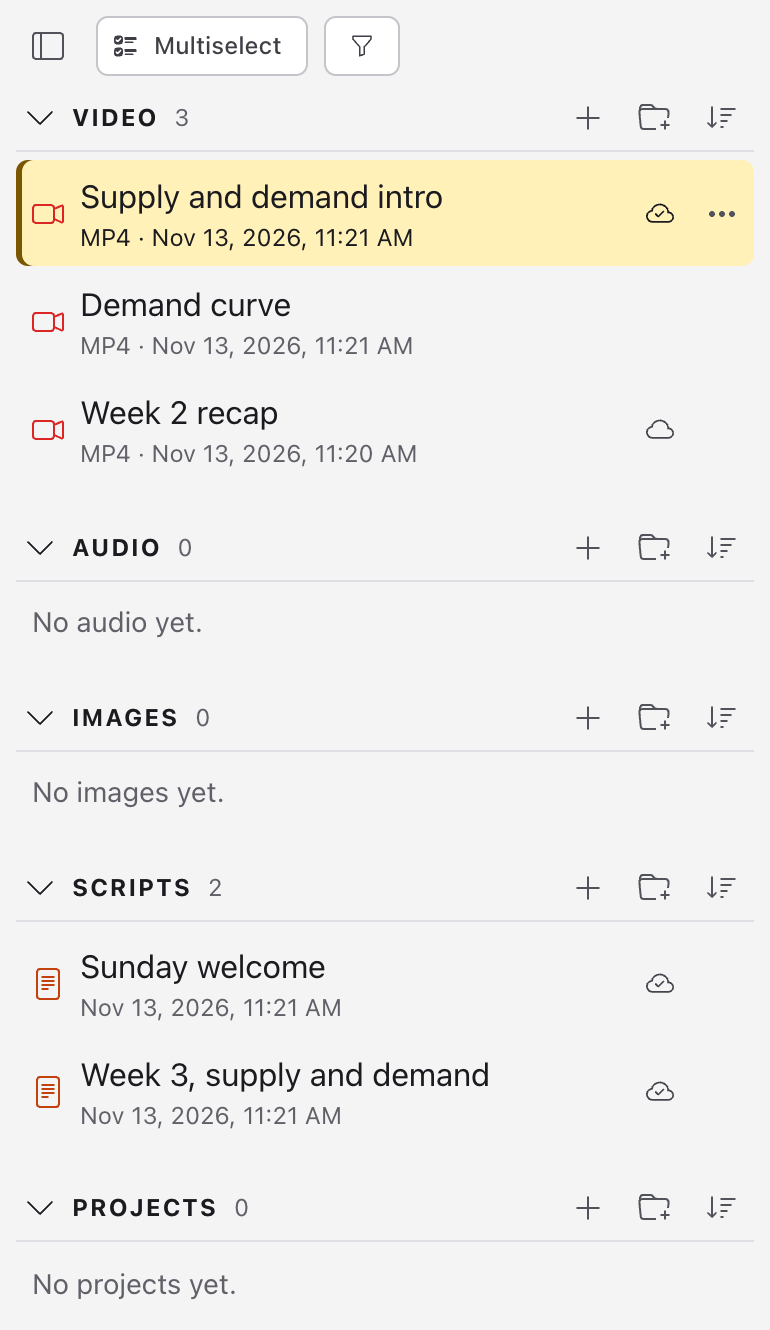
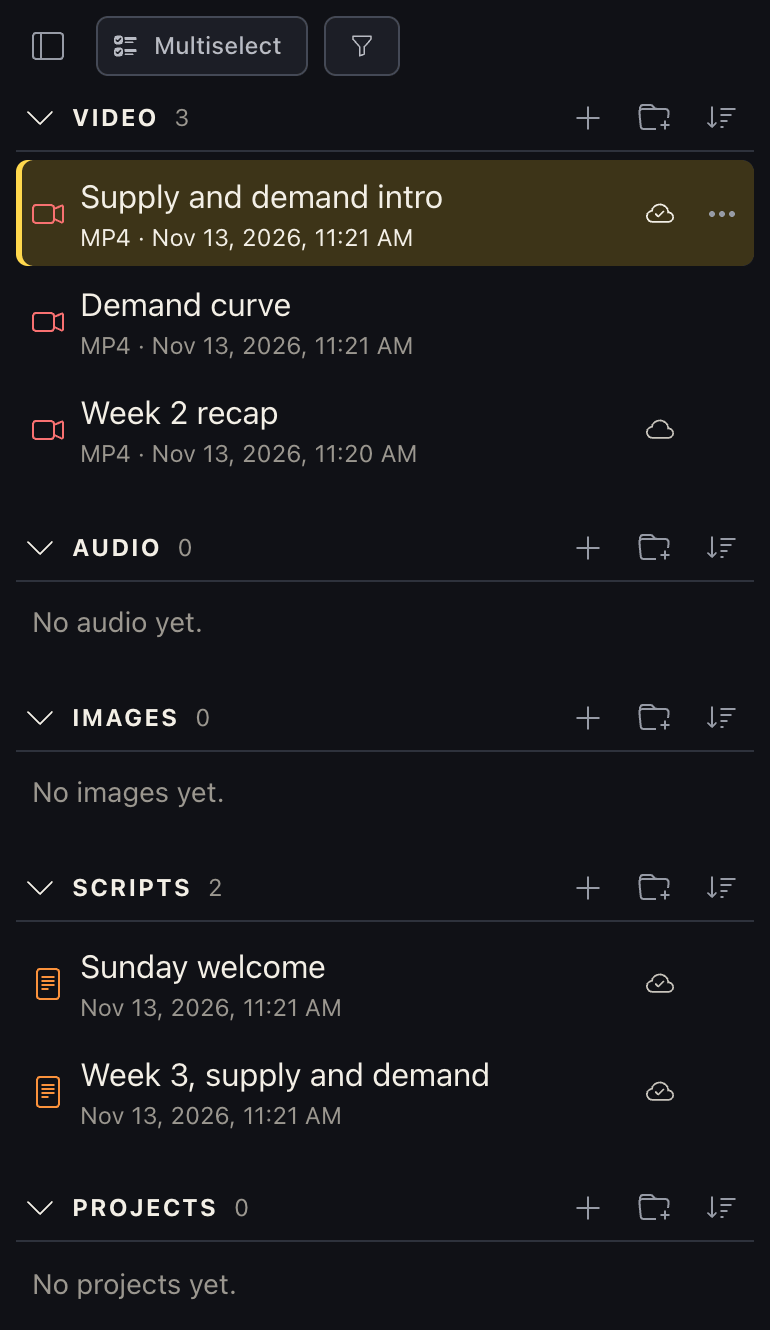
Sync now, Keep local, Download
A file's ⋯ menu has:
- Sync now, for a file only on this device, or one that couldn't sync.
- Keep local, for a synced file: it stays on this device, and its copy in the cloud is deleted, freeing that storage. It asks first. Your other devices keep a copy they've already downloaded, as theirs alone; one they hadn't downloaded leaves their lists.
- Download, for a file that's only in the cloud.
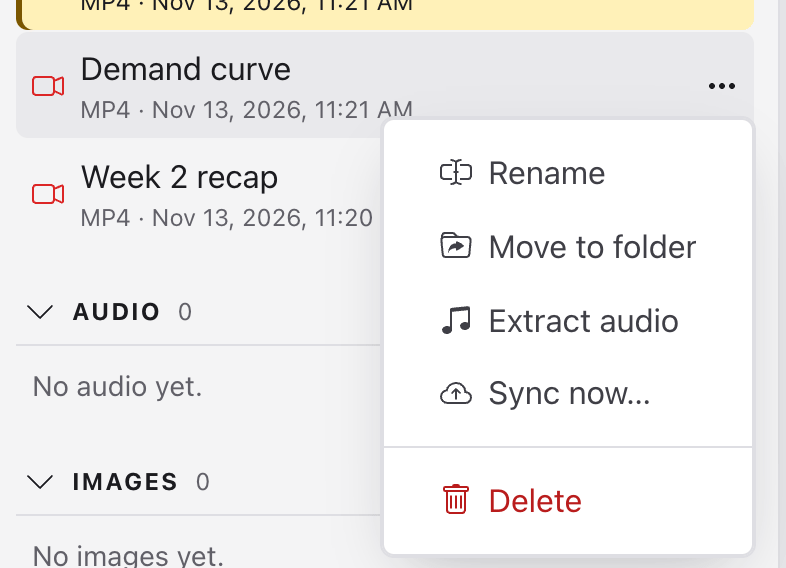
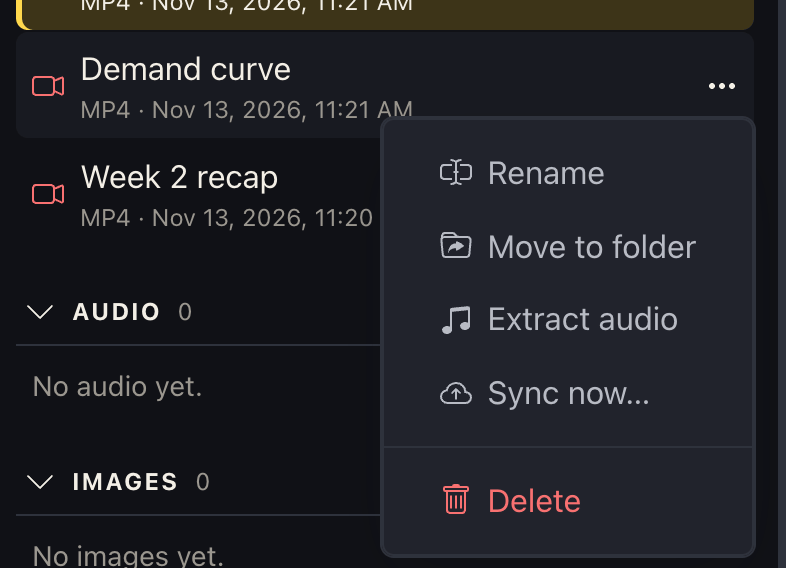
A folder's ⋯ menu has Sync everything in it and Keep it all local. With Multiselect, tick what you want and use Sync ▾ › Sync or Keep local (see The library).
The Sync to the cloud box
When you record or add media, the bar at the top has a Sync to the cloud box. It's ticked unless you've turned off Sync new files in Settings. Untick it to keep this one on this device. Signed out, the box is Sign in to sync your files; signed in without storage, Get storage to sync your files, which opens your account's Plans tab.
Deleting, the trash and restoring
Deleting a synced file moves it to the trash on this device and on your other devices. Its copy in the cloud is kept for 30 days: restore it from the trash on any device within that time, and it comes back everywhere without uploading again. After 30 days, the cloud copy is deleted.
In the desktop app, the library is a folder you can change outside the app. Sync notices: a file changed there syncs, and a synced file deleted there goes to the trash on your other devices too.
If a file changed on two devices
If a file was changed on two devices before either synced, both are kept. The newer keeps its name; the other is saved beside it, named for the device it came from, such as Intro (from Mac). Name each device in Settings › Sync › This device's name.
Storage
Synced files count against your storage, as shared files do: see Your storage on the Account screen's Plans tab. Files in the cloud lists only what you've shared, not synced files.
- When storage is full, new files wait, marked Couldn't sync, until you make room (Keep local frees it) or add storage.
- When storage ends without being renewed, sync stops, and files that are only in the cloud aren't listed. For 90 days, renewing brings it all back, and Download my data has a link to each file. Then the copies in the cloud are deleted. What's on your devices stays.
- Download my data includes your synced files, and Delete my account deletes them from the cloud. What's on your devices stays.
See also
Something here wrong or unclear? Tell us.