Help In depth
Captions
How captions are made, timed and checked, where they're kept, and how they reach viewers, in a file or a video.
Captions are the words on screen for viewers who are deaf or hard of hearing, or watching with the sound off. Lectern makes them on your device, from what's said in a recording, and lets you look them over before they're added.
Making captions
Open a recording in Video or Audio, then the Captions tab under it:
- From a script words the captions like a script you choose, timed to the speech. Use it whenever you read from a script: names, terms and spellings come out as you wrote them. Script words you didn't say are left out, and words you said that aren't in the script are captioned as heard. Every place they differ from the script is listed above the captions, with where it is: a part of the script not said (three words or more in a row, left out), a part said quite differently, or three or more words said that aren't in the script. The last two are captioned as heard, from the recognizer, so check their words. That's okay clears each. A heading or a list's number not read aloud is left out without a mention. Those not yet marked okay stay listed when you edit the captions again, and the Captions tab shows a warning until they're cleared.
- Automatic words them as heard.
- Edit captions opens the captions editor to write or change them by hand, empty if there are none yet. It works in a phone's browser too, since nothing is transcribed.


Both run Whisper on your device, in the desktop and phone apps; nothing is sent anywhere. The first time, the app downloads the speech model once (148 MB). The language is detected by itself. While it works, a bar shows how far it's got; Stop stops it.
Captions follow common caption rules: at most two lines of about 42 characters, each on screen for 1 to 6 seconds.
Looking them over
New captions open under the video before they're added. Each has its times and its words, and the one playing shows on the picture.
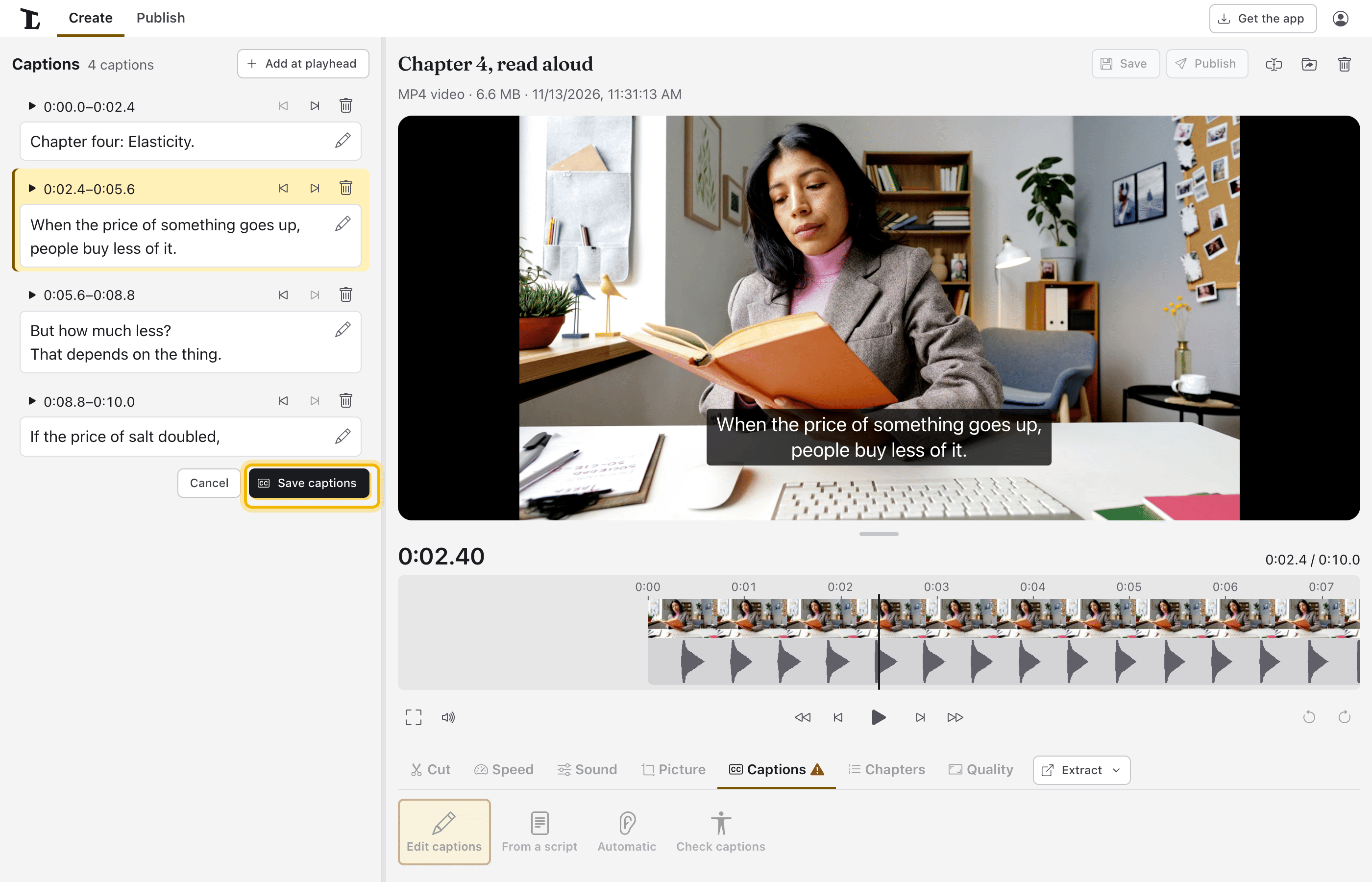
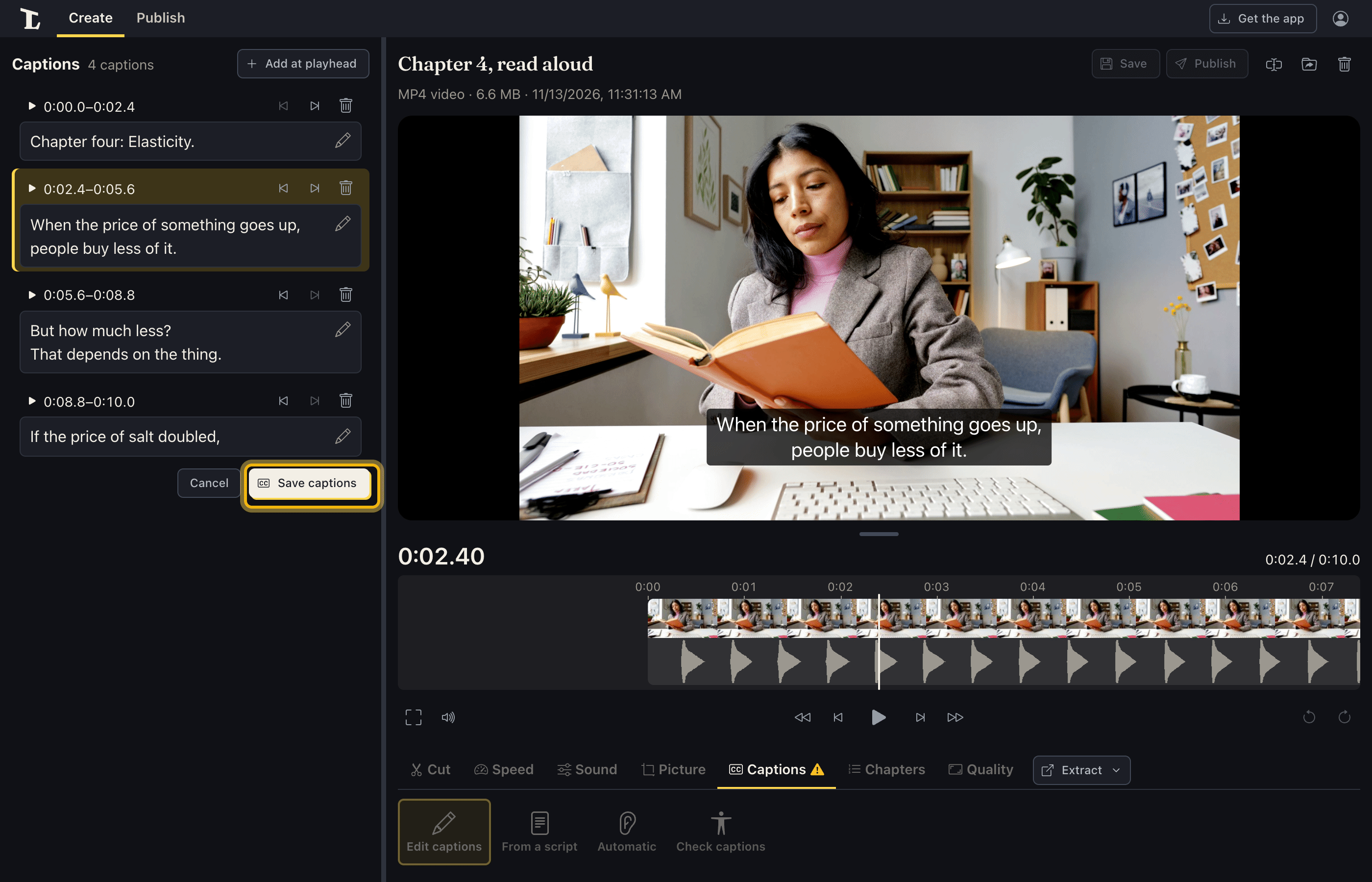
- Click a caption's time to play from there.
- Type to change its words. A line break in the box is a line break on screen.
- The buttons beside a caption start it or end it at the playhead (Start at playhead, End at playhead), or delete it (Delete).
- Add at playhead adds a caption where the video is.
- Save captions adds them; Cancel leaves the recording as it was.
To change them later: Edit captions, in the Captions tab.
Where they're kept
Saved captions are added to the video as a captions track, which players
can turn on and off (they're not drawn into the picture). A copy is kept
next to the recording as a .captions.vtt file; renaming, moving or
deleting the recording takes it along. An audio recording has a
Transcript tab instead: the same choices, kept the same way, and
shown under the player on a share link.
Saving a recording as MP4 (on Publish) keeps its captions.
Checking captions
Check captions, in the Captions tab, transcribes the recording (once; the transcript is kept) and compares its captions with what's said:
- Speech with no caption. It adds a caption there, with the words it heard, flagged so you check them.
- A caption that doesn't seem to match. It flags the caption, with what it heard in that caption's time. The comparison is forgiving: case, punctuation, "um"s, sounds in brackets such as [music], and small differences in a word don't count, and a caption passes when about 60% of its words line up with what's heard.
The flagged captions open in the editor, each with a warning saying why. Change its words or times, take it out, or choose This is okay; then Save captions. Captions passes the check when nothing flagged is left.
The Captions tab shows where they stand: a check mark when they've passed, a
warning when some are still to look at or they haven't been checked. A
recording with no captions shows the warning until it's checked (one
with no speech passes). Changing the captions any other way (making them
again, or editing ones that weren't flagged) means they need checking
again. The result is kept next to the recording (a .caption-check.json
file) and goes wherever the recording does, synced devices included.
Captions files (.srt and .vtt)
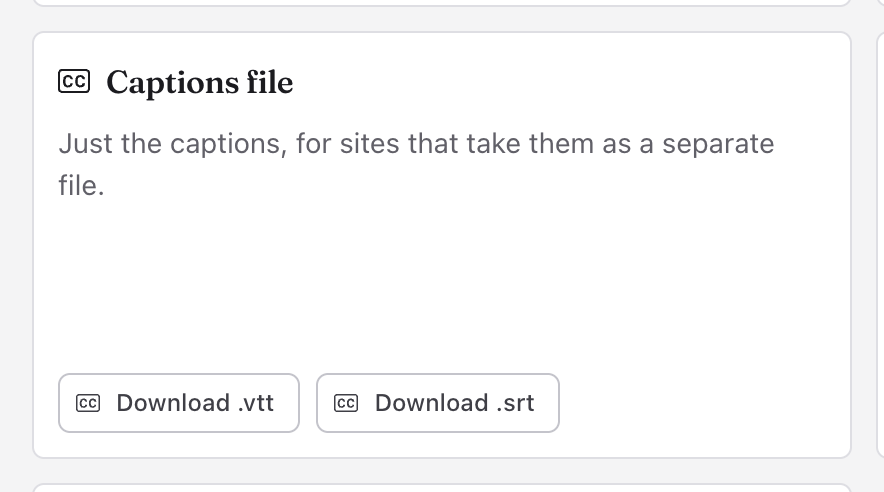
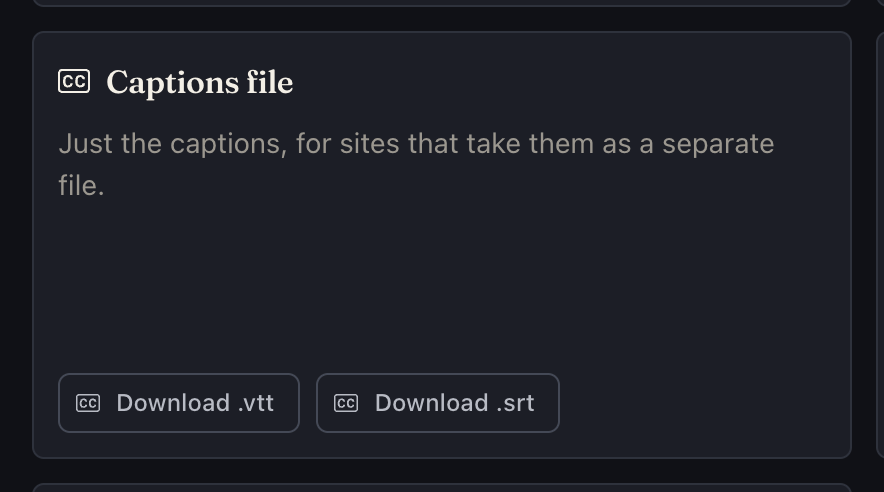
On Publish, with the recording picked, Captions file ›
Download .vtt or Download .srt saves the captions as a file (Save as .vtt… and Save as .srt… in the desktop app, Share
as .vtt… and Share as .srt… in the phone apps). WebVTT (.vtt) is the web's format; SubRip (.srt) is the oldest and
most widely taken. Video sites and learning management systems take one
or both; if one is refused, try the other.
Post to… YouTube saves the .vtt beside the video (in a browser,
downloads it), ready for YouTube's Subtitles › Upload file.
Captions in projects
A recording's captions come along when it's used in a project. On Publish, Include captions (viewers can turn them on) puts them in the exported video. Publish's Issues warns when a project has no captions, and a recording without them is asked about before it leaves (see Exporting and sharing).
Burned-in captions
Captions can also be drawn into the picture, always on screen ("open captions"): handy for phones that play videos muted, or for platforms that don't take caption files. In a scene's editor, use Add › Captions (or Style… beside Burn in captions on Publish), turn on Burn captions into the video, and pick a look:
- Classic: white on a dark box, two lines at the bottom.
- Bold, word by word: big bold letters with an outline, each word turning yellow as it's said.
- Big, one line: larger still, a line at a time, each word turning green.
- Soft shadow: bold white letters with a shadow and no box.
Then change any of it: Where (Bottom or Top), Lines at a time (One or Two), Highlight each word as it's said and its color, and the text's font, size, color and what's behind it, as for any text. A caption too long for the lines is shown a page at a time. They're the project's captions in that language, in every scene: fixing a caption fixes it in the picture too.
Burned-in captions show in the preview, in shared links and in exported videos (Publish's Burn in captions can leave them out of the file). They're the only captions a live stream carries: the others can go on its replay afterwards (see Live streaming). Viewers can't turn them off; the plain captions are still there for those who'd rather turn them on, where a player offers that.
Lighting up words: a caption doesn't keep when each of its words was said, so each word gets a share of the caption's time by its length. It's close, not exact: a long pause in the middle of a caption puts it out.
To restyle or reword one caption on its own, pick a scene and use Add to scene › Text layer from captions… instead: each caption becomes text on a new track on top, which you can change like any text (see Text). It's a copy: fixing a caption later doesn't change the text layer.
Not yet
- Choosing the language, rather than having it detected, and translated captions.
See also
Something here wrong or unclear? Tell us.