Help In depth
The library
Where your recordings, scripts and projects are kept, and how to add, find, sort, move and delete them.
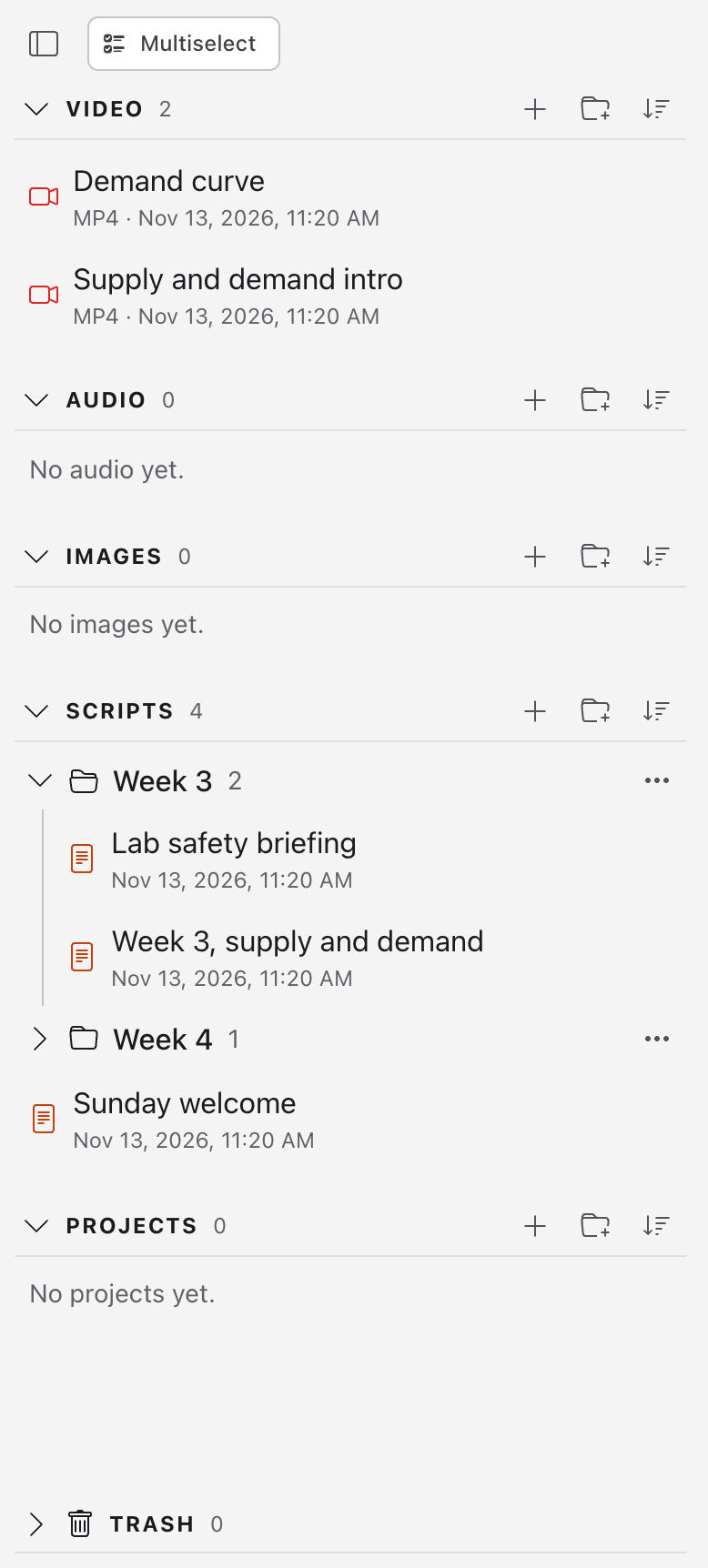
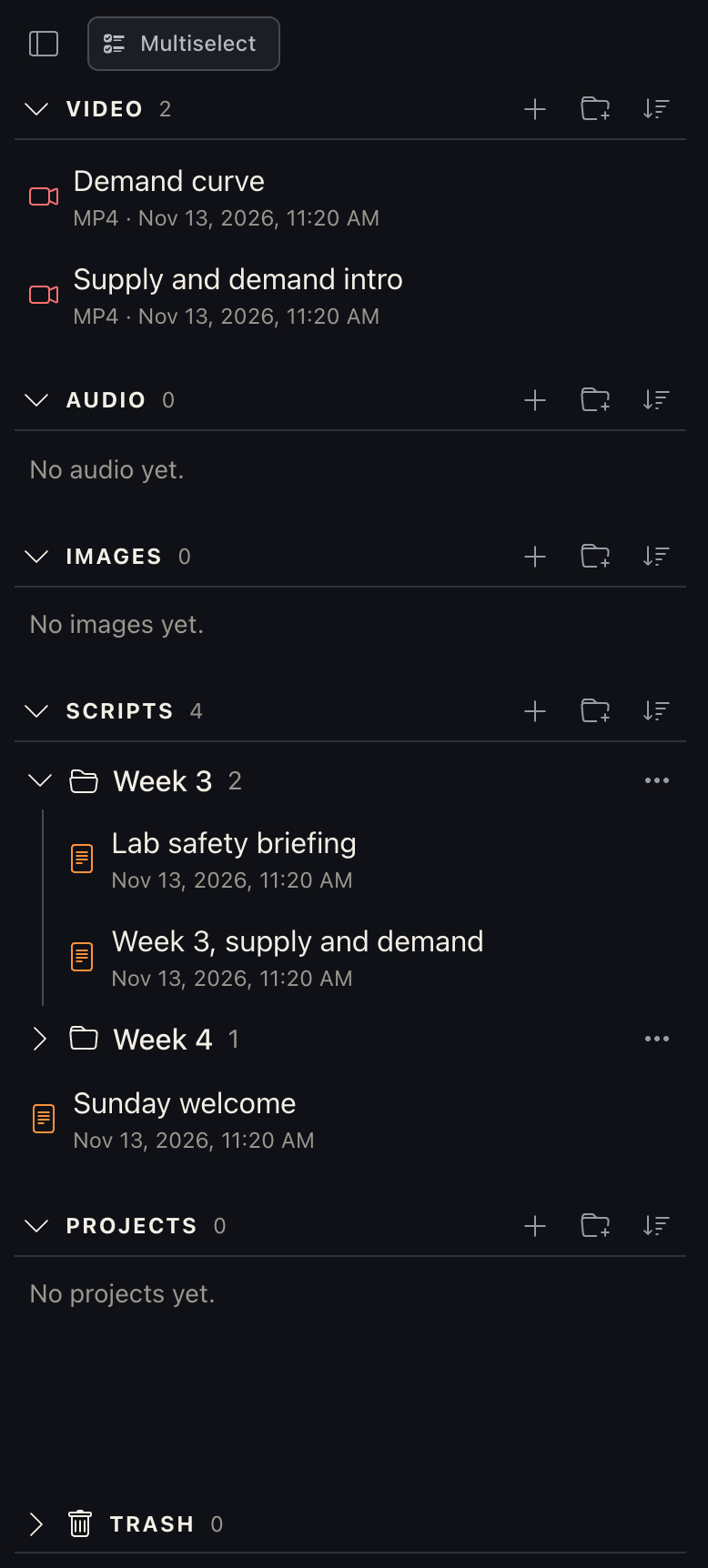
The library is the column on the left of the Create screen. Everything you make or bring in is there, in five lists: Video, Audio, Images, Scripts and Projects. Click something to open it on the right.
What's in each list
- Video: what you record with the camera or the screen (a screen and camera recording kept as two files is one item, a "take"), videos you bring in, and your projects' videos, in its Exported folder.
- Audio: what you record with the microphone alone, audio you bring in, sound taken out of a video, and voiceovers.
- Images: pictures you bring in (PNG, JPG, GIF, WebP; TIFF and BMP become PNGs as they're added, and HEIC becomes JPEG on Apple devices).
- Scripts: what you read on the prompter. Kept as Markdown files.
- Projects: videos and interactive lessons put together from your media, in steps.
Each has its own folders. New things go in their own list, whichever + you used: record audio from Video's folder Week 1 and it's saved in Audio's Week 1 (made if it isn't there).
The number beside each heading is how many it holds. Click a heading's arrow to fold it away.
Adding things
Each list's + adds to it:
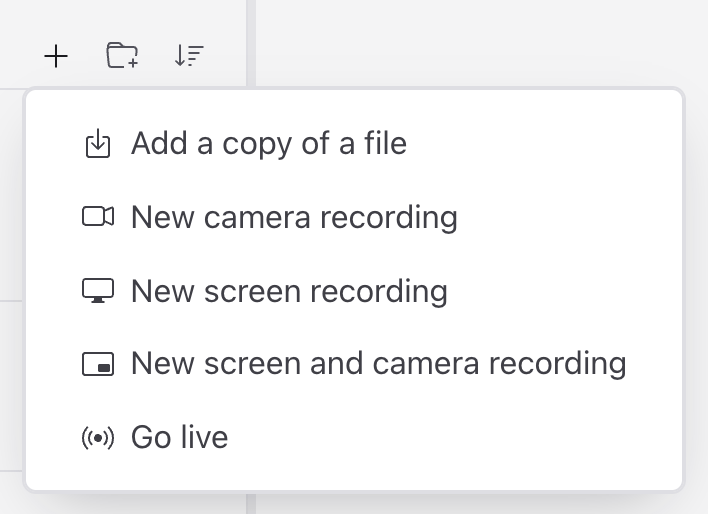
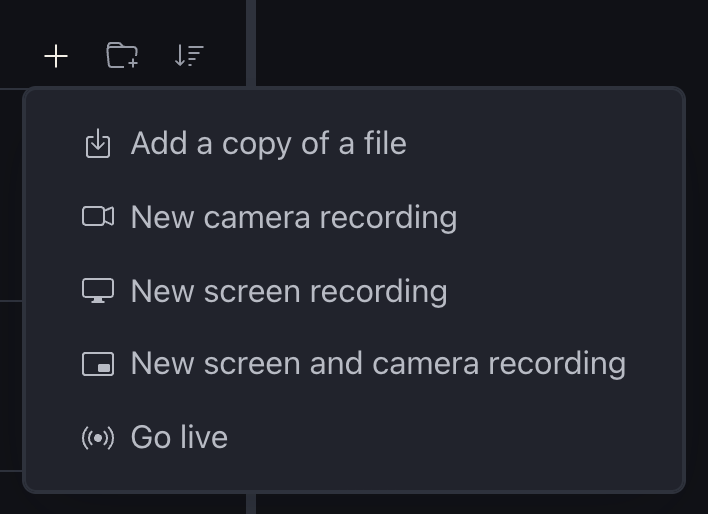
Video's + (Add video) opens a menu: Add a copy of a file, New camera recording, New screen recording, New screen and camera recording and Go live. Audio's + has Add a copy of a file and New audio recording. Images' + has Add copies of images and New drawing (see Drawing on an image). A recording choice goes to the recording screen, where you name it and choose its folder. Choices this computer or browser can't do at all are left out. Files added keep their names (rename them later) and go in the folder of the +: the picked item's folder in that section, else the top. A folder's ⋯ menu has Add here › to add to that folder. Dropping files anywhere on the window adds them too, sorted into sections.
Pictures: TIFF and BMP files become PNGs as they're added, and HEIC or HEIF become JPEGs where the device can read them (Apple devices).
Scripts' + makes a new, empty script.
Projects' + makes a new project.
Drop files anywhere on the window to add them. The app sorts them by where each goes (Video, Audio, Images, Scripts, Projects) and lists any it can't add, with the reason. Take out any you don't want, then click Add. Word, OpenDocument, RTF, PDF and web pages become scripts; a dropped folder keeps its folders.
Open a video, sound or picture with Lectern from your computer's files, in the Lectern app for computers: right-click it and choose Open With › Lectern (on Windows, Open with). It's added as if you'd dropped it: the same list comes up, and Add copies it into Video, Audio or Images and shows it in Create. The original stays where it was. Lectern can open MP4, MOV, M4V, WebM, MKV, MP3, M4A, WAV, AAC, Ogg and Opus files, and PNG, JPEG, GIF, WebP, AVIF, TIFF and BMP pictures. Installing it doesn't change the app they open in now. On Linux, the AppImage adds itself to Open With the first time you run it. To have them open in Lectern when you double-click them, choose it yourself: on a Mac, Get Info › Open with › Lectern › Change All; on Windows, Open with › Choose another app › Lectern › Always.
Share to Lectern from another app: in the share sheet on a phone or tablet (from Photos, Files, your gallery and others), or Share › Lectern on a Mac. On Android, Lectern opens with the same list to add. On an iPhone or iPad, open Lectern afterwards (it says so), and the list is waiting. On a Mac, Lectern opens by itself. Share one kind at a time on Android: a mix of photos and videos doesn't list Lectern there.
Lectern works on copies
However a file comes in (the + menus, a drop, Open With or a share sheet), Lectern adds a copy to its library and works on that. Your original stays where it was, untouched:
- Editing in Lectern doesn't change the original. Cuts, sound changes, crops and captions are on Lectern's copy. To get the edited version out of Lectern, export it (Exporting and sharing).
- Changing the original doesn't change Lectern's copy. If you edit the file in another app afterwards, add it again to bring that version in.
- Deleting either one leaves the other. Lectern's copy goes to its Trash; the original is yours to keep or delete.
Folders
The folder button beside each + makes a folder in that list. A folder's ⋯ menu adds something in it, makes a folder inside it, or renames or deletes it. Click a folder to open or close it.
To move things, drag them onto a folder (or onto the list's heading, for the top), or use Move to folder in an item's ⋯ menu. Projects that use a recording keep working when it's moved or renamed.
Sorting
The sort button (beside the folder button) orders a list by Date modified, Date created or Name, either way round. Newest changed first is the default. Folders always come first, by name, with numbers in order (Week 3 before Week 10).
An item's menu
Point at an item and click its ⋯ for Rename, Move to folder and Delete. Videos also have Extract audio, which saves the sound as an audio file in Audio, in a folder of the same name as the video's. Rename, Move to folder and Delete also sit at the top right of an item when it's open. Signed out, the menu also has Sign in to sync; signed in, it has sync's choices.
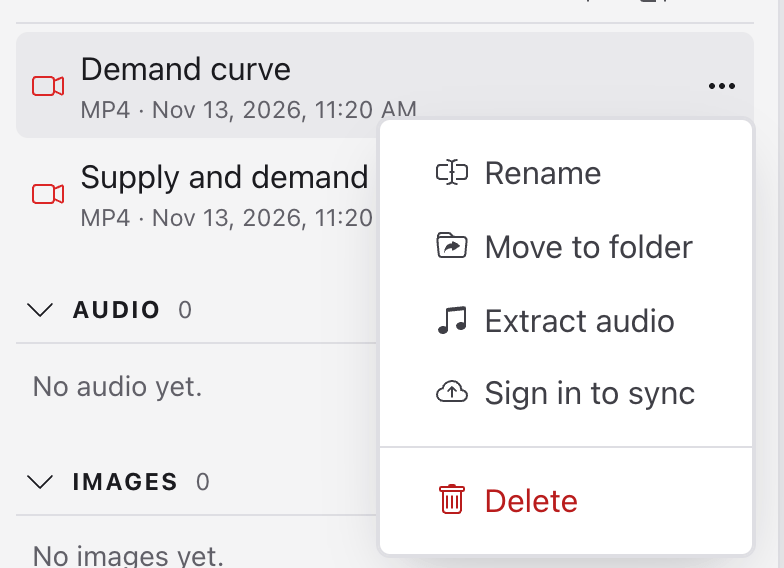
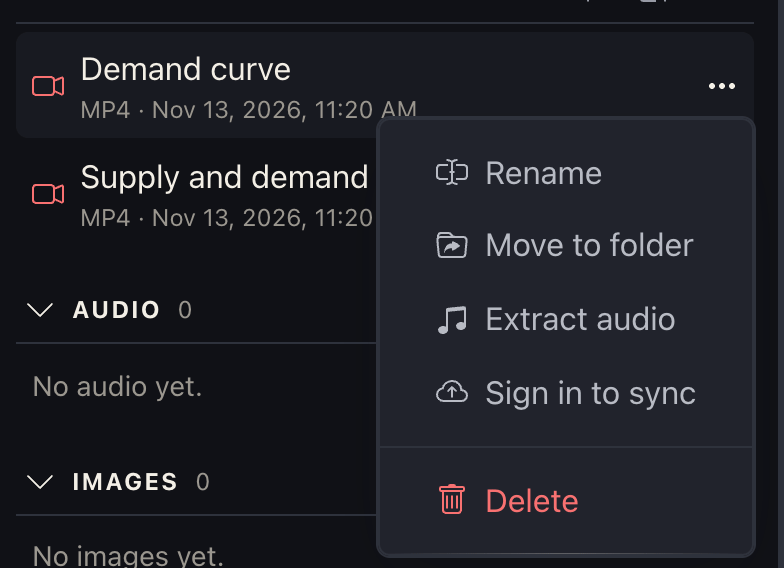
Names are shown without the file's type; the line under each says it (MP4, WebM, PNG). Renaming keeps the type: you change the name only.
Signed in, with storage, the menu also has Sync now or Keep local, and an icon after a file's name says whether it's synced. A file that's only in the cloud has just Download. See Sync: your library on every device.
Multiselect
Multiselect, at the top of the library, puts a box beside each item and folder, and each list's heading. Tick what you want, then:
- Move, when everything ticked is in one list, to a folder in it.
- Delete, to the trash.
- Sync ▾: Sync or Keep local, with your account (see Sync).
A ticked folder counts as everything in it. Click Multiselect again, or press Esc, to stop.
The trash
Deleting moves things to the Trash, at the bottom of the library. Open it to see what's there, where each came from and how many days are left. Click the arrow to restore one (back where it was), the × to delete it for good, or Empty for all of them.
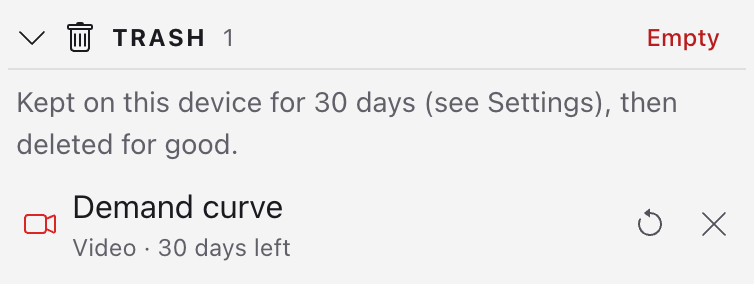
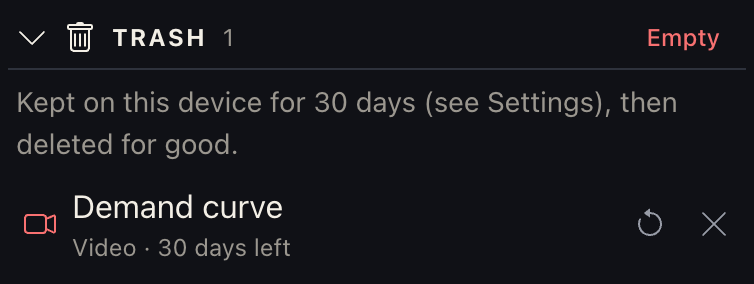
Things in the trash are deleted for good after 30 days. Settings › General › Trash changes that to 7 or 90. A project using a recording in the trash shows it as missing until it's restored.
Making room
The button at the top left of the library hides it, to give the open item the whole window; the same button brings it back. Drag the line between the library and the right side to make either wider.
Where the files are
In the desktop app, the library is a folder on your computer, in the app's
data folder: Video, Audio and Images are Recordings/Video/,
Recordings/Audio/ and Recordings/Images/, Scripts are Scripts/,
Projects are Projects/. (Before November 2026 media was all in
Recordings/; the app sorts it into the three the first time it opens.) In the browser, the library is kept in the browser's own
storage for this site, on this computer only.
Where that is on each system, and how to back it up, is in Privacy and where files live. To have the same library on your other devices, see Sync.
See also
Something here wrong or unclear? Tell us.