Help In depth
Accounts, Pro and storage
The free app, what an account adds, Pro (sync, share and review links, devices together, streaming), its levels and renewals, and the Account screen.
Using Lectern without an account
You don't need an account, and the app is free, all of it, at any length: recording, scripts and the prompter, cutting, captions, transcripts, projects with questions, exporting, and going live from your computer. There's no time limit and no watermark. Until you sign in, the only thing the app asks Lectern's servers is whether there's a new version (the desktop app, a few seconds after it opens and every few hours; see What leaves your computer).
An account adds what runs on Lectern's servers:
- Pro (see below): sync, share links, review links, your phone as a remote, and streaming through Lectern.
- A seat in an organization's plan, from a school, a church or a company, which brings the same for as long as you have it. See Organizations.
Lectern is in open beta, and buying opens soon.
Signing in, and making an account
Click the person icon at the top right, then Sign in. The same menu has Settings and Help.
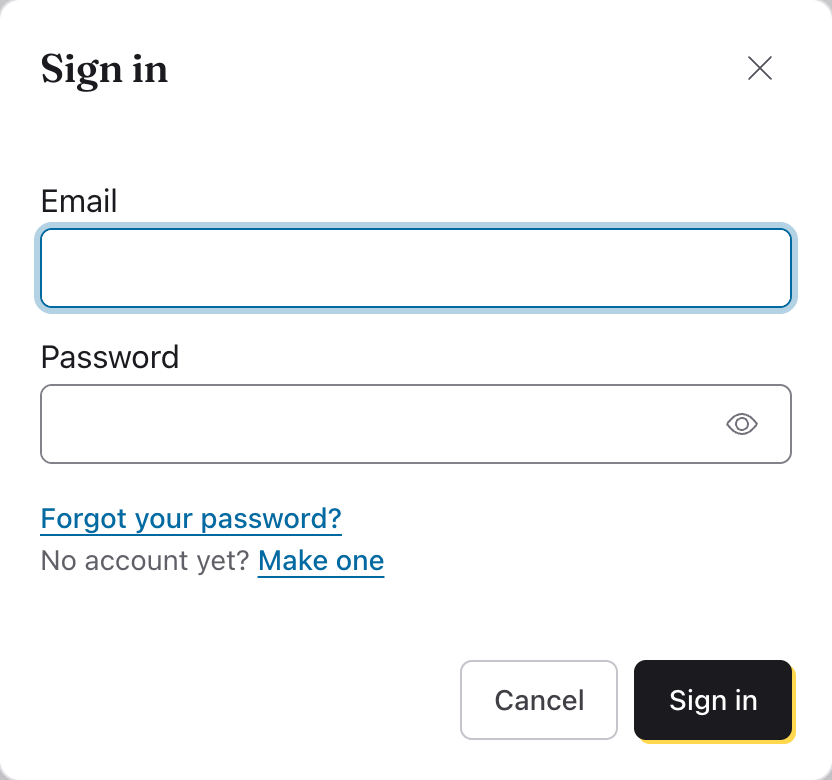
- Sign in with your Email and Password. If you've turned on two-step sign-in, it then asks for the code from your authenticator app.
- No account yet? Make one opens Make an account: your Name, Email and a Password of at least 8 characters, then Make account. If you have an Invite code from your organization (or from us), type it there; with an email address at a school or company that has a plan, you may not need one.
- Forgot your password? emails you a 6-digit code to set a new one. The code works for 10 minutes, and setting a new password signs you out on your other devices.
If sign-ups are full for now, the dialog offers Join the waitlist: leave your email, and we'll write when there's room.
Staying signed in, and a computer with no keyring
The app keeps you signed in with a key it keeps encrypted in your computer's own password store: the Keychain on a Mac, Credential Manager on Windows, or the system keyring on Linux (GNOME Keyring or KWallet). An iPhone or iPad keeps it in its Keychain, and Android in the app's own storage, which other apps can't read. In a browser, the browser keeps your sign-in.
Some Linux desktops don't run a keyring, or it's locked and you turned down its unlock. Then the app can't keep your sign-in encrypted, and the Sign in dialog says so and why. Unless you choose otherwise, your sign-in is kept in memory only: you stay signed in until you quit Lectern, and sign in again the next time it starts. It doesn't ask the keyring again until it restarts, so a turned-down unlock doesn't keep coming back.
- Keep me signed in on this computer, under that note, saves your sign-in and stream keys unencrypted in Lectern's own storage instead. Other programs running as you could read them there. It's remembered, and it's also under Staying signed in on this computer on the Account screen's Settings tab and in Settings › Sync: untick it to delete the saved copy (you stay signed in until Lectern quits).
- To fix it, install GNOME Keyring or KWallet (or make sure it starts when you log in), then restart Lectern and unlock it if it asks. Once the keyring works, the app moves your sign-in and stream keys into it, deletes the unencrypted copy, and the note goes away. If the keyring stops working later, you're asked again.
Versions of Lectern before this one saved the sign-in unencrypted on such a computer without asking. If yours did, the app deletes that copy the first time it starts, keeps you signed in until it quits, and asks once whether to save it again.
Once you're signed in, the button at the top right is your profile picture (or the person icon, if you haven't set one), named for you. Its menu has Account, any organization you run, Settings, Help and Sign out.
Confirm your email. After you make an account, we email you a 6-digit code. Type it at the top of the Account screen under Code from the email and click Confirm. A confirmed address lets you join your school's or company's plan by its email domain, and reset your password.
Name, email and password, on the Account screen's Settings tab, changes them. A new email address needs a code from the old address and one from the new. Changing your password signs out your other devices.
Profile picture, on the same tab, shows on the menu at the top right and on the Account screen. Choose a picture… opens a photo; drag it (or use the arrow keys) and set Zoom so your face is in the circle, then Save. Lectern makes it a small square before it's sent, so a large photo is fine. Remove takes it off. It's kept with your account, and is in Download my data.
Sign in with Google, Microsoft or Apple
In the web app and in every Lectern app, you can make your account or sign in with Continue with Google, Continue with Microsoft or Continue with Apple instead of a password: Lectern gets your name and email address from them, nothing else, and never your password there. The desktop and Android apps open your browser for it and come back once you're signed in; on an iPhone or iPad it opens over the app. With Apple you can choose Hide My Email, and Lectern gets an address from Apple that forwards to yours. An account made that way is the same as any other.
Two-step sign-in
With two-step sign-in on, signing in takes your password and then a code from an authenticator app on your phone (Google Authenticator, Microsoft Authenticator, 1Password and others), so a password someone else learns isn't enough.
To turn it on, go to the Account screen's Settings tab, and under Two-step sign-in click Turn on:
- Enter your password and click Continue.
- In your authenticator app, add an account and scan the code on the screen. (Can't scan it? Choose to enter a key in the app, and type the key shown under the code.)
- Type the 6-digit code the app shows for Lectern, and click Turn on.
- Save the backup codes somewhere safe, away from your phone: Copy, or Save as a file. Each one signs you in once if you lose your phone. They're shown only this once.
When you sign in, type the code from the app, or click Use a backup code instead. The code has to be entered within 10 minutes and 5 tries, or the dialog asks for your password again.
New backup codes makes a new set (the old ones stop working), and Turn off goes back to just your password. Both ask for your password first.
An organization's admins can be asked to use it: with Admins must use two-step sign-in on, under the organization's Settings tab, an admin without it can't manage the organization's people, storage or billing until they turn it on. Members aren't asked.
Pro: what it adds
Everything that runs on your own devices is free. Pro is for what runs on Lectern's servers, for your account on every device you sign in on:
- Sync: your library on your other devices.
- Share links: a video someone watches from a link, and projects shared by link, with their questions and the answers that come back. Fix a typo or an answer and the link updates.
- Review links: a script sent for comments (Comments on a script).
- Devices together: a phone, tablet or browser as your remote, a second prompter or a camera.
- Streaming through Lectern: send a live stream once and Lectern sends it on to each platform, with a delay if you want one; or schedule a finished video to go out at a set time, with your computer off.
Pro is a subscription, by the year, in levels of storage and streaming (below): from $25 a year for 50 GB and 8 streaming hours a month. Every level has all of Pro; a bigger level is more storage and more hours. There's nothing to buy once.
A seat in an organization's plan includes all of this, for as long as you have the seat.
On the Account screen's Plans tab, Choose Pro opens the levels to pick from, then the checkout. You pay on Paddle'sStripe's secure checkout, in your browser: Paddle is Lectern's reseller, so your receipt comes from PaddleLectern's reseller is Link (Stripe's), so your receipt comes from Link, with sales tax or VAT added where it's due. The app updates as soon as it's paid.
Changed your mind? Pro is refunded in full within 14 days: reply to the receipt, or write to us.
Storage and streaming: levels, renewals, the 90-day grace
Pro's storage keeps the videos you share by link and the files you sync to your other devices; its streaming hours are for going live through Lectern and scheduled videos. The two come together, by the year, in levels: a bigger level is more of each. Only what's in the cloud counts: files you keep on your devices don't. As a guide, 100 GB holds about 27 hours of finished 1080p video.
| Level | Storage | Streaming | A year |
|---|---|---|---|
| 1 | 50 GB | 8 hours a month | $25 |
| 2 | 100 GB | 16 hours a month | $55 |
| 3 | 250 GB | 24 hours a month | $99 |
| 4 | 500 GB | 32 hours a month | $165 |
| 5 | 1 TB | 64 hours a month | $320 |
| 6 | 2 TB | 128 hours a month | $640 |
In the iPhone and Android apps, the stores' prices are a little higher.
- A bigger level, any time. Moving up mid-year charges the difference for the rest of your year; moving down takes effect at your renewal.
- An organization's storage, if you have a seat, for share links (see Organizations). Sync uses your own storage, not the organization's.
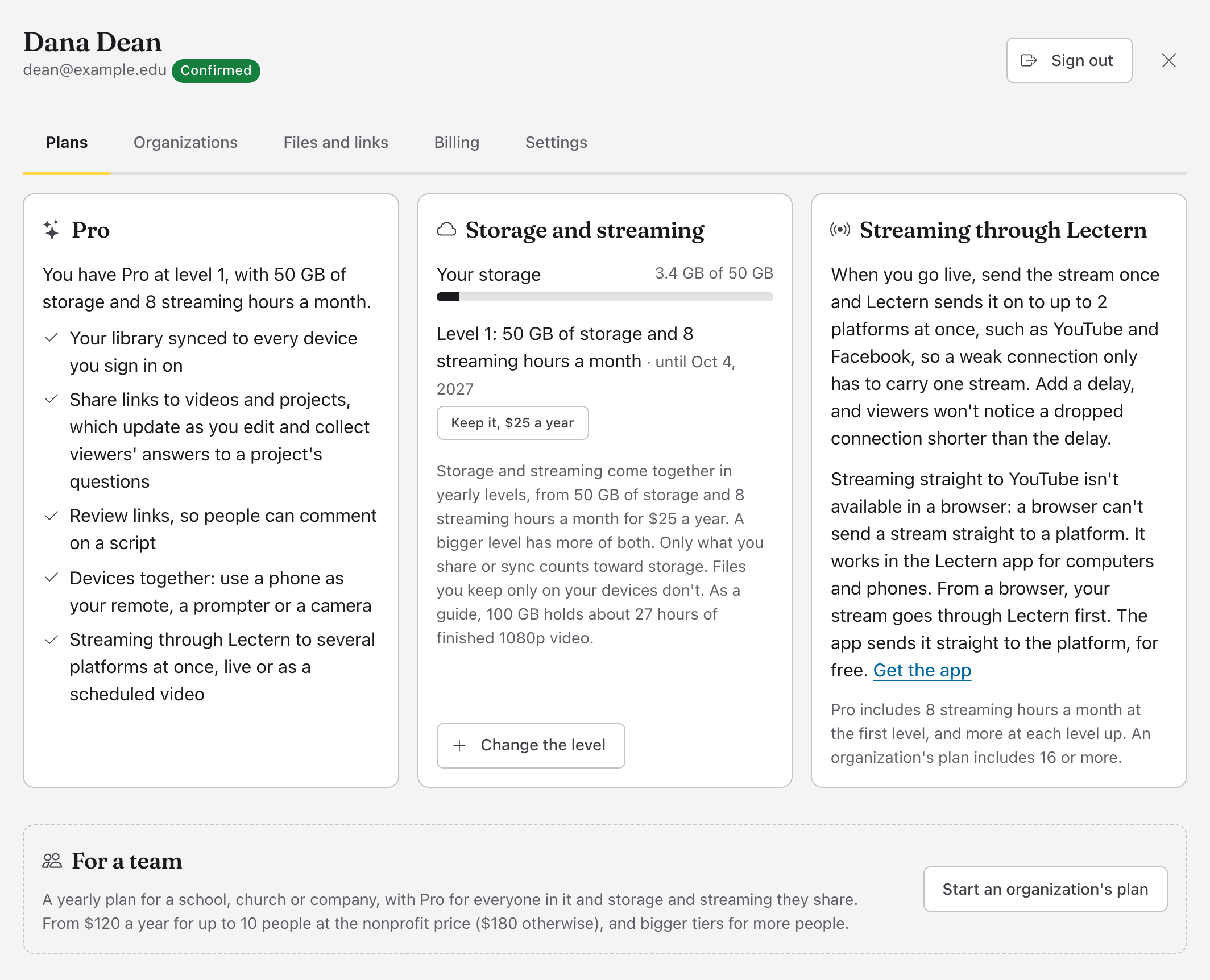
On the Account screen's Plans tab, the Storage and streaming card shows Your storage (how much you've used of how much you have), the hours left this month, and your level, with when it renews or ends. Change the level opens the checkout with the levels to pick from. It shows what you pay today, and what renews each year after.
It renews by itself. Each year on its date it's charged to the card you paid with, and we email you a month before. To stop it, turn off Renews each year beside it on the Billing tab: what you've paid for lasts to its date, then ends. If what you've stored wouldn't fit in what you'd have left, it says so and asks first. Change, beside it, moves it to a smaller level from its next renewal instead; nothing is charged or refunded now.
Plans bought or given before Pro was a subscription carry on as they were, renewing at their old price.
Everything renews on one date. A bigger level, or a plan kept from before, joins your renewal date, so you pay today only for the time until then, and it all renews together. With a plan renewing already, what you add goes on that plan and is charged to its card, without a new checkout. Storage whose renewal you've turned off has Renew each year to turn it back on, until it ends. For storage that's ending, we email you 30 days and 7 days before.
If it ends without being renewed:
- The app carries on as before, free. Your share links stop playing at once, nothing new is uploaded, sync stops, and so do Pro's other tools.
- For 90 days, you can still download everything you had in the cloud. We email you on the day it ends, and again at 30, 60 and 83 days.
- Keep it within those 90 days (Keep it on the Plans or Billing tab), and your files are kept and your links work again.
- After 90 days, the files are deleted from the cloud.
The copies on your devices are never touched.
Streaming through Lectern
Going live, Through Lectern sends the stream once and Lectern sends it on to each platform, with a delay if you want one (see Live streaming). The hours come with your level of Pro (above): the first has 8 a month, and a bigger level has more. The Storage and streaming card shows the hours left this month, yours and each organization's.
The Account screen
Account, in the menu under your name, has five tabs:
- Plans: Pro, with your level, what you've used, the hours left this month and a button to choose a level, and For a team, to start an organization's plan.
- Organizations: the ones you're in, with Open (or Manage, if you're an admin), Join one with an invite code, and Start one. See Organizations.
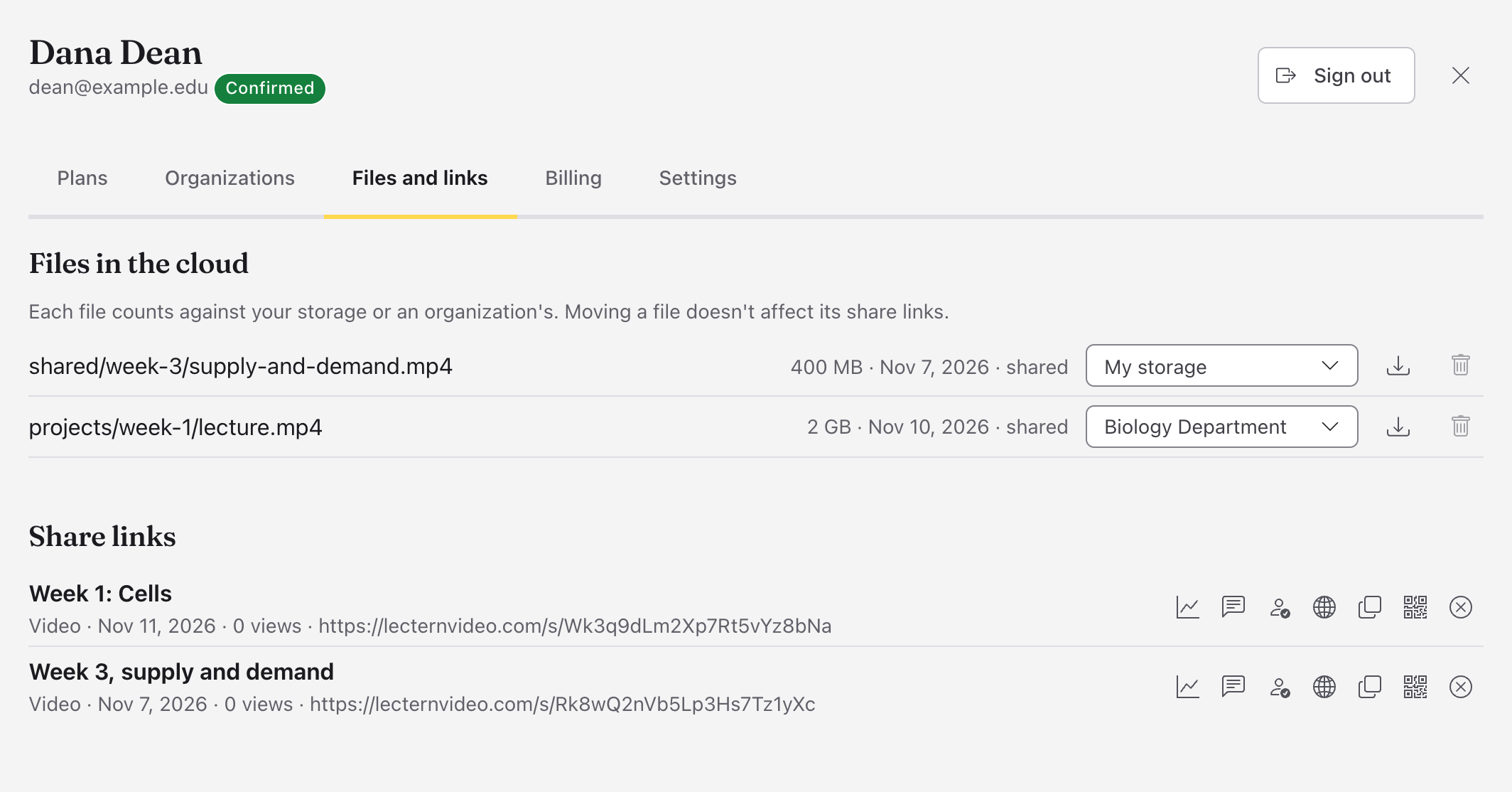
- Files and links: your files in the cloud and your share links (below).
- Billing: Renewals, with Renews each year and Change for each, and your Payments. Receipts come by email from PaddleLink (Stripe)Paddle or Link (Stripe), whichever sold it.
- Settings: Profile picture, Name, email and password, Two-step sign-in, and Your data (below).
Your files in the cloud
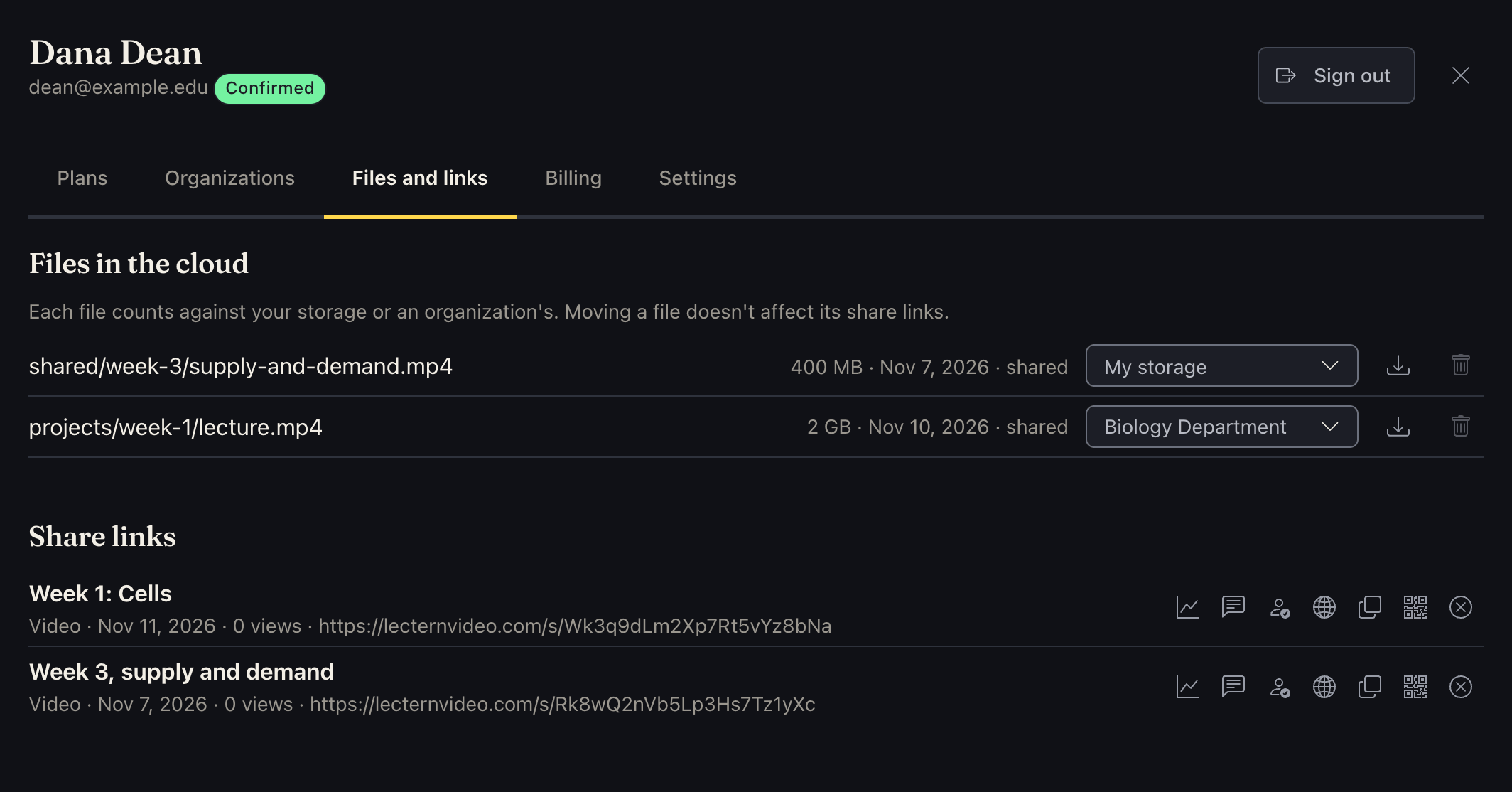
Files in the cloud, on the Files and links tab, lists what you've uploaded for share links, with each one's size and date, and shared if a link uses it. Files you sync aren't listed here, though they count against your storage; see Sync.
- Download gets a copy (the link works for an hour).
- Delete from the cloud deletes it. A file a share link uses can't be deleted until the link is turned off.
- Counts against moves a file between your storage and an organization's. It doesn't change its link.
- A video shared by link has smaller copies beside it (1080p, 720p and 360p, of the sizes smaller than it), so phones and slow connections play it smoothly. They're listed as not counted: they don't use your storage, and they move and go with their video.
- A file still in the storage of an organization you left says when it's deleted from there; move it to My storage to keep it. Files you left with an organization that keeps what's shared aren't listed: they're the organization's now (see Organizations).
Share links, under it, lists your links, with Copy the link, QR code (to copy or save for print) and Turn the link off. Turning a link off is for good. See Exporting and sharing.
Download my data, and Delete my account
Under Your data, on the Account screen's Settings tab:
- Download my data saves a file of everything your account holds: your account, storage, plans, organizations, share links (with viewers' answers) and files, synced ones too. The links to your files in it work for 24 hours. Files and links you left with an organization are named, without copies: they're the organization's.
- Delete my account deletes your account and everything it keeps in the cloud: your files there (shared and synced), your share links and their answers, and your plans. What you shared in the storage of an organization that keeps what's shared stays with it, with your name taken off. To be sure, it asks you to type your email address, then Delete for good. It happens at once and can't be undone. What's on your devices stays.
If you're the only admin of an organization with other people in it, make someone else an admin first.
See also
Something here wrong or unclear? Tell us.