Help In depth
Scripts and the prompter
Writing and bringing in scripts, how the prompter scrolls as you speak or at a set speed, and every setting and key.
Writing a script
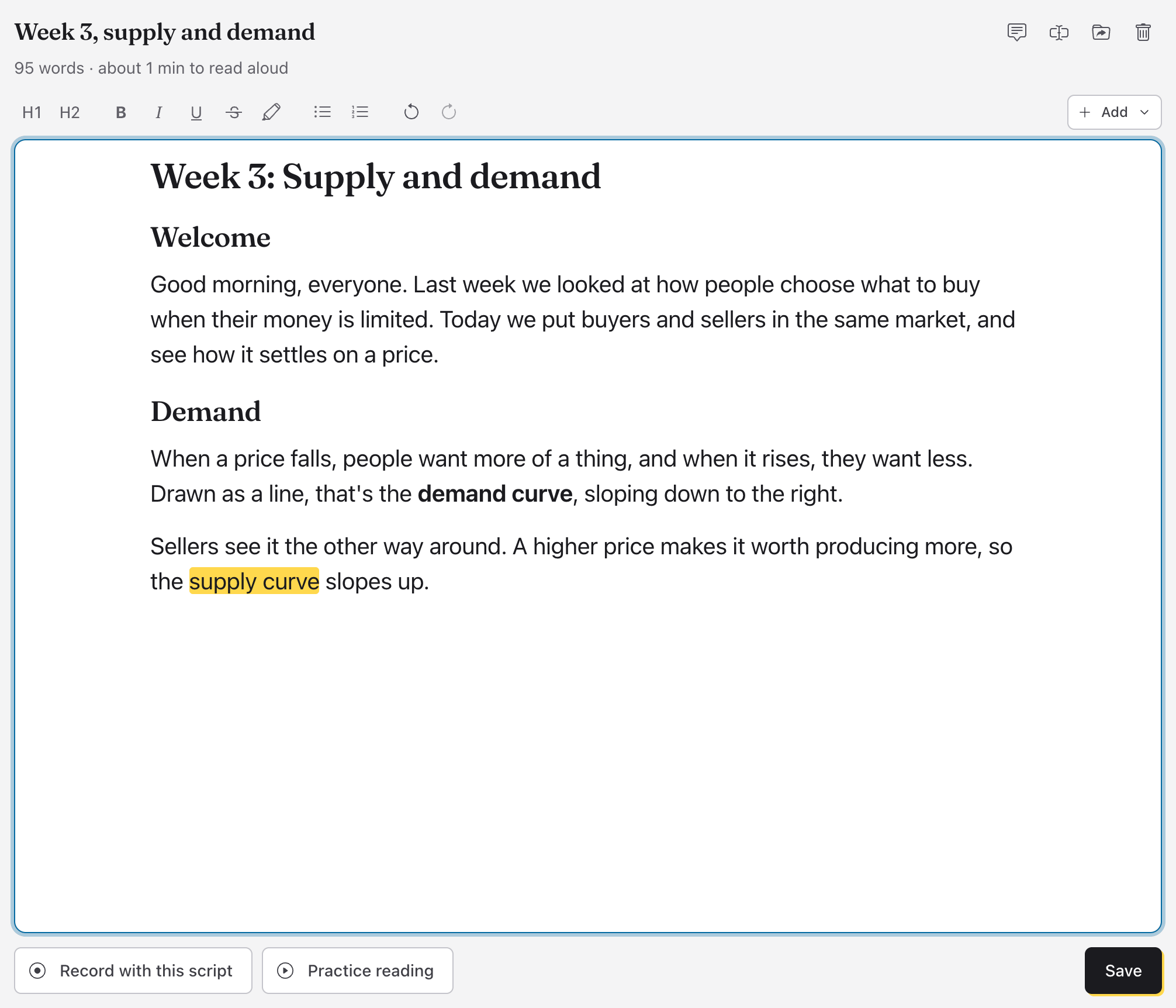
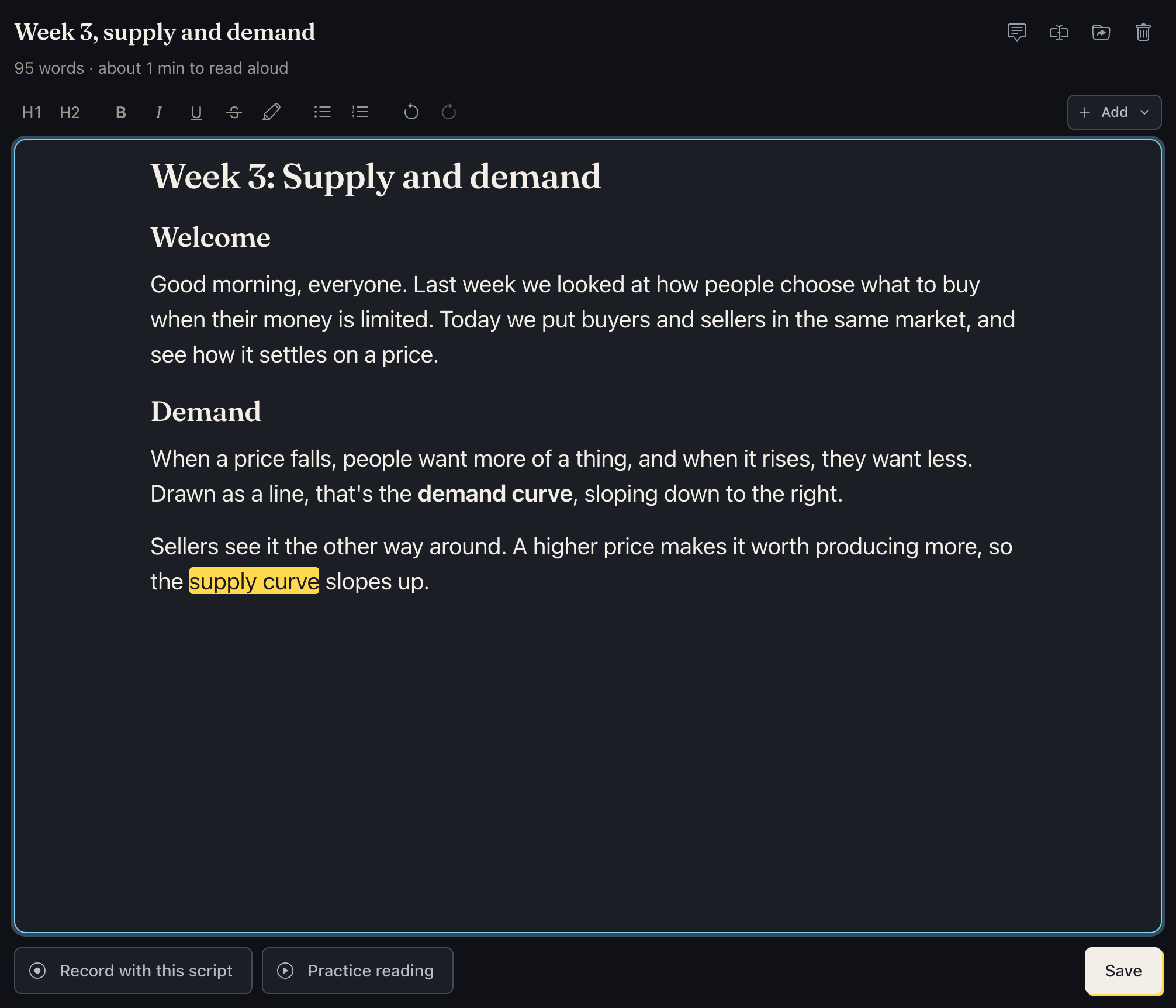
A script opens in an editor on the right of the Create screen. The buttons above the text:
| Button | What it does |
|---|---|
| H1 | A title |
| H2 | A section heading |
| B, I, U, |
Bold, italic, underline, strikethrough |
| Highlighter | Highlights words, to stress them when you read |
| Lists | A bulleted or a numbered list |
| Arrows | Undo and redo |
You can type the marks instead: # at the start of a line makes a title,
## a section heading. Headings show in color on the prompter, so you can
find your place.
Under the script's name is how many words it has and about how long they take to read aloud.
Scripts in Hebrew, Arabic and other right-to-left languages read right to left, in the editor and on the prompter. Each paragraph goes the way its own first words do, so a script can mix them with English.
Saving
A script is saved only when you click Save or press Ctrl S (⌘ S on a Mac). Save is green while there's something to save and says Saved when there isn't. Leaving a script with changes unsaved asks whether to save them.
Bringing text in
Add, at the top right of the editor, puts text in at the cursor:
- Text from file: Word, OpenDocument (
.odt), RTF, PDF, Markdown, plain text or a web page. A PDF's lines are joined back into paragraphs, without its page numbers. A scanned PDF is only pictures of pages, with no text to read. (Old.docfiles can't be read; save them as.docxfirst.) - Text from a photo: photos or scans of printed pages (or neat handwriting), read into text. See From a photo.
- Text from audio: a recording on your computer, transcribed.
- Text from media: one of your recordings in Video or Audio, transcribed.
- Dictate: speak, and the words are typed as you go. Say "comma", "period", "question mark" or "new paragraph" (in English) for the marks; sentences start with capitals. The language starts as your computer's; pick another from the list. If the script already has text, the app asks before dictating over it.
Text from audio and Text from media use Whisper on your device. They work in the Lectern app for computers and phones, and in a recent browser on a computer; in a phone's browser they say so. They take recordings of any length. You can also make a script from a recording with Extract › To script… under the recording.
Dropping a document onto the window adds it as a new script.
From a photo
A printed script, a page from a book, or a handout can become a script without typing it. Start one from Text from a photo… in the New script dialog (the + beside Scripts), or put a page in at the cursor with Add › Text from a photo.
- Choose photos picks pictures on your device (JPEG, PNG, WebP, and HEIC where the device opens it, as iPhones and Macs do). Pick several for several pages; they're read in the order shown, and × takes one out. On a phone, Take photo opens the camera, and Take another adds the next page.
- Read the page (or Read 3 pages) reads them, saying which page it's on; Cancel stops.
- A new script is named by its first line, unless you typed a name, and opens for you to look over. Lines are joined back into paragraphs, and a word split with a hyphen at the end of a line is mended.
The pages are read on your device, in the language you dictate in (or English). The first time, it downloads the text reader for that language (3 MB for English) and keeps it, so after that it works offline. Photos can misread a word here and there, so read the script through before you record. It reads best from a photo taken straight on, close enough to fill it with the page, in even light.
Comments from others
Share for comments… above a script makes a link anyone can open to read it and comment by name, without an account. Their comments come back to the script's Comments, where you reply, resolve or delete them. See Get comments on a script.
Practicing
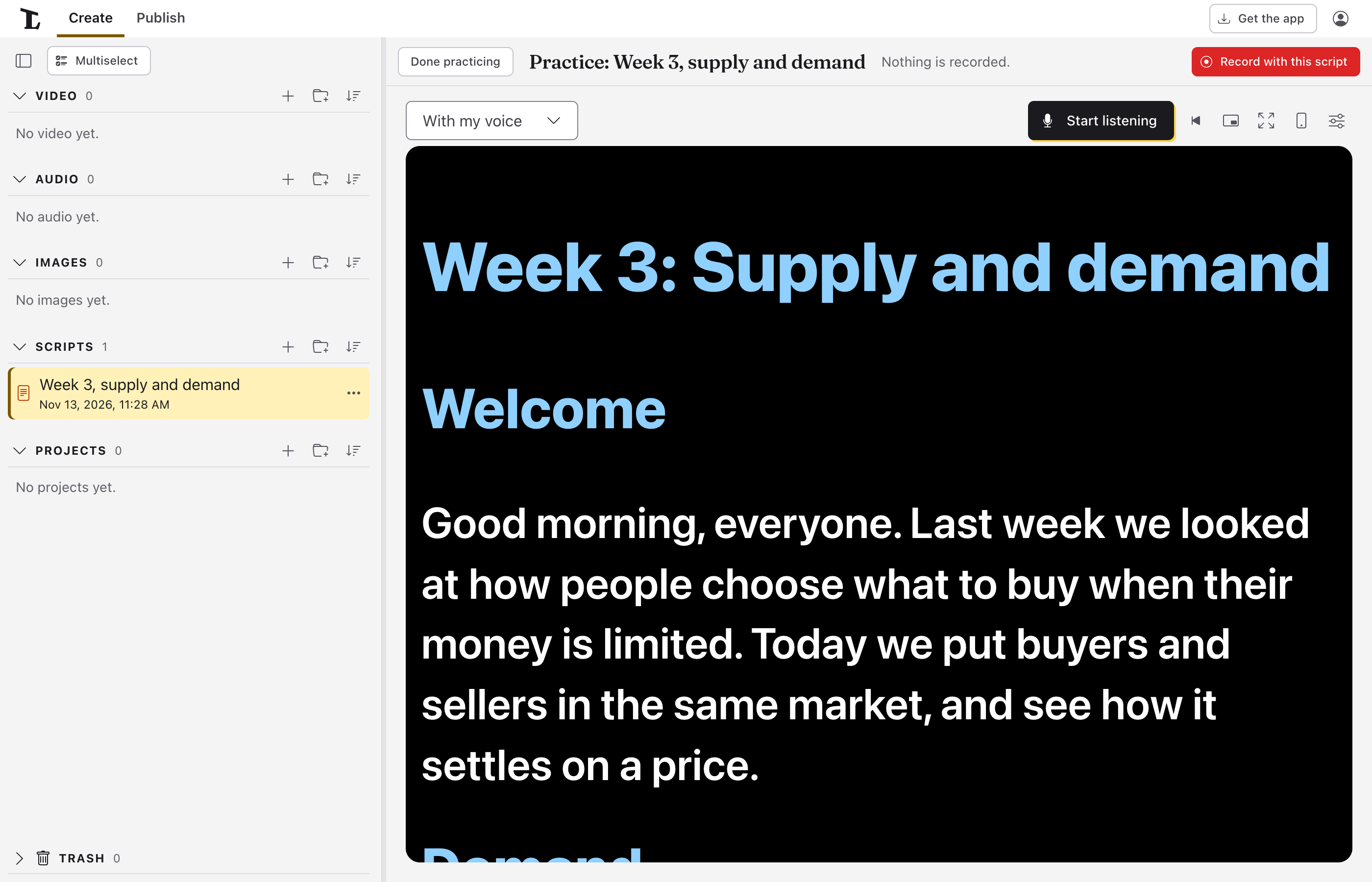
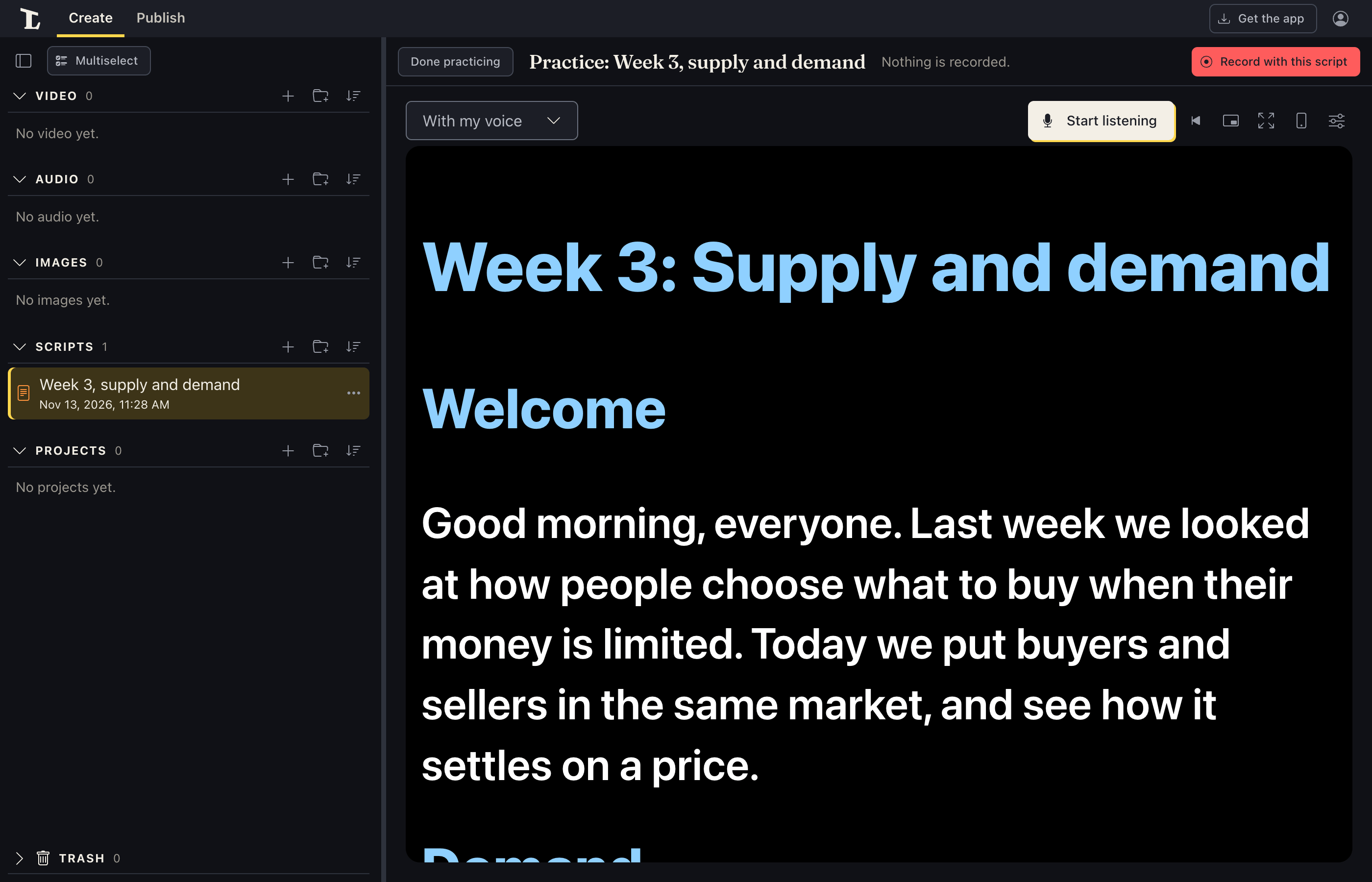
Practice reading opens the script on the prompter with nothing recorded. Done practicing goes back to the script; Record with this script starts a recording with it.
Recording with a script
Record with this script opens the recording screen with the prompter beside the camera's preview. The Script picker at the top changes it, or takes it away. See Record yourself reading a script.
Where the prompter goes while you record is in Settings › Prompter:
- Script beside the preview, or
- Script above the preview (nearer the camera), which keeps your eyes close to the lens.
In the desktop app, Show the prompter in its own window puts it in a window you can move to another screen or a teleprompter monitor, and Keep the prompter window on top keeps it above other windows. With more than one display, The prompter window opens can open it full screen on the one you pick; Esc there makes it a window again. On Windows and Macs, Hide the prompter window from screen sharing (on at first) keeps it out of video calls and screen recordings. On a Mac, Lectern's own recordings always leave it out; other apps (Zoom, OBS) may still show it, depending on how they capture the screen.
In a browser on a computer, the prompter's window button (beside fullscreen) opens it in a window of its own. In Chrome and Edge it's Open in a window on top: a small window that stays above every other, so you can put it just under your webcam. Other browsers open a pop-up window (allow pop-ups for the site if it's blocked). The page you opened it from still listens and keeps your place, so keep its tab open; the window follows it, and its keys and clicks on words work there too. Close it with its own close button or Close the prompter's window.
How it scrolls
Choose in the menu above the script:
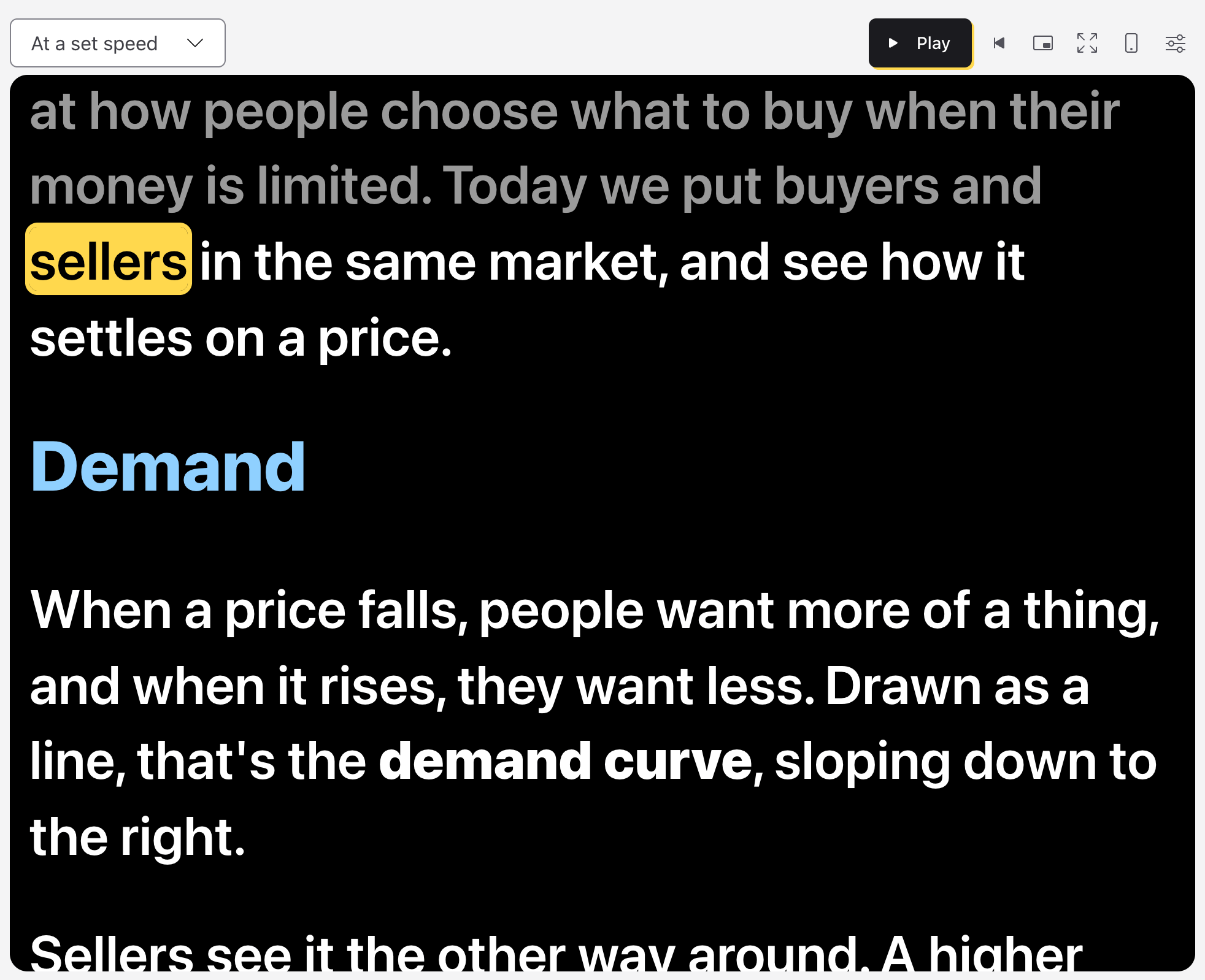
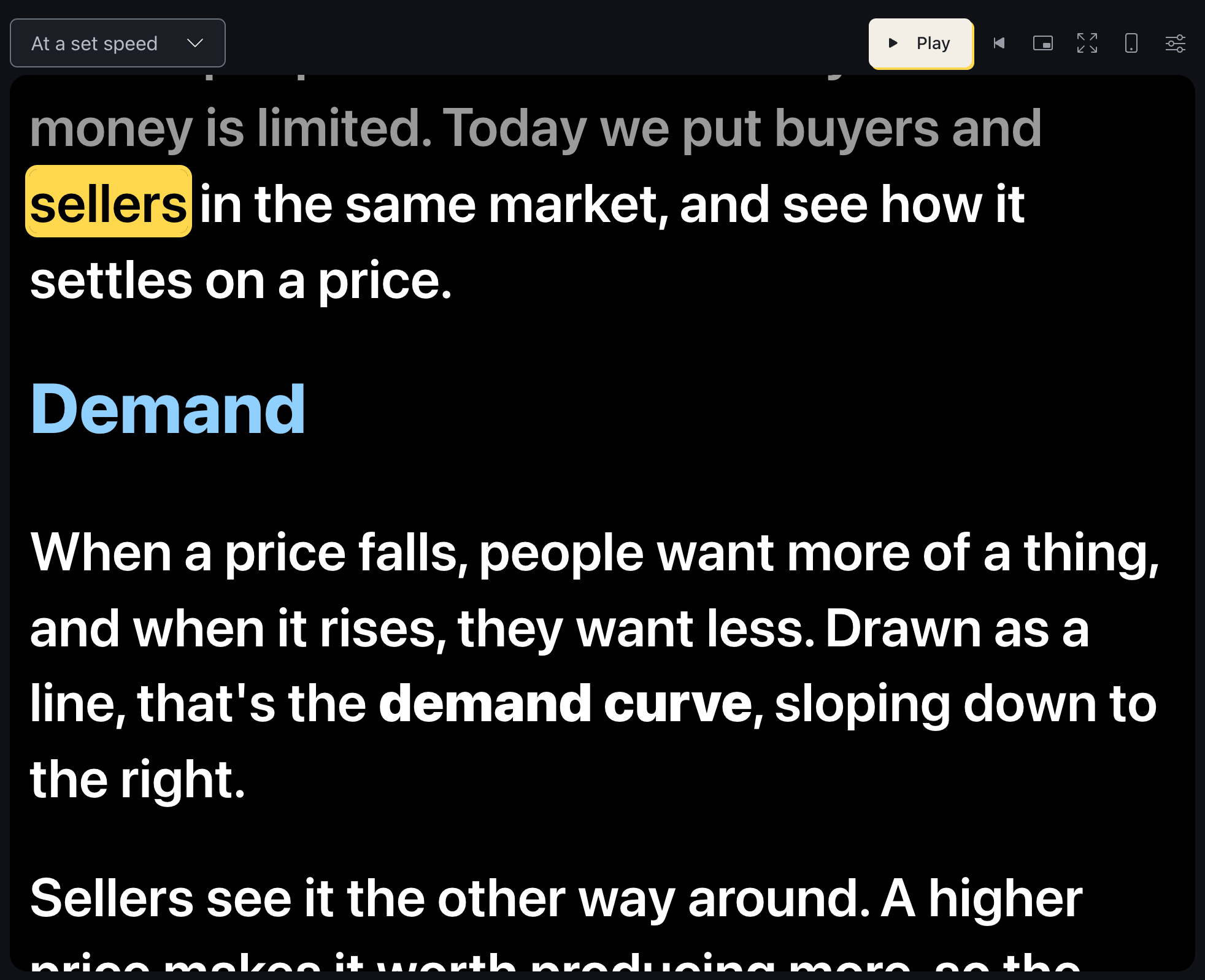
- With my voice. Click Start listening and read. The prompter listens, highlights the word you're reading and scrolls to keep it in view. Speech recognition hears words a moment late, so while you read steadily, the highlight keeps your pace a word or two past what it has heard; how far is in Settings › Voice follow timing. Stop listening stops it. If it can't listen (some browsers don't recognize speech), it says why, and Scroll at a set speed instead switches over.
- At a set speed. Click Play. It scrolls at the speed set in Settings › Prompter, in words a minute.
Either way, click a word to start from there, and Restart (the arrow to the start) goes back to the top. Words already read turn grey. What it hears, or the speed, shows small along the bottom of the script. On a phone, Start listening and Play are icons too; hold one to see its name. Recording with a script, Record takes the place of Start listening: the prompter starts with the recording.
Listening to your voice
How the prompter hears you depends on where it runs:
| Where | Listens with | Without the internet |
|---|---|---|
| Mac, iPhone, iPad | Apple's speech recognition | Yes, once the language's on-device model is installed |
| Windows | Whisper (the default) | Yes, after a one-time download |
| Windows | Windows dictation (choose it in Settings) | No: it needs Windows' online speech recognition and Microsoft's service, which has had outages |
| Linux | Whisper | Yes, after a one-time download |
| Android | Android's speech recognition | Yes on Android 12 and later, with an on-device recognizer |
| A browser | The browser's speech recognition (the default) | Depends on the browser (Chrome sends audio to Google) |
| A browser | Whisper (choose it in Settings; Firefox's only one) | Yes, after a one-time download |
The one-time download is the speech model: 148 MB in the apps, 139 MB in a browser. Settings has the speech engine where there's a choice.
Windows dictation listens only to Windows' default microphone, so the prompter has no microphone to choose with it: set the default in Windows Settings › System › Sound › Input. To choose a microphone in Lectern, choose Whisper in Settings › Speech.
Prompter settings
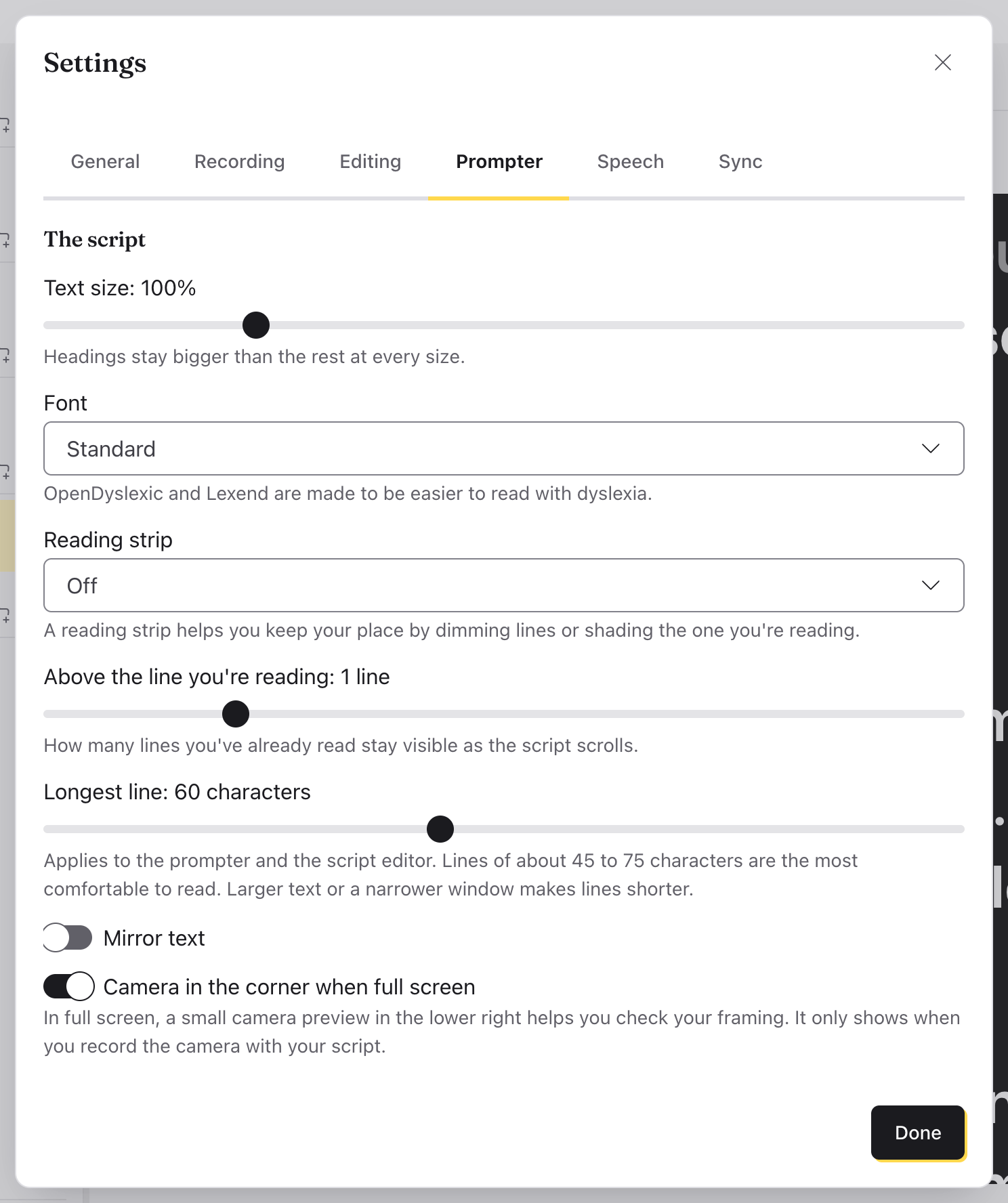
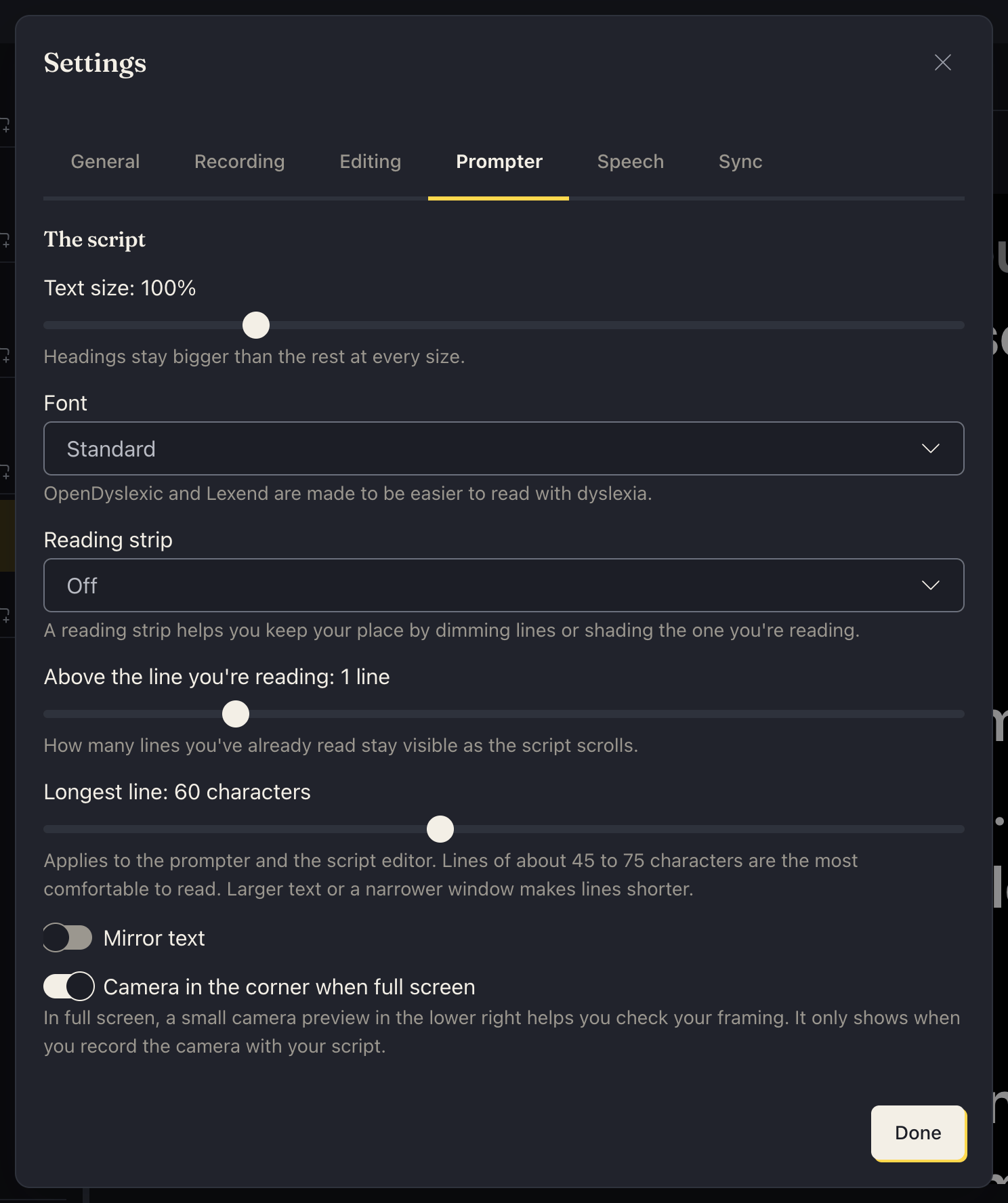
The sliders button beside Restart opens Settings at its Prompter tab: text size, the font, the reading strip, how many lines stay above the one you're reading, the longest a line gets (here and in the script editor), mirrored text, the speed, starting with the recording, clicker keys and the microphone. See Settings › Prompter. It's greyed out while the prompter runs or records.
The fullscreen button fills the screen with the prompter.
Keys, clickers and pedals
With the prompter showing:
| Key | What it does |
|---|---|
| Space | Start or stop |
| B or . | Start or stop (what presentation clickers send) |
| Page Down, Page Up | Move a line down or up |
| →, ← | Move the highlight a word |
| ↑, ↓ | Following your voice, move a line up or down; at a set speed, faster or slower |
| Home | Back to the top |
Most presentation clickers and foot pedals send Page Down and Page Up, so they work without any setup. A phone can be the remote too: see Use another device.
See also
Something here wrong or unclear? Tell us.