Help Quick guide
Record yourself reading a script
The prompter beside your camera, scrolling as you read, and the recording saved in your library.
What you'll make: a camera recording of you reading a script, saved in Video. You'll need a script first: see Write a script and practice reading it.
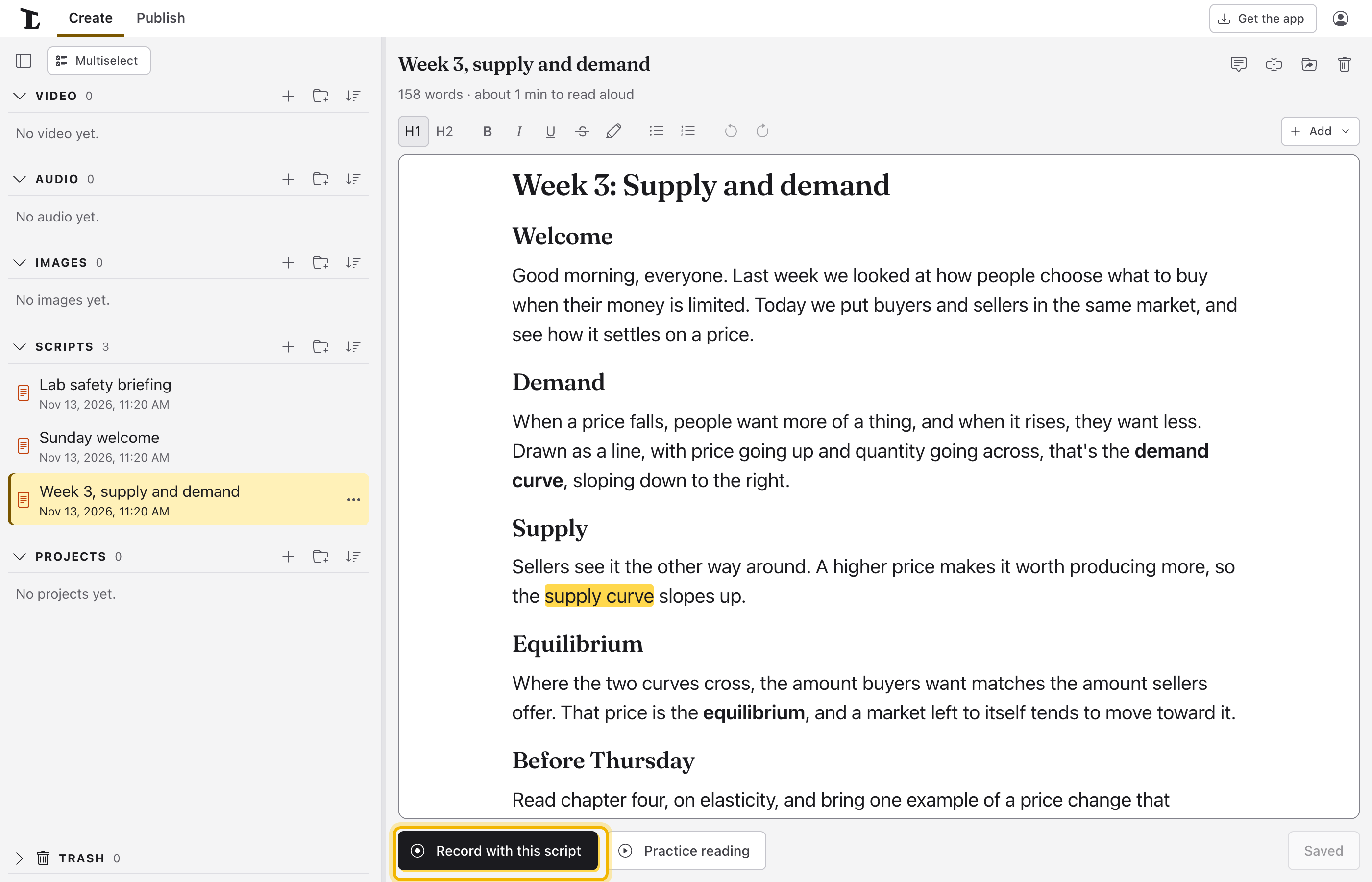
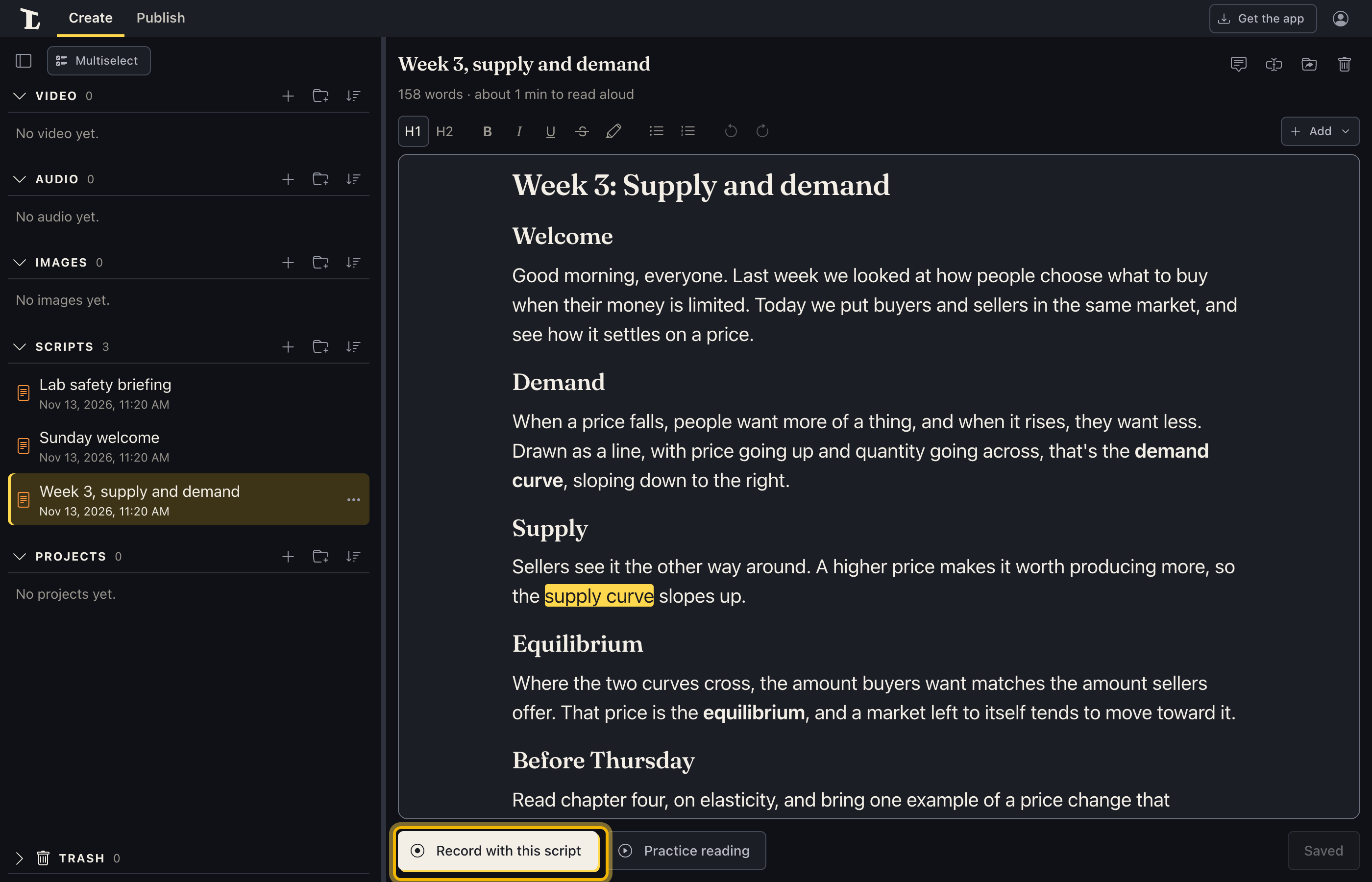
Open the script in the library's Scripts and click Record with this script.
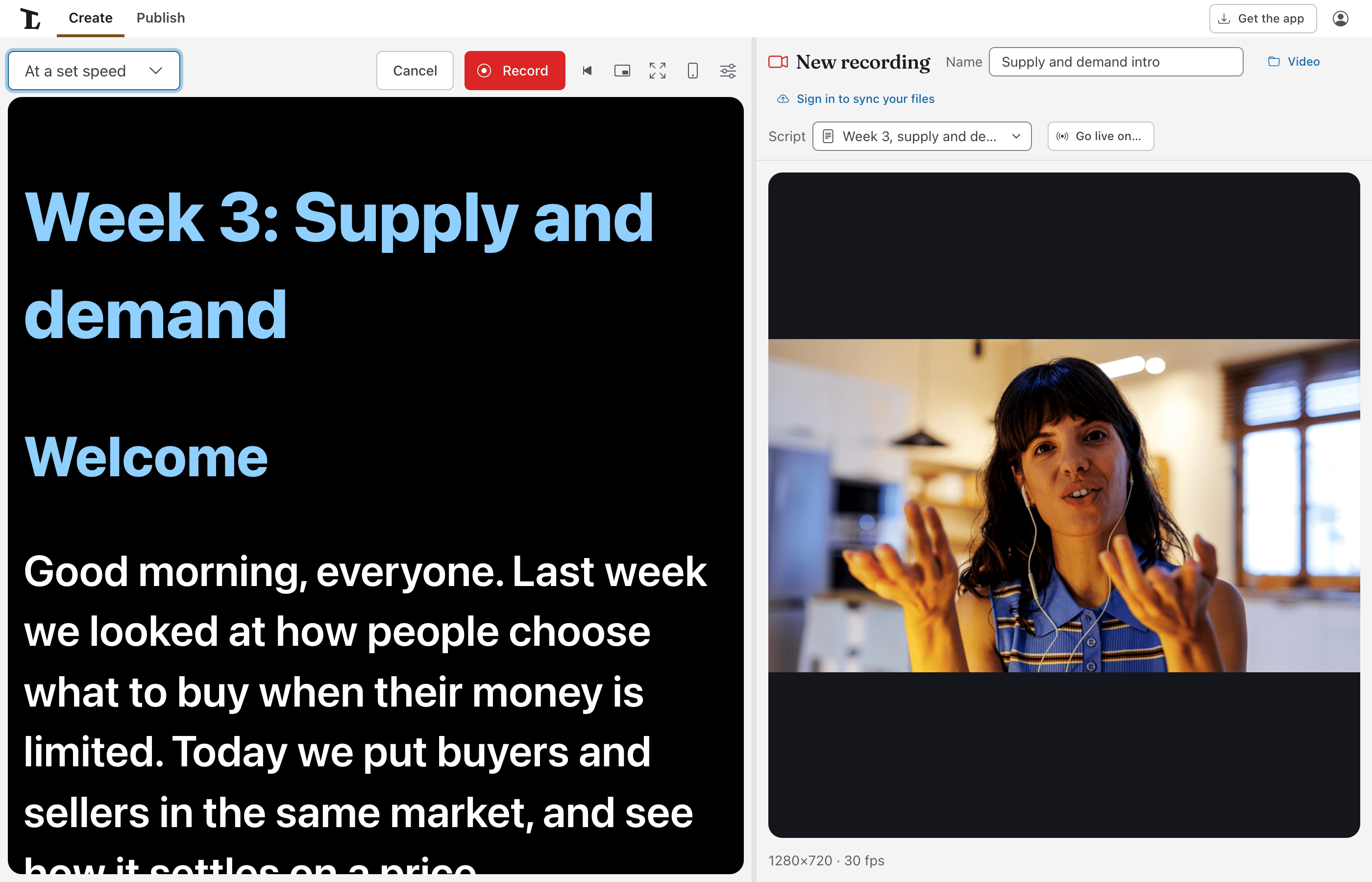
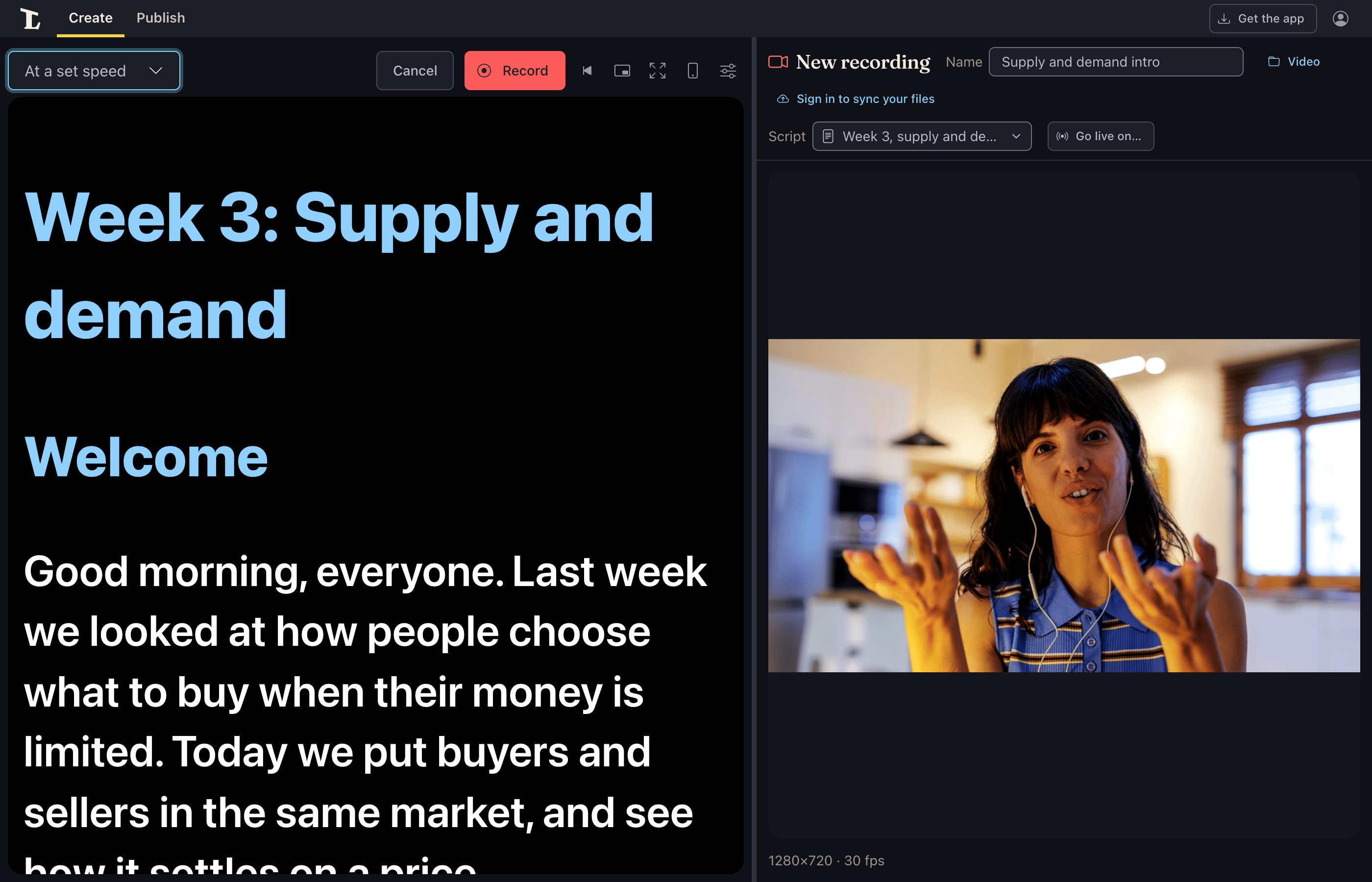
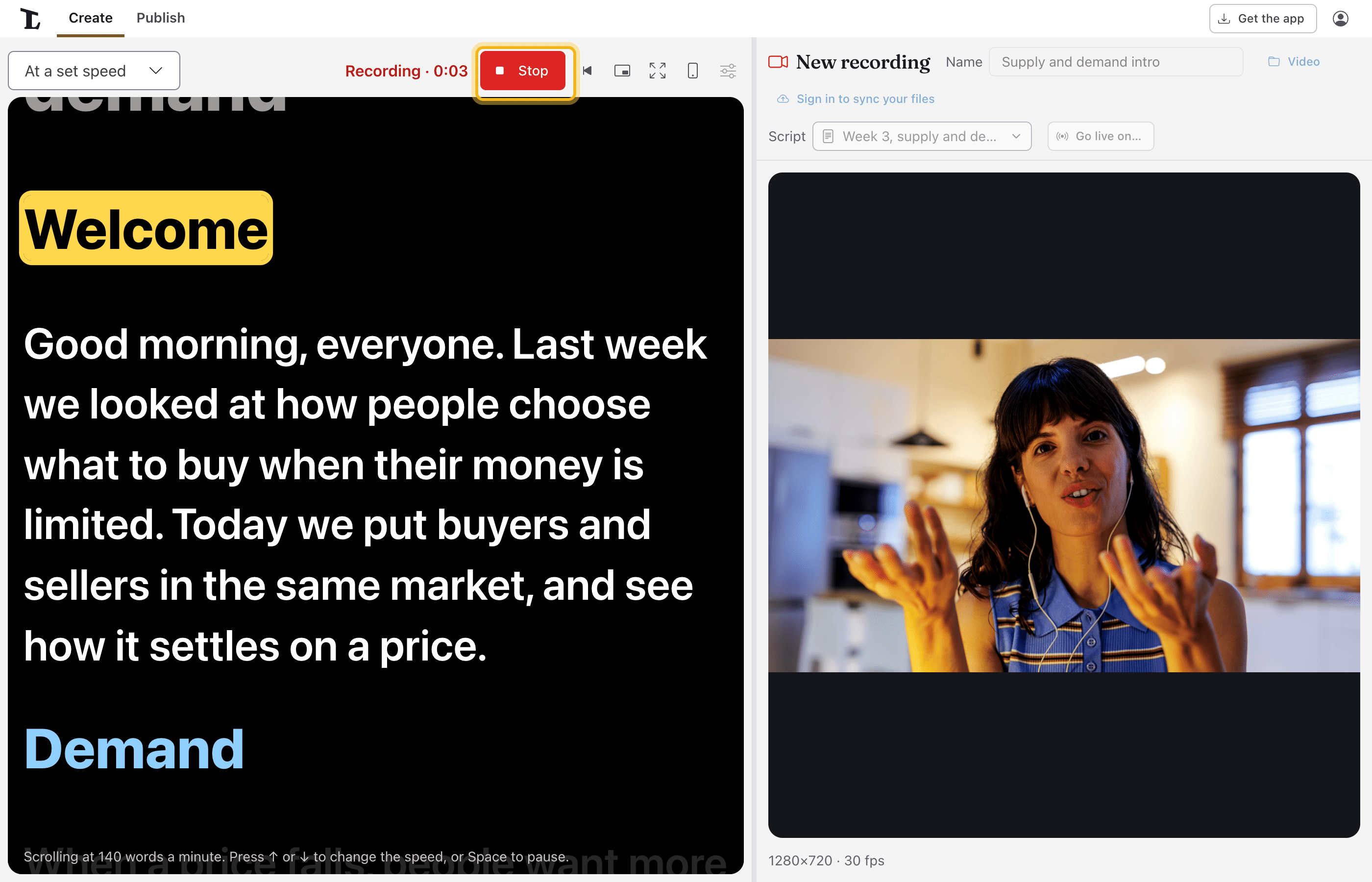
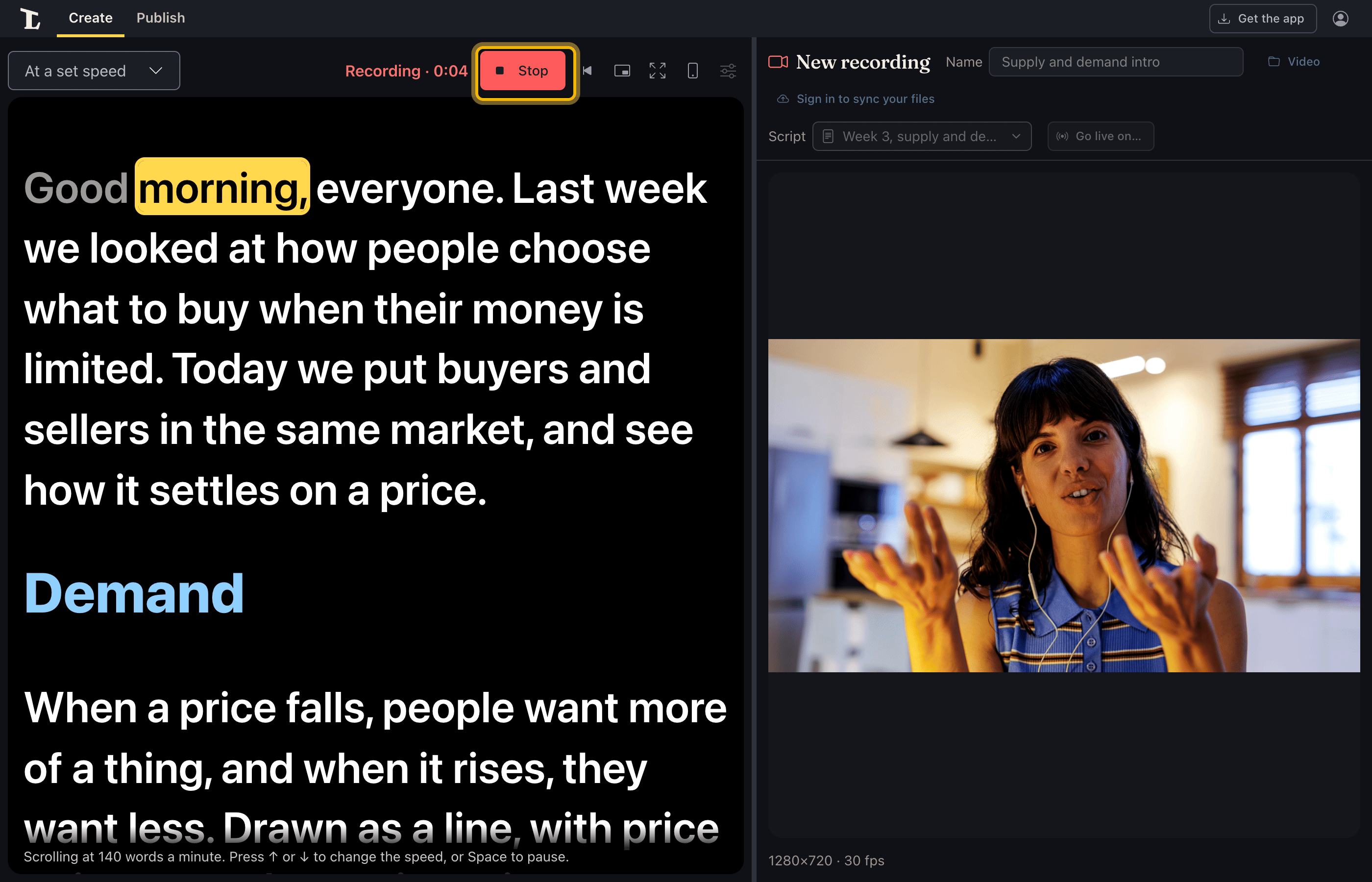
Check what you see. The prompter is on the left, the camera's preview on the right. At the top:
- Name: what the recording will be called. Left blank, it's named by the date and time.
- The folder it goes in (click to change it).
- Script: the script on the prompter. Click to pick another, or none.
Choose how the prompter scrolls (With my voice or At a set speed), as when practicing. Record and Cancel are on the prompter, above the script, where they're always in sight.
On a phone, everything above is there to set up first. Once you click Record (from the countdown on), the prompter takes nearly the whole screen, with a small preview under it, and the rest goes until you stop.
Set it up once, in Settings. Settings, in the menu at the top right, has the camera and microphone, the quality and a countdown before recording on its Recording tab, and on its Prompter tab where the prompter goes while you record: beside the preview, or above it (nearer the camera, so your eyes stay close to the lens). In the desktop app the prompter can also have a window of its own.
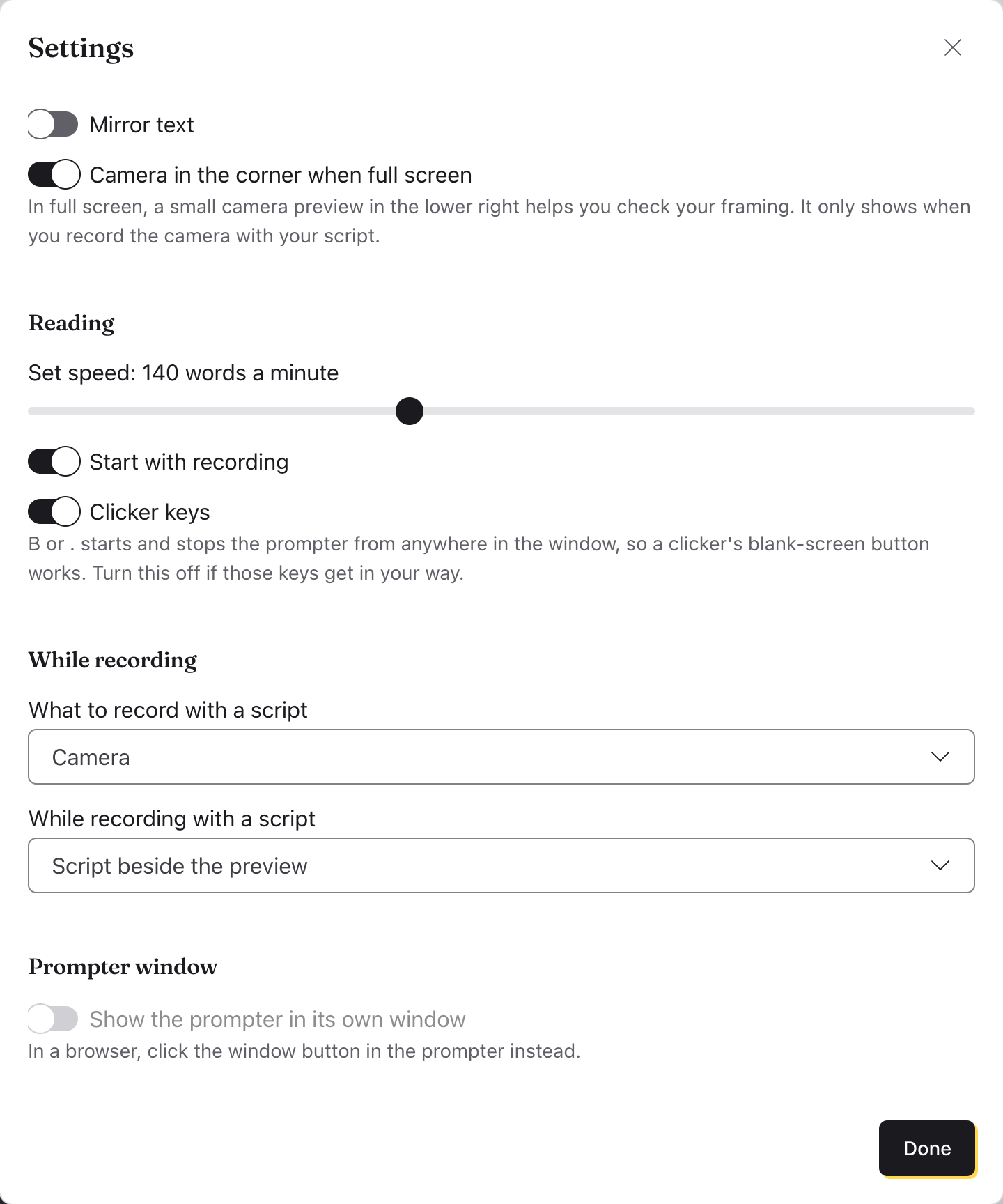
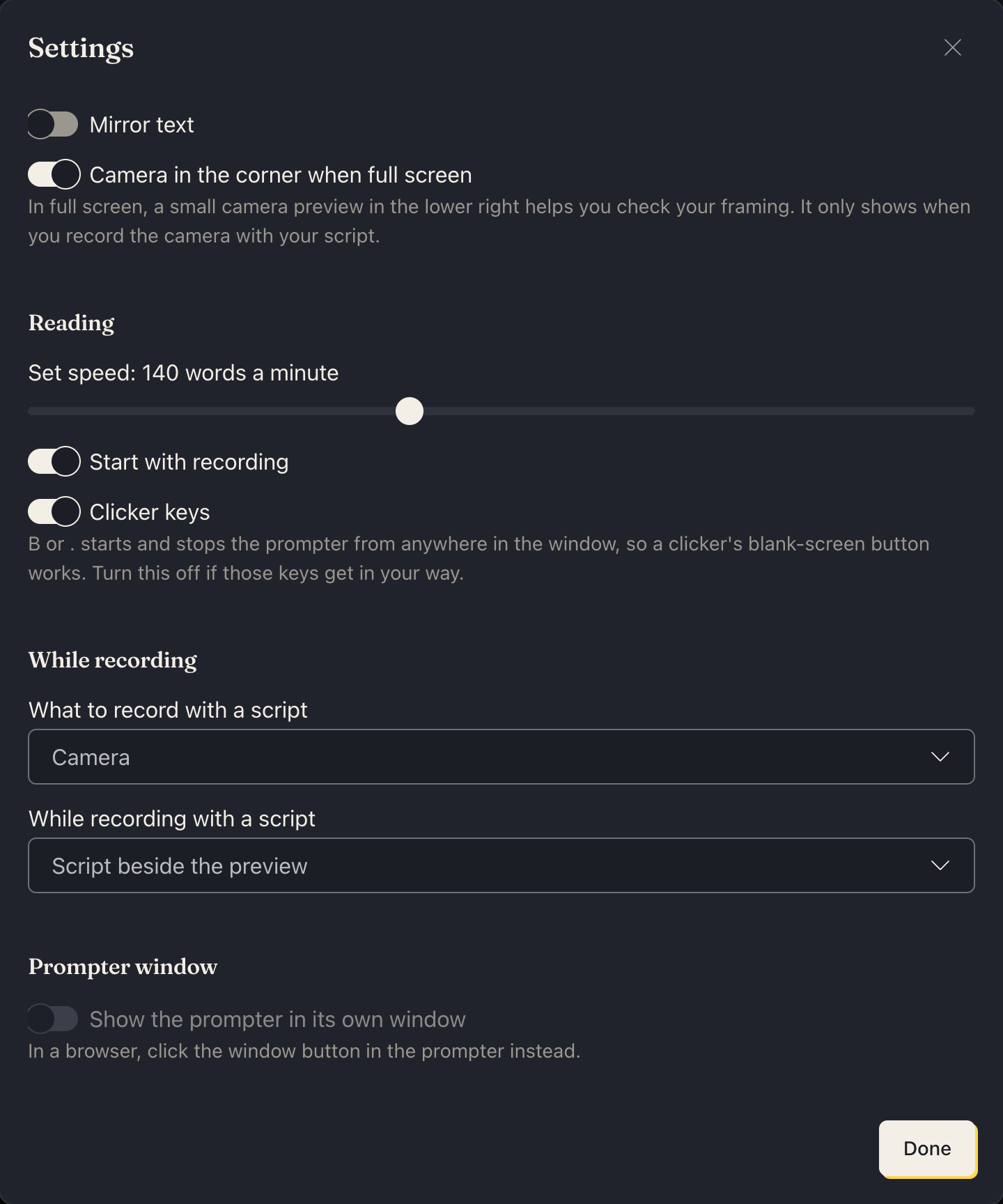
Record. Click Record on the prompter. If there's a countdown, it counts down first (Esc or Cancel stops it). The prompter starts with the recording, and the time recorded shows beside Stop.
A presentation clicker or a foot pedal works too: Page Down and Page Up move a line, and B or . start and stop the prompter.
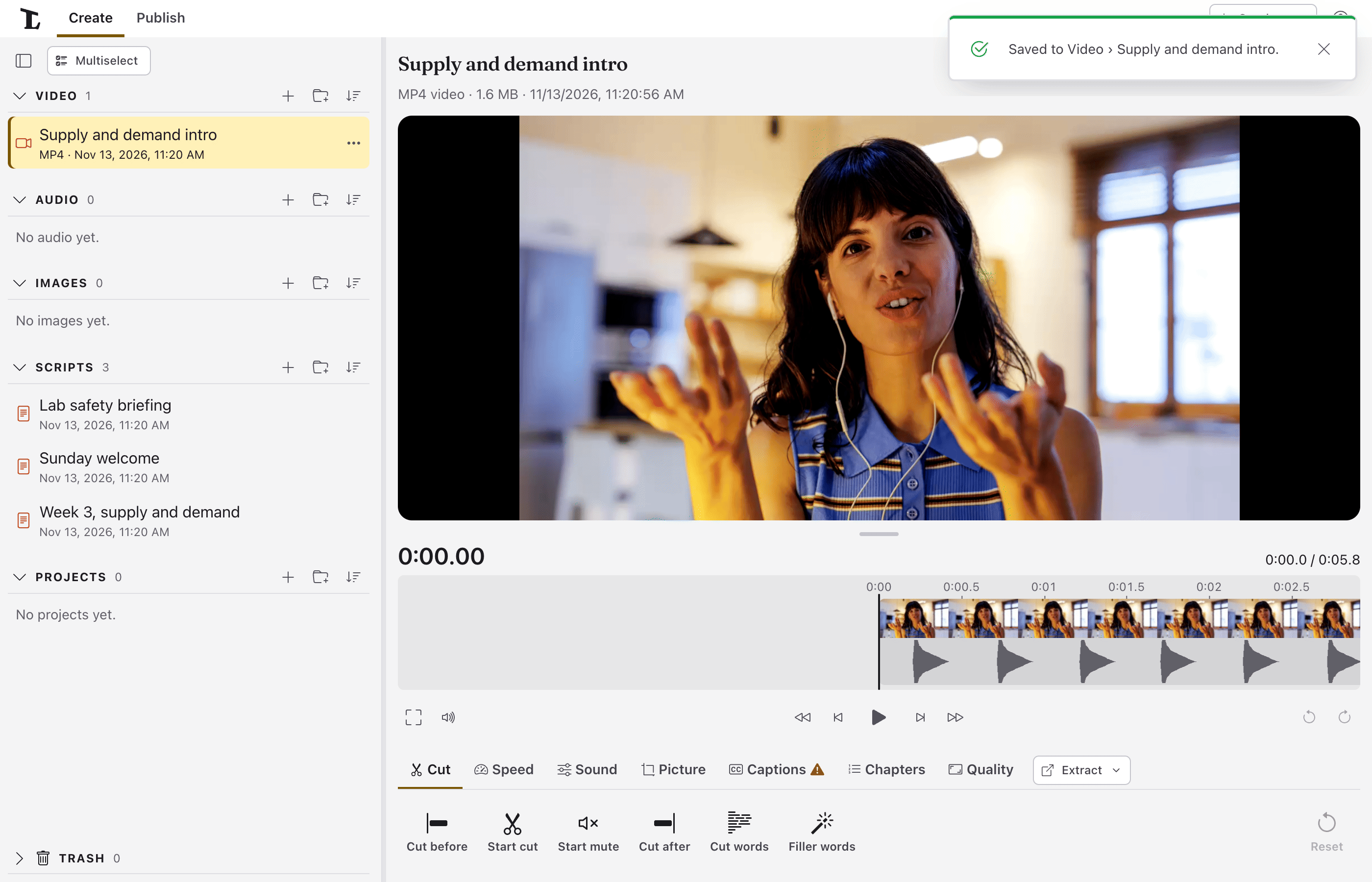
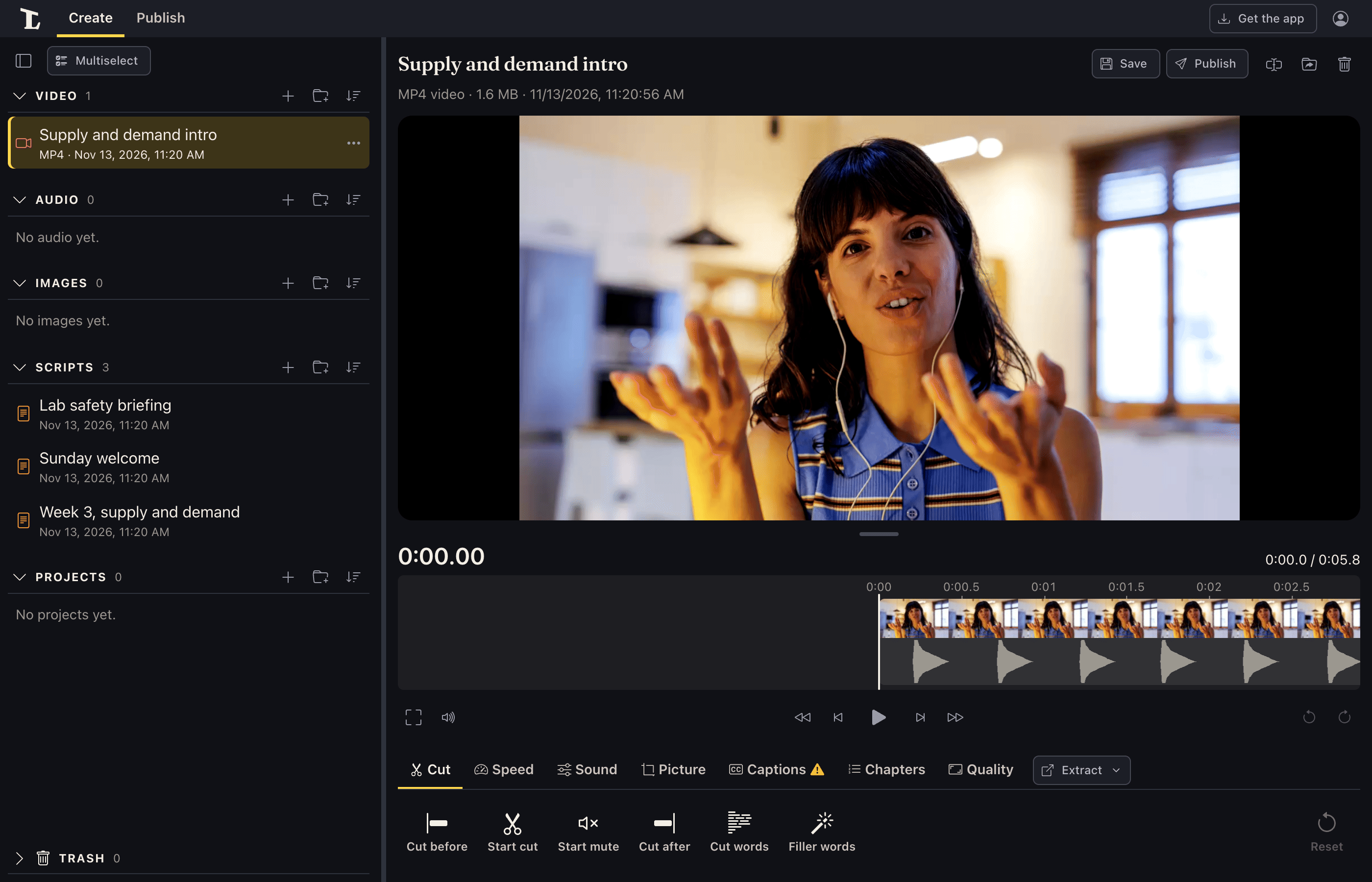
Stop. Click Stop. The recording is saved in Video and opens, ready to play, cut or caption.
Cancel leaves without recording anything.
Next
Something here wrong or unclear? Tell us.