Help Quick guide
Add captions, check them, and save them as a file
Captions worded like your script and timed to your voice, looked over, then kept with the video or saved as .srt or .vtt.
What you'll make: captions on a recording that viewers can turn on, and, if you need one, a captions file (.srt or .vtt) for YouTube, a learning management system, or a church's streaming service.
On your device. Captions are made on your device from what's said (with Whisper), in the desktop app, a phone app, or a computer's browser. The first time, it downloads the speech model once (148 MB in the apps, 139 MB in a browser, which keeps it). In a browser, captions are kept beside the video rather than added into it; they still play with it, go with a share link, and save as a file. A phone's browser can't make them, but can look over and edit captions a recording already has.
Open the recording in Video or Audio and click the Captions tab under it (Transcript for audio).


Choose how they're worded:
- From a script if you read from a script. Pick the script, and the captions use its words (spelled as you wrote them), timed to your speech. Words you skipped are left out; words you added are captioned as heard. Every place the captions differ from the script is listed above them, to check: a part you skipped (left out), a part you said differently, or something you added (both captioned as heard, so check their words). Play from there, fix a caption if it needs it, then choose That's okay. Until you do, the Captions tab shows a warning. Best for names and terms a recognizer might get wrong.
- Automatic if there's no script: the captions are what was heard.
- Edit captions to write them yourself: it opens the captions editor, empty if there are none yet.
The app follows common caption rules: two lines of about 42 characters, each on screen for 1 to 6 seconds.
Look them over. The captions open under the video, each with its times, and show on the picture as it plays. Click a caption's time to play from there.
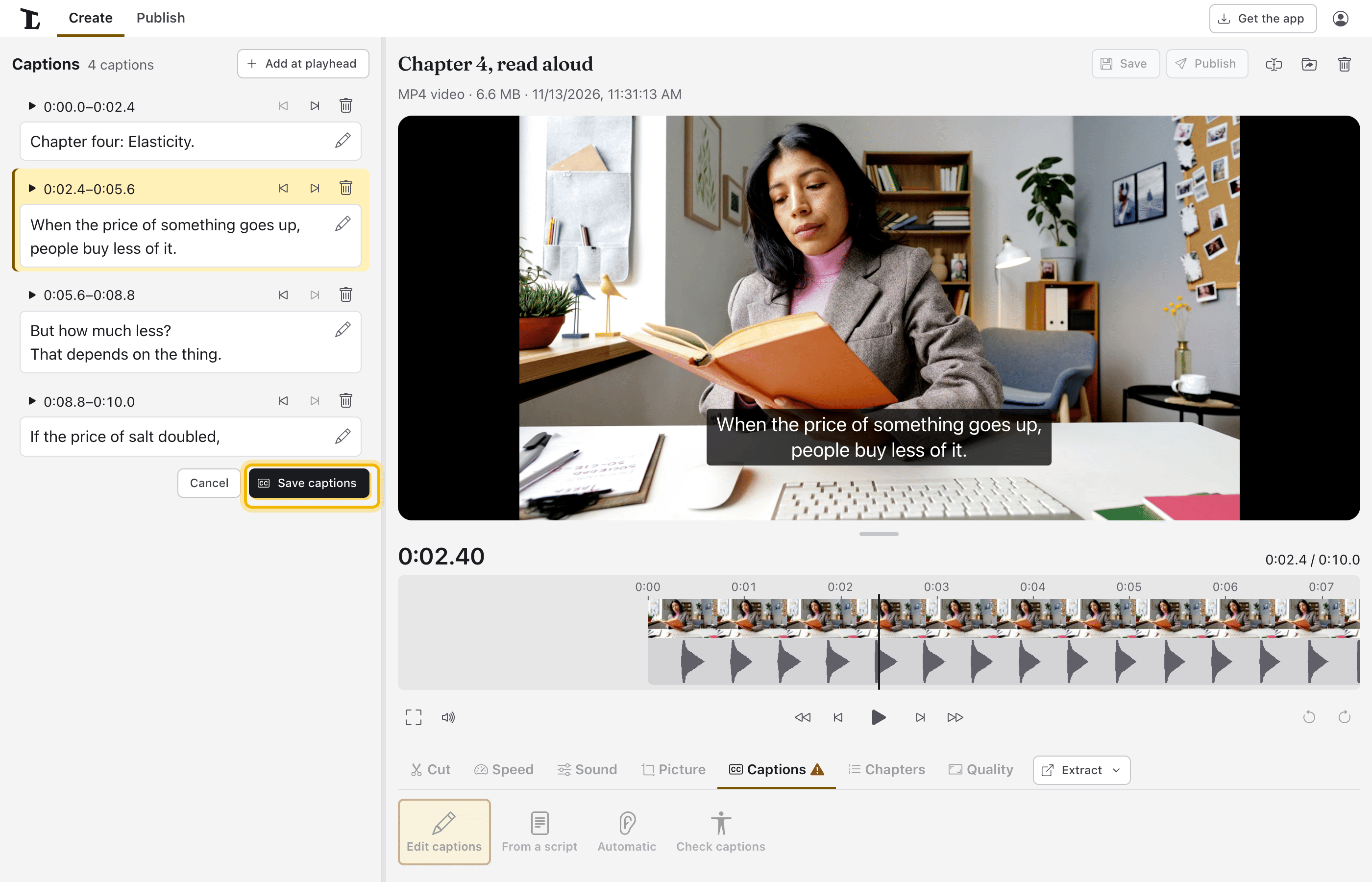
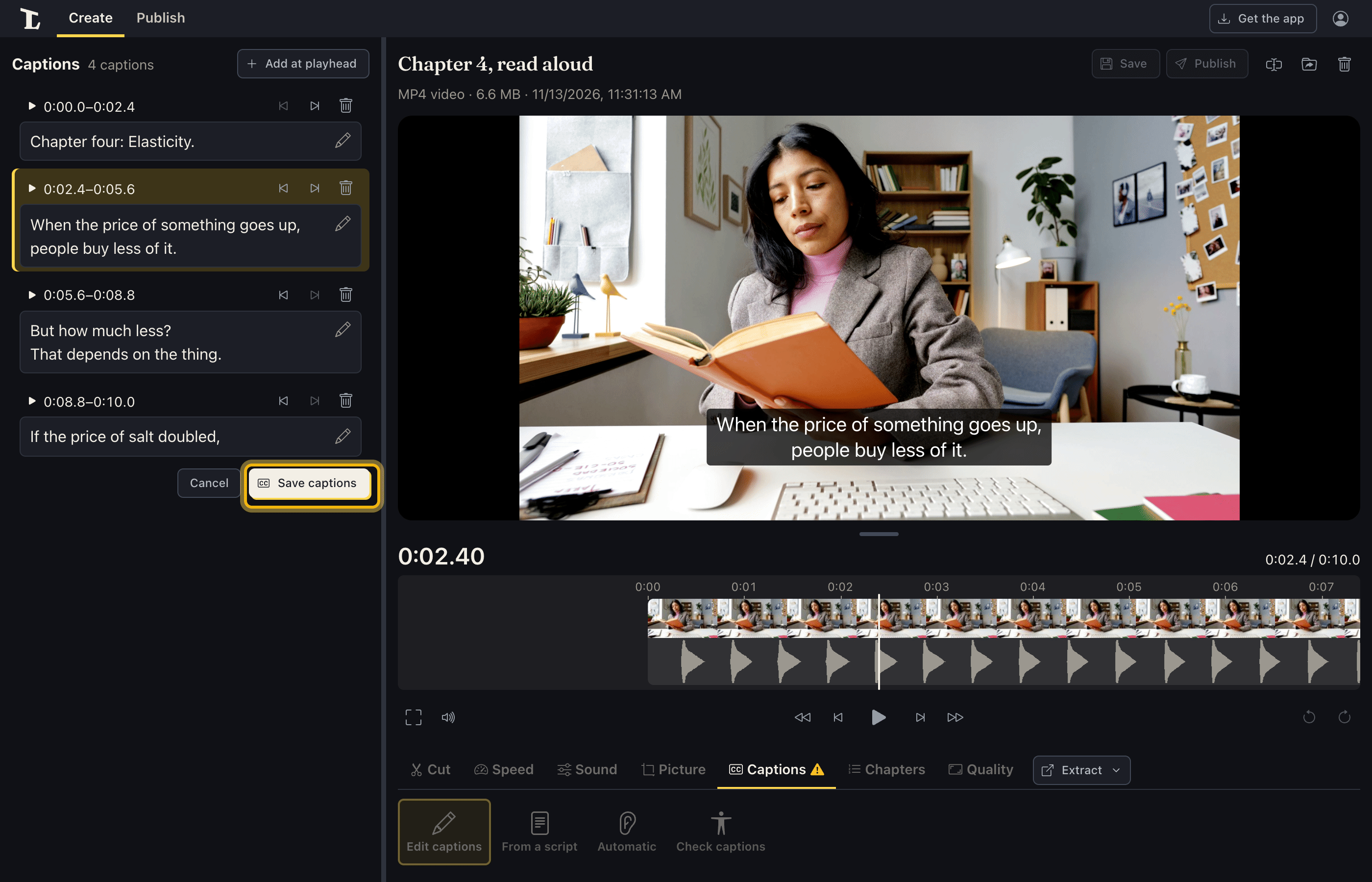
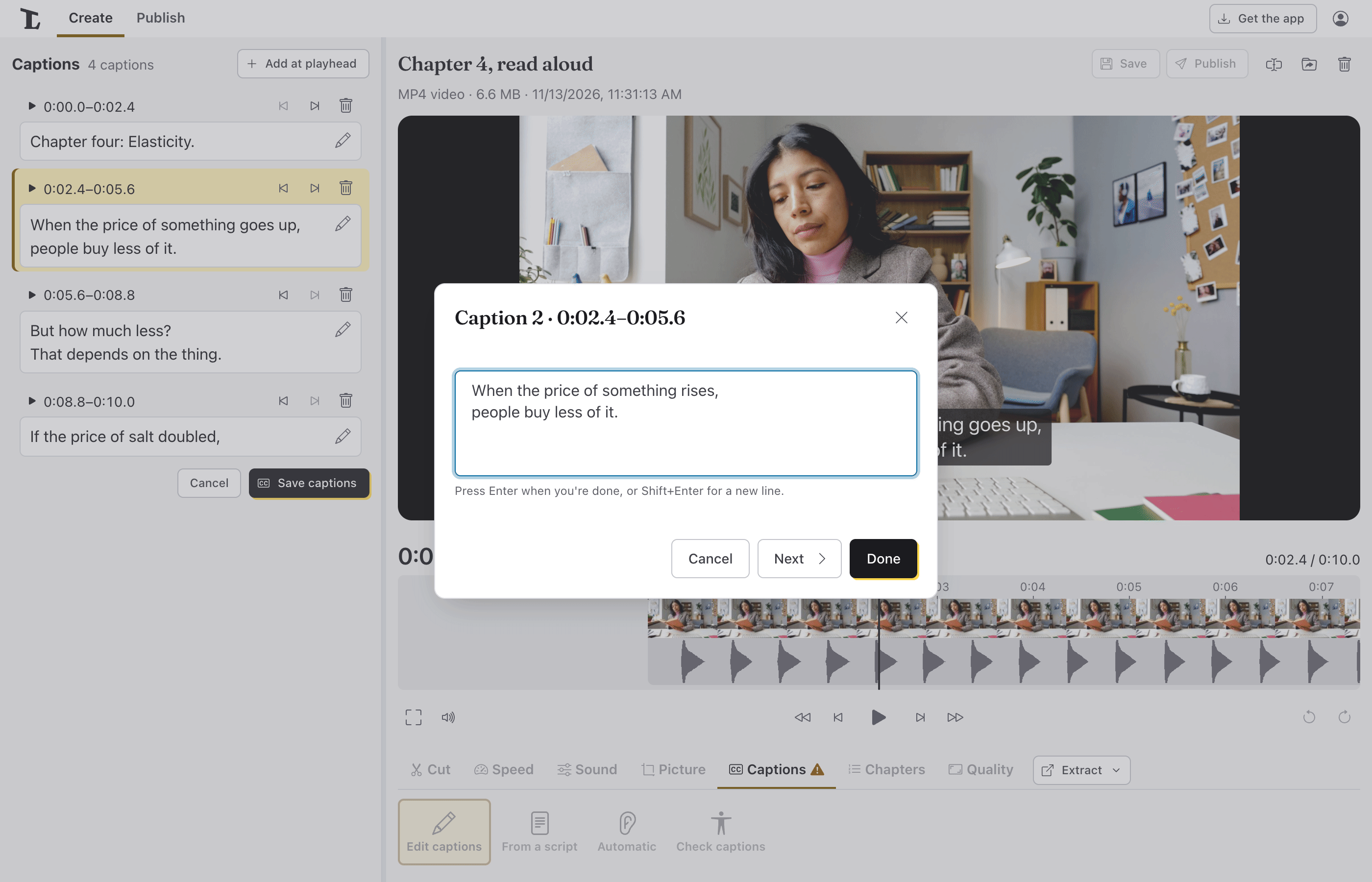
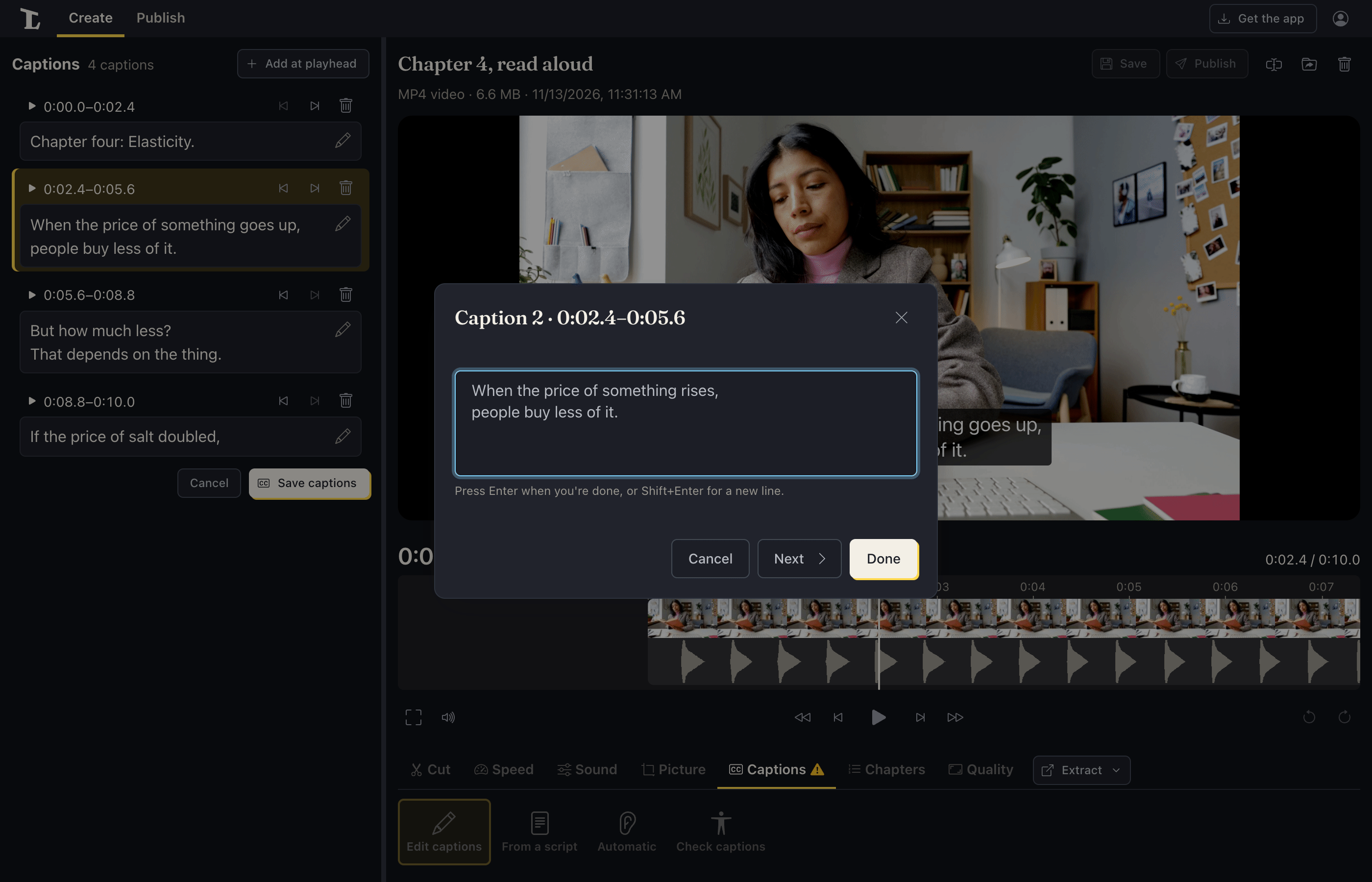
Fix what's wrong. Type in a caption to change its words. The buttons beside each one move its start or end to the playhead, or take it out. Add at playhead adds one where the video is.
Save them. Click Save captions. They're added to the video as a captions track viewers can turn on or off, and kept beside it. To change them later, click Edit captions in the Captions tab.
Check them. Check captions, in the Captions tab, compares the captions with what's said. Where there's speech with no caption, it adds one with the words it heard; where a caption doesn't seem to match the speech, it puts a warning on it and shows what it heard. Each one it flags says why: change it, take it out, or choose This is okay, then Save captions. When nothing is left to look at, the captions have passed, and the Captions tab shows a check mark. A warning on it means some are still to look at, or they haven't been checked (or have changed since).
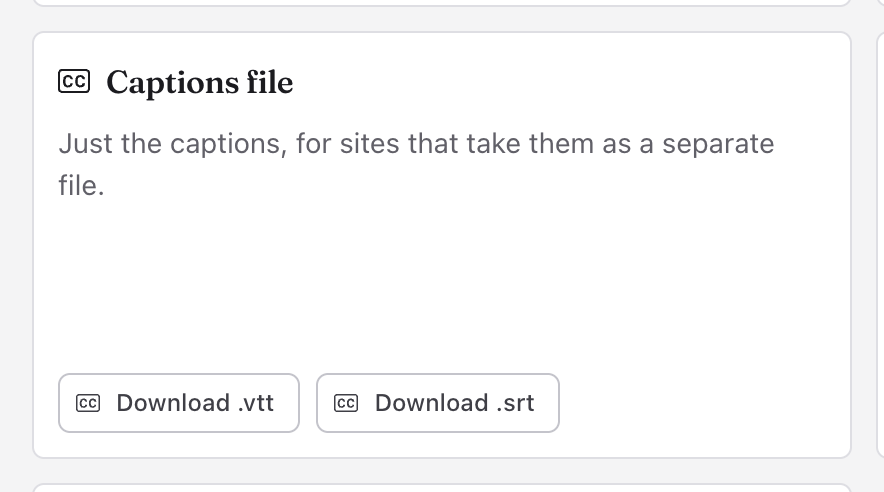
Save a captions file. Click Publish, at the top beside the recording's name, and under Captions file choose Download .vtt or Download .srt. (In the desktop app they're Save as .vtt… and Save as .srt…, which save the file where you choose; in the phone apps, Share as .vtt… and Share as .srt….) Most video sites and learning management systems take either.
Next
- Build a project and export a video: captions on recordings come along into the video.
- Captions, in depth
Something here wrong or unclear? Tell us.